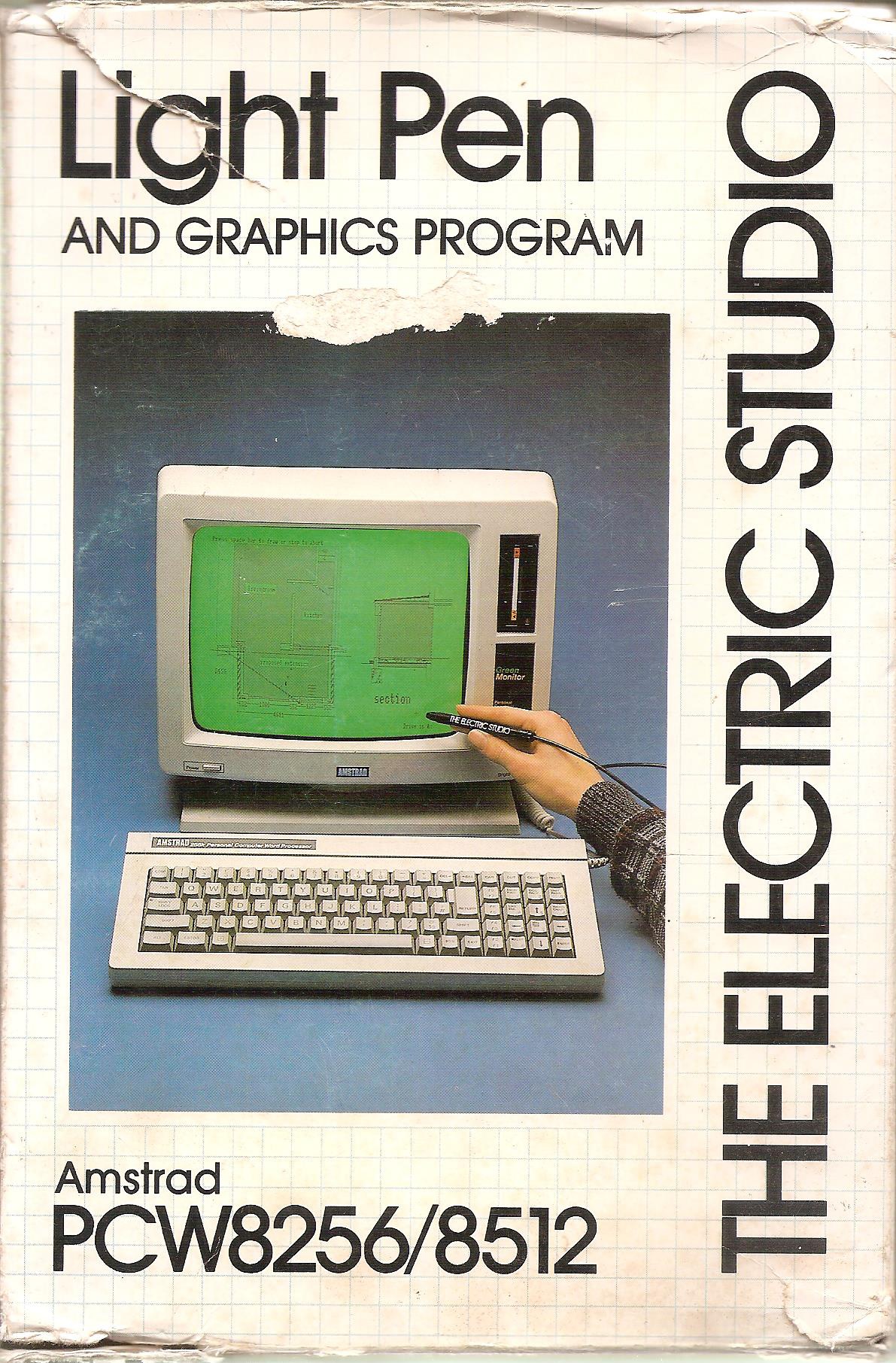
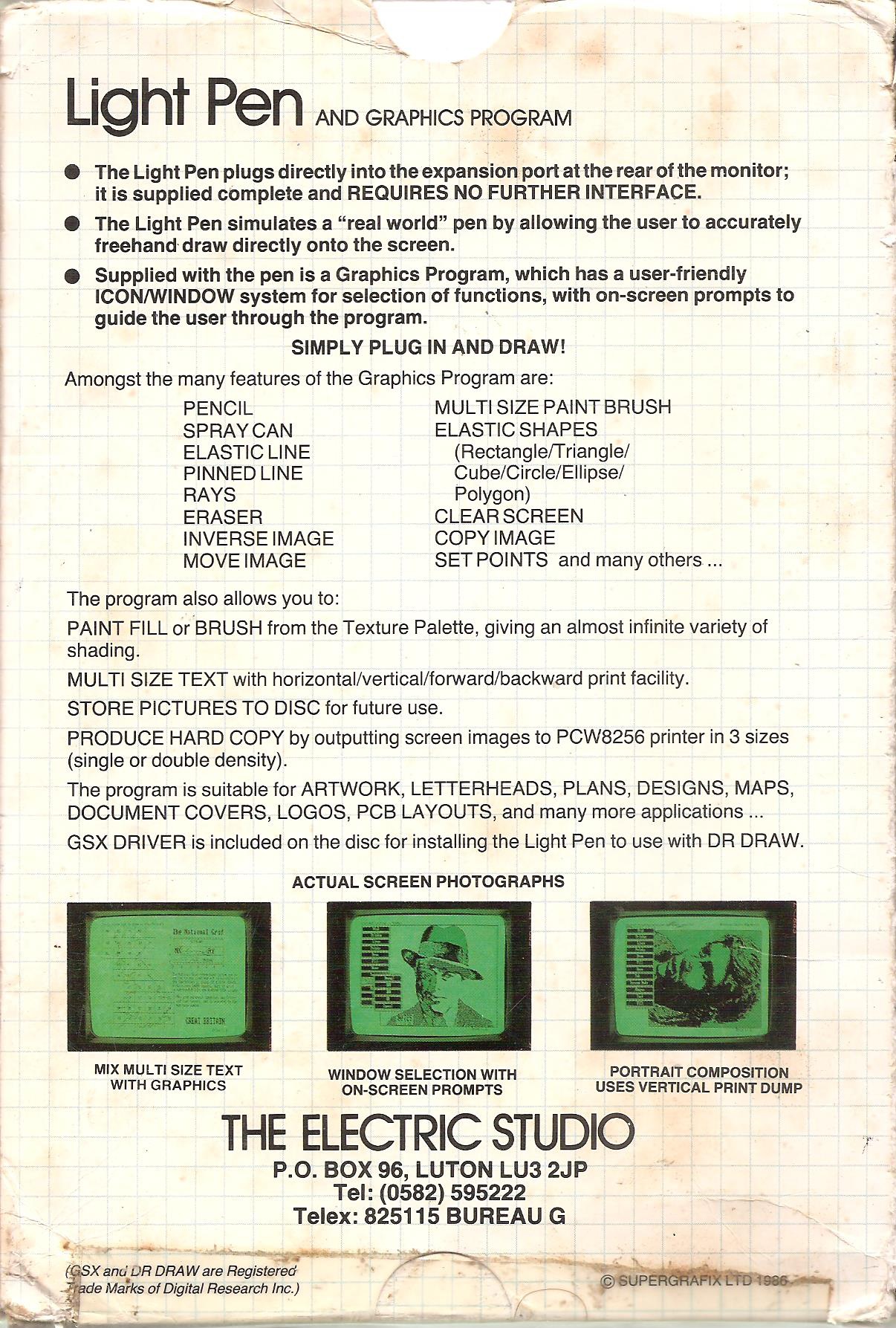
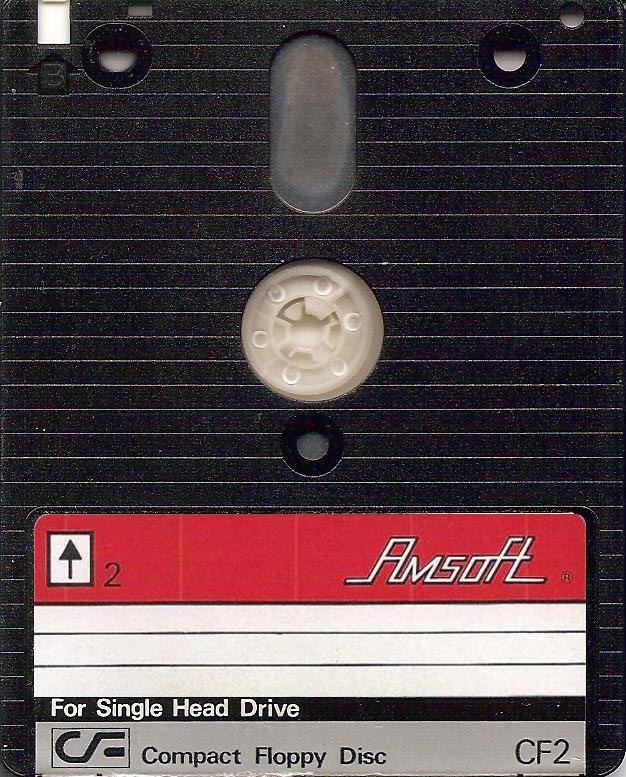
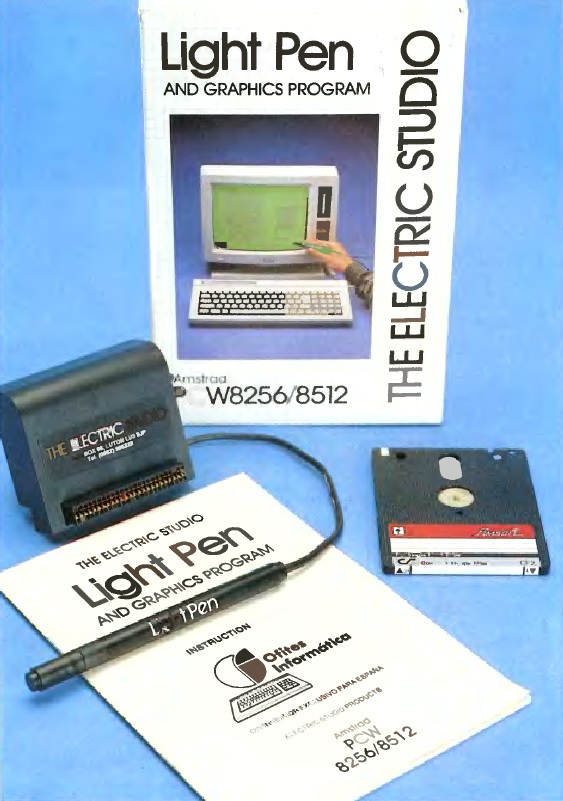
Ofites Informática introduced another component entry aimed at boosting the graphic threshold of the microcomputer: the Electric Studio Light Pen, paired with a specialized illustration software build compiled by Supergrafix Ltd.
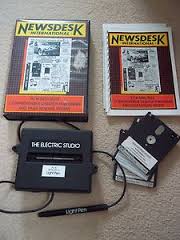
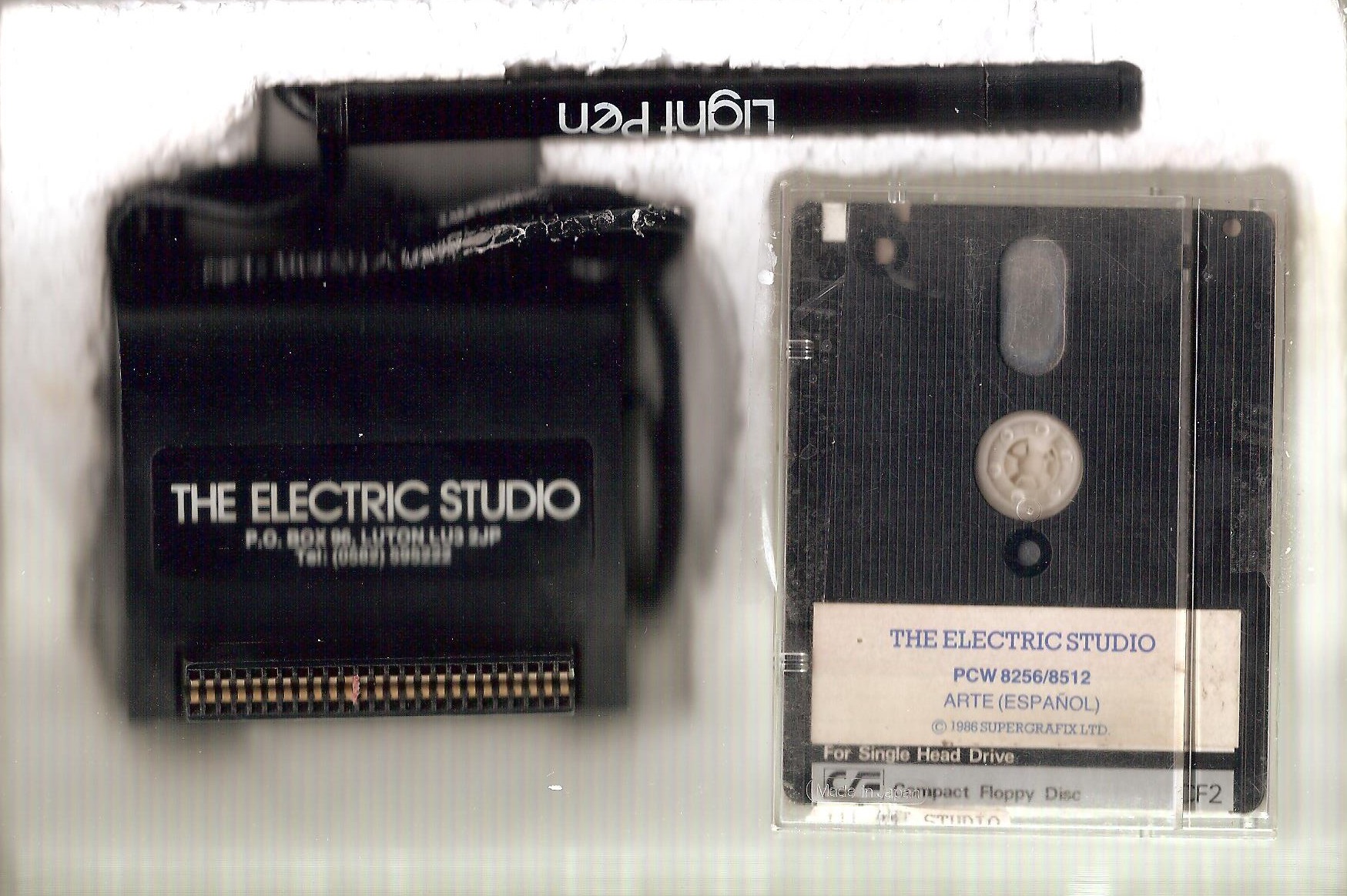
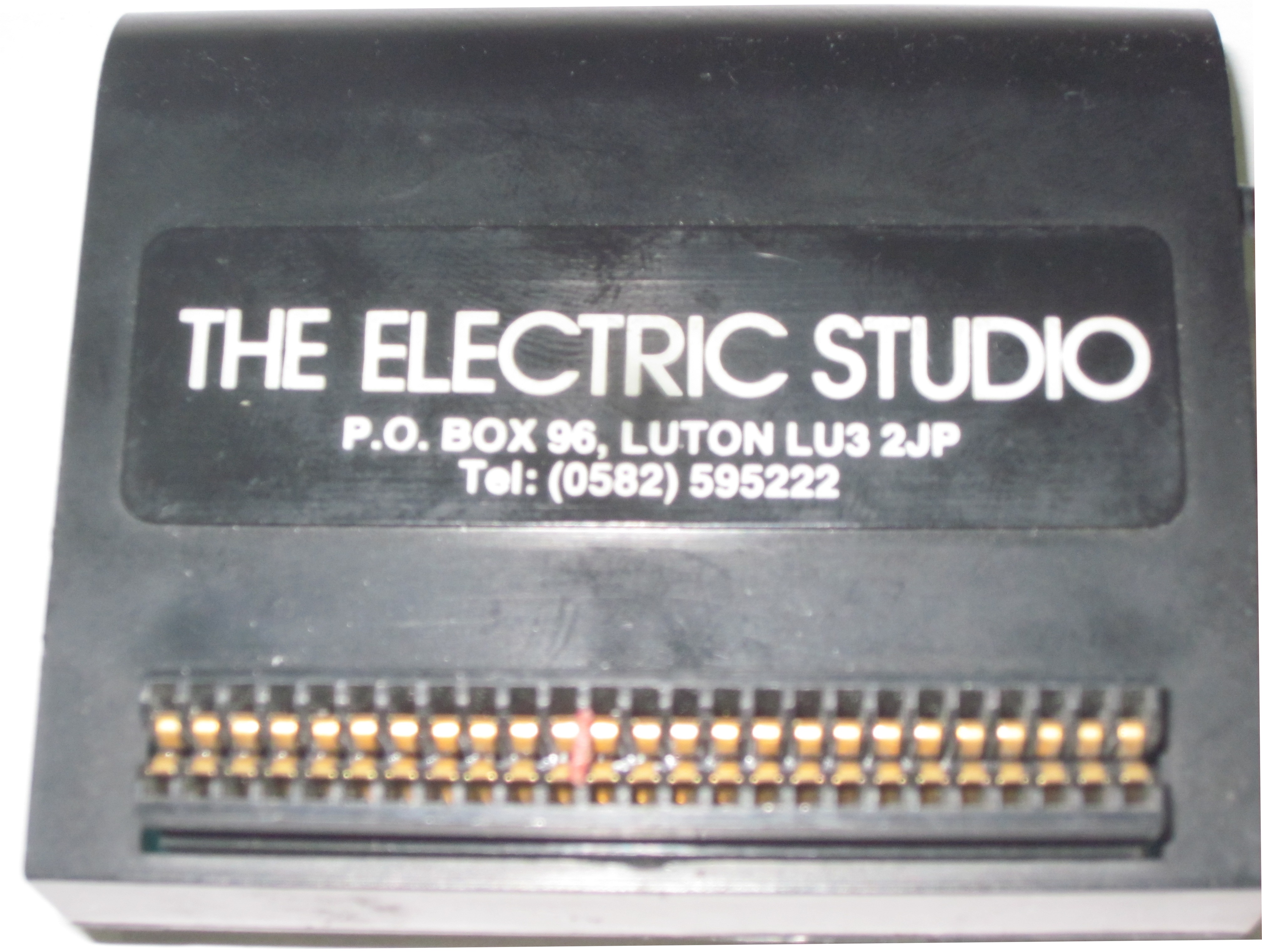
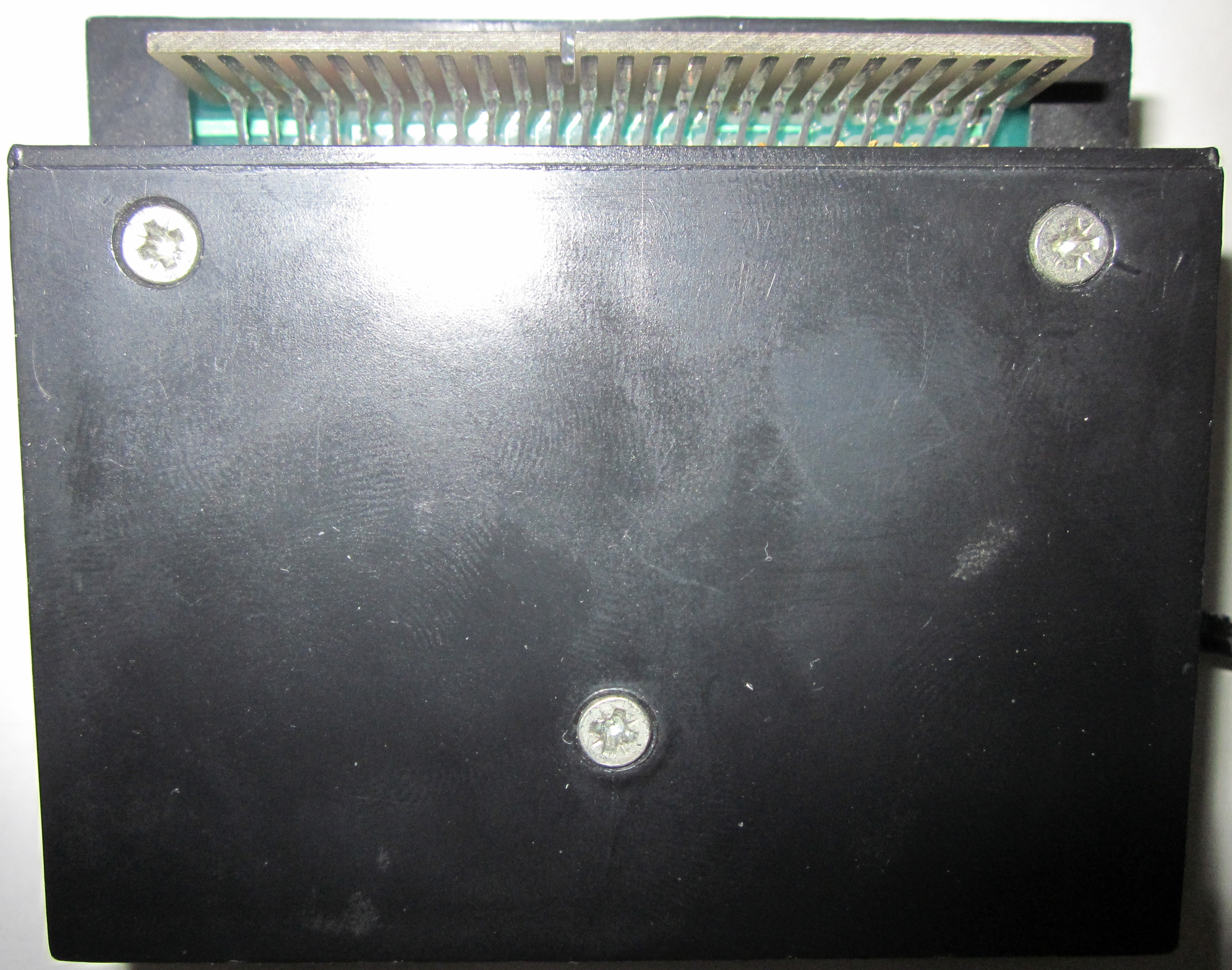
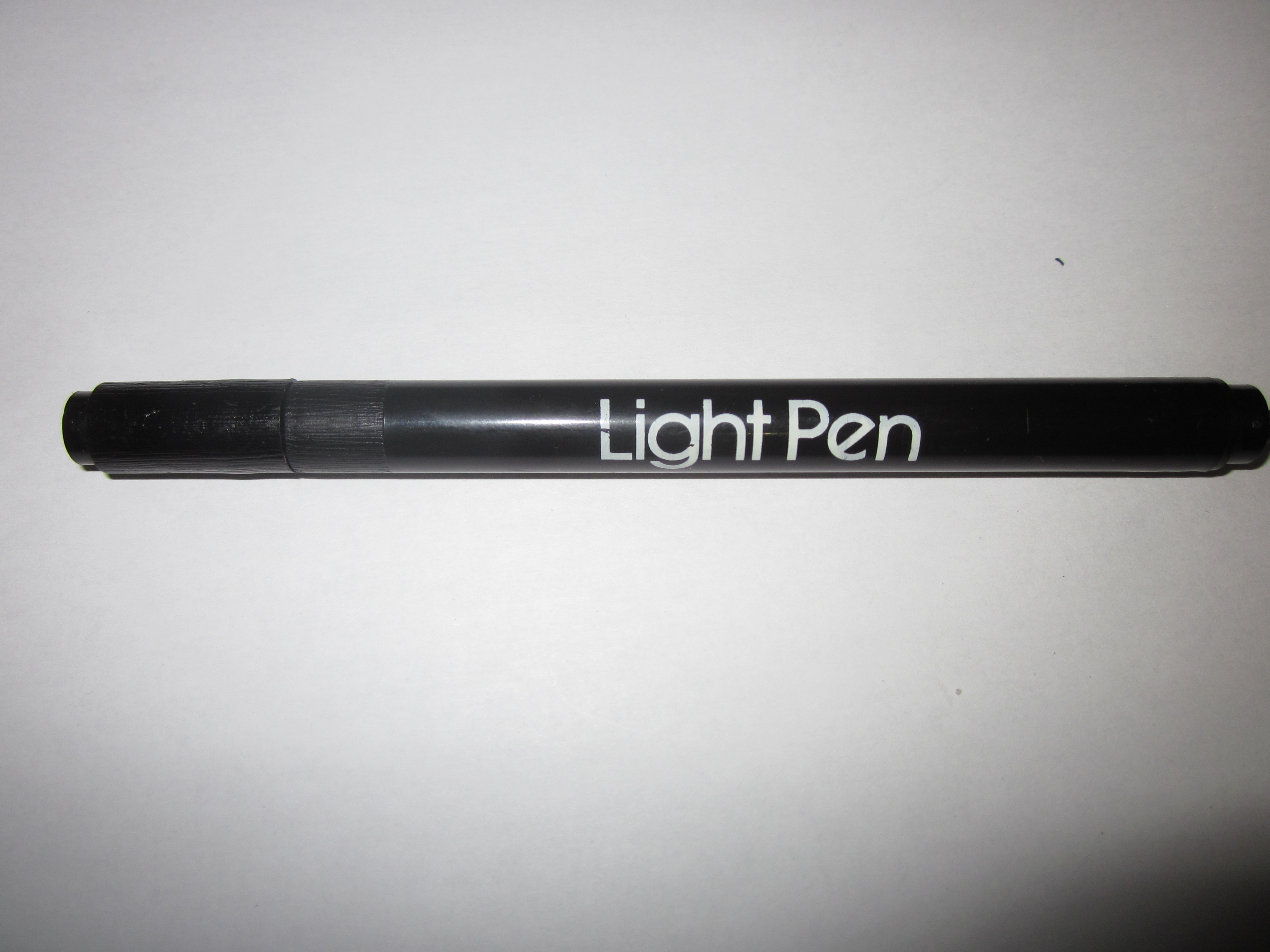
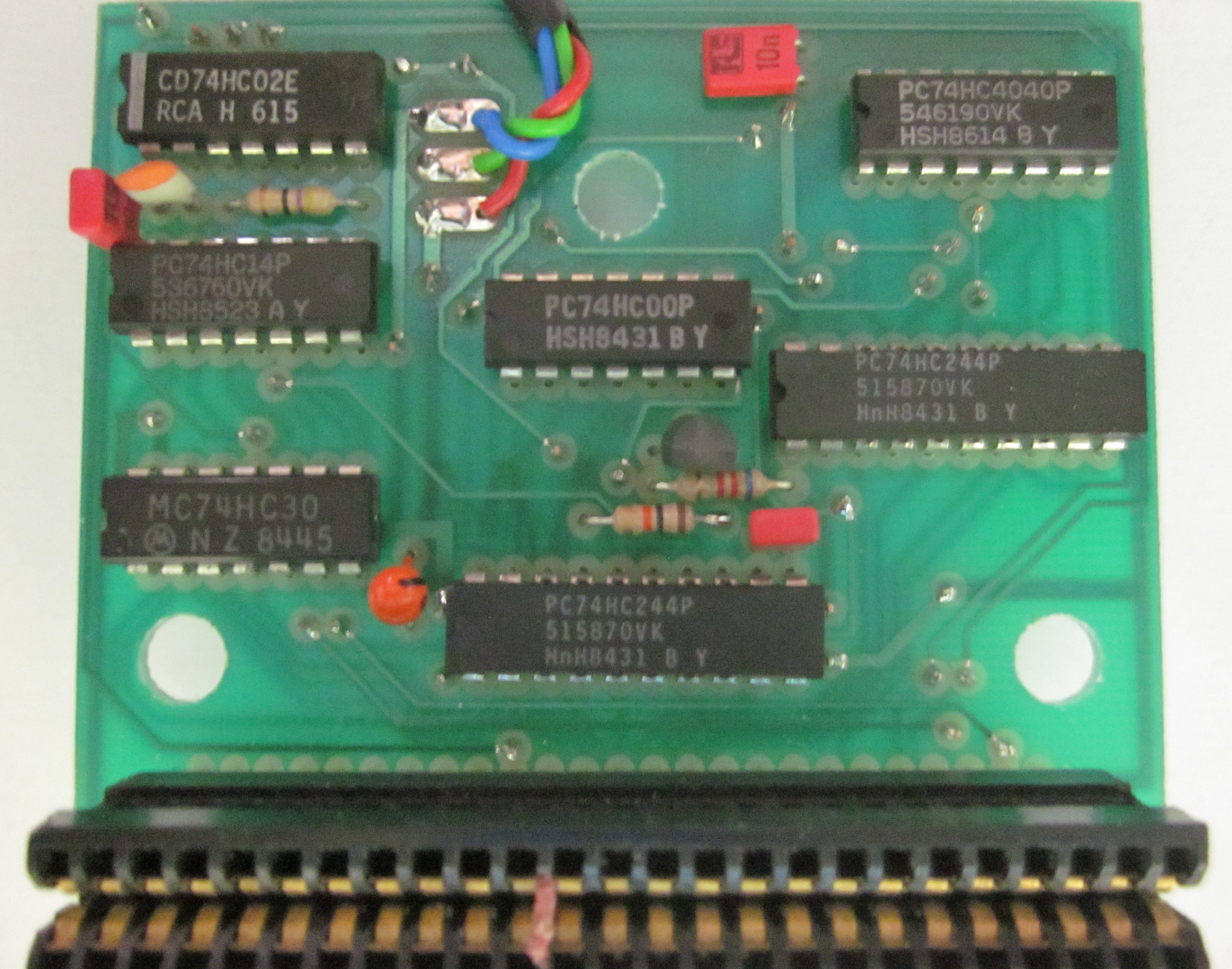
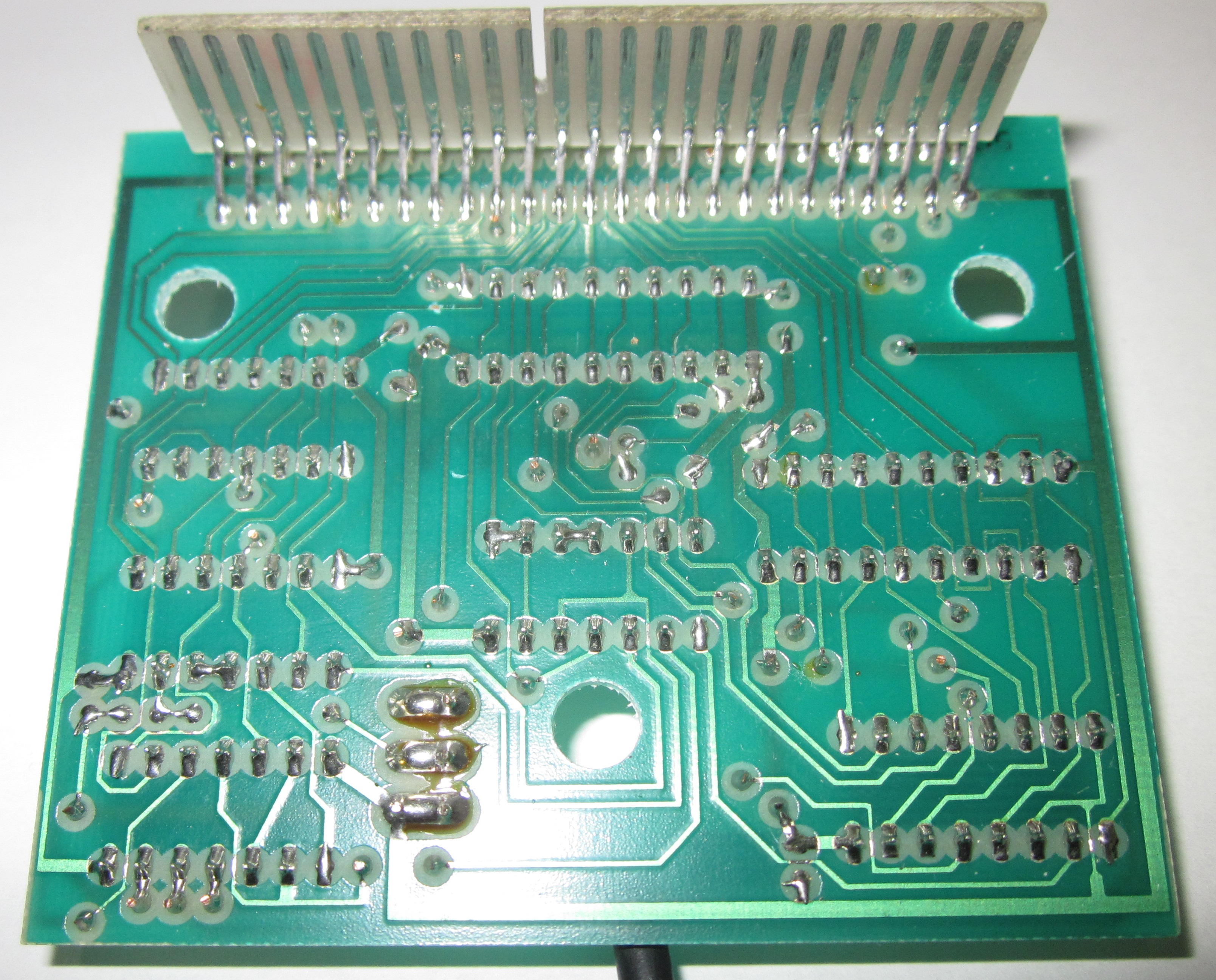
The kit hardware contains an optoelectronic light pen and a compact interface module mating straight into the expansion port. Regarding the pointer barrel itself, it incorporates a protective lens cap to block debris from obstructing the integrated photosensor layout. Looking closely at the interface module, board mounting executes seamlessly, though its structural casing profile causes it to fit slightly crooked when pushed home. It sports a duplicate expansion pass-through slot on its rear surface, yet the master instruction sheet advises operators to leave this port unpopulated. The tracking cable provides ample length, ensuring comfortable operations across the workspace area.
To begin with, given the intuitive structural format of the companion graphic software, referencing the manual is virtually redundant. Even so, reading it thoroughly prior to mating the hardware component remains highly recommended.
As you do, you will encounter one of the single most hilarious phenomena across the computing industry: local translation errors. This slim instruction manual booklet was localized by ALPHA Translation. Aside from the syntax typos considered standard in such instances, readers encounter archaic terms like "light-ink holder" when referencing the pen unit, or "polarizing wrench" when describing the keyway notch molded onto connectors to prevent reversed data alignment; or simply "keys" when referencing terminal switches. To top it off, the paragraphs freely jumble grammatical verb tenses without a care in the world.
All in all, this localized print booklet looks pretty awful, yet it provides enough data to map the basic operational variables of the hardware. Still, Ofites should have taken care of auditing these translation pages; in their current condition, they only lack comic speech bubbles to pass as a cartoon strip. It is a genuine shame that the software environment was localized utilizing these exact same terms—making the original unpatched English software build highly preferable.
This review article effectively replaces the original documentation; let's break down the primary features of the graphic software step by step.
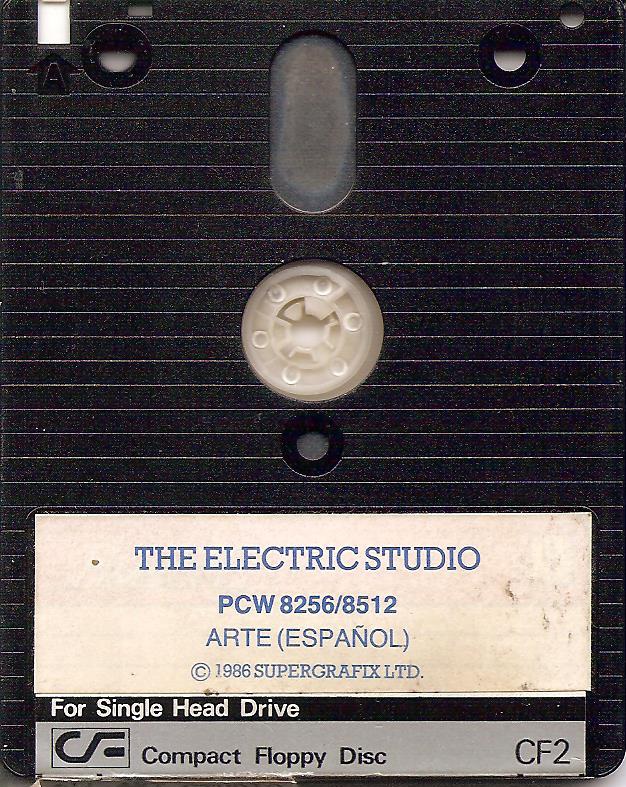
Rule Number One of computer hardware expansions: connect them strictly while the microcomputer is turned off. Once rule number one has been followed, simply boot your master CP/M layer, insert the companion utility floppy disk, and type art at the prompt. The software architecture loads entirely into internal memory, meaning you can safely swap out the utility volume and insert a dedicated storage disk to save your illustration records.
Fatal Constraint Number One of optoelectronic light pens: the terminal display runs incredibly bright, making operations painful without anti-glare filtering glasses. Once constraint number one is discovered—which on the PCW manifests as a bright, full-screen green canvas layer—we can begin interacting with the menu index. This parameters block sits on the left section of the display, yet it never obstructs your workspace canvas since it vanishes automatically while active drawing strokes are being traced.
Navigating the diverse options of the configuration menu requires hovering over them with the light pen barrel and tapping the Spacebar switch. Upon confirmation, the terminal speaker triggers the characteristically annoying PCW system beep. To silence this hardware feedback loop, simply tap the "s" key. Activating an option steps into a child sub-menu block. This can branch into a deeper nested sub-menu layer, and so on. To step back one level, tap the CAN key. Alternatively, if you need to escape straight to the master menu hierarchy, hit STOP. This architecture provides an exceptionally fluid way to cruise through the utility.
The first item listed on the menu tracker is Help. "Help" renders a live overlay detailing all terminal key combinations that have a functional purpose inside the suite, indicating exactly when they can be invoked (there are only fifteen variables in total, easily mastered through a small amount of practice).
The second menu directory governs disk input/output functions: saving and loading screen bitmaps, along with rendering file directory tracking index trees across any target storage volume (A, B, or M). The archaic translated documentation refers to this file tree directory index as a "guidebook". Graphic outputs are written using fixed-length encoding; this implies that regardless of how dense or intricate your illustration vector is, its byte footprint on the disk remains exactly identical. This choice severely caps disk storage capacity efficiency; a variable dictionary-dependent compression layout, matching the architecture used by DR DRAW, would have been a superior design selection.
The print layout menu is surprisingly comprehensive for an illustration package of this tier, hosting full options for vertical, downscaled, or standard scale output streams (which are mutually exclusive variables). However, such engineering perfection could not remain unblemished: benchmarks show that when printing at standard 1:1 scale, the raster output stretches vertically along the layout axis. Inside the other two scaling modes, this tracking aberration drops to almost imperceptible margins.
Following this block, we find the core design tools dedicated to plotting lines, generating freehand strokes, and rendering geometric vector forms.
"Lines" drops down a sub-menu index hosting "simple lines", "dashed lines", and "radial rays". simple lines are plotted by holding the ALT key while tracking the pen to lock its structural origin point, then releasing ALT to fix the target end coordinate. The term "dashed lines" does not actually mean a dotted linear array (another quirk of the manual translation team)—it represents chained polyline vectors, meaning the end coordinate of your last stroke automatically serves as the baseline origin for the next vector point, and so on. Lastly, radial rays are a series of linear vectors radiating outward from a single shared origin coordinate.
The "Draw" utility opens a nested block containing "ink barrel", brush, "spray box", individual pixel dots, and a full screen canvas clear routine. The localized environment uses "ink barrel" to define freehand drawing tracks. To paint along a vector pathway, the operator holds down the Spacebar while gliding the pen cap across the screen surface. This allows testing the core resolution tracking precision of this optical peripheral: it performs flawlessly until tracking approaches the far-right sector of the screen array. At that threshold, coordinate calculations degrade significantly—the on-screen crosshair cursor jitters wildly, rendering it virtually impossible to lock down or target a specific pixel coordinate. This tracking blind spot covers a vertical band spanning roughly one-sixth of the total display width.
The next parameter tier inside the master configuration tree is the Fill command. Selecting this tool opens a palette index hosting an impressive collection of fifty-four separate hatch texture options, alongside a solid flood fill variable. Tapping the Spacebar floods the bounded workspace area targeted by the pen barrel. Operators can abort this rendering loop midway through the memory fill phase.
Grouped under the "Shapes" index is a nested block allowing users to plot conventional triangles, three-dimensional prisms, regular rectangles, solid filled blocks, and 3D cuboids.
The remaining options inside the "Shapes" parameter tree manage polygon plotting, allowing configurations from three up to nine sides (note that these vectors warp significantly if stretched across large pixel limits), alongside circles and custom ellipses. These can be adjusted to any inclination and scale using an exceptionally simple vector-shaping loop: holding the ALT key while tracking the pen updates the primary diameter; tapping EXTRA stretches the ellipse eccentricity ratio and adjusts the angular vector inclination, while hitting the Spacebar locks the finalized geometric shape onto the canvas.
The system's native ability to generate typographic text string arrays is particularly spectacular. Activating "Text" opens a layout configuration box allowing users to select between "standard text", "upward text", "backward text", and "downward text" (which translates to rotating the type layout by 0, 270, 180, and 90 degrees respectively). Moreover, artists gain immediate access to nine distinct typographical scaling heights! Size one matches the baseline system type of the PCW terminal; size nine scales up to a screen height of almost five centimeters. Absolutely brilliant engineering.
Under the core workspace utility toolsets, we have grouped the following subsystem nodes: "utilities", "ink color", and "ink mode".
The utilities sub-menu allows designers to grab, translate, and duplicate rectangular marquee canvas selections (at identical scales) or execute "focusing"—more commonly known across modern design environments as a pixel zoom macro. This zoom routine magnifies the canvas layer (at a single fixed ratio), allowing users to manipulate individual pixel arrays with crystal-clear precision.
"Ink color" handles, as one would expect under the native PCW display hardware constraints, a very lean set of variables: standard green illumination and what the system environment translates as "rollback"—which simply means black, rendered in the classic broken style of ALPHA Translation.
Lastly, "ink mode" governs logical pixel blending routines, hosting the following Boolean operators: Normal, XOR, AND, and OR. This implementation enables, among other production tricks, easy error-correction steps by selectively masking out canvas artifacts. This outcome cannot be achieved using the conventional EXTRA+DEL command combo, which solely purges the very last plotted vector from the memory stack (by the way, the localized manual incorrectly instructs users to press ALT instead of EXTRA for this macro).
And here ends our cruise through a software architecture that stands as incredibly sophisticated in certain areas while remaining remarkably bare-bones in others; we noted a definitive absence of production-tier layout facilities such as unrestricted free rotation of geometry, custom symbol definition libraries, graduated multi-ratio zoom steps, or automated canvas centering tools. Prior to sourcing this hardware kit, operators should audit whether its production thresholds match their drafting requirements.
The application floppy disk bundles an integrated hardware system device driver that can be referenced inside your master ASSIGN.SYS configuration. This driver file is labeled DDESP.PRL and strictly requires the background presence of the display card controller driver DDSCREEN.PRL inside the same directory to execute successfully. When patched into any production suite utilizing the native GSX graphic subsystem layer, it allows users to manage graphic input crosshairs directly with the physical light pen barrel. This system driver also introduces a neat accessibility feature, allowing users to invert the entire display global color palette by hitting the "b" key during active graphic input polling. We benchmarked this integration by appending DDESP.PRL into the ASSIGN script powering Dr. DRAW, alongside our active printer target driver. The resulting workspace layout becomes vastly more comfortable to pilot (Dr. DRAW is famously tedious to maneuver without a dedicated light pen expansion). That is not all; developers can tap this light pen integration inside custom development environments like the CBASIC compiler, unlocking the ability to compile standalone, autonomous software binaries that natively parse optoelectronic graphic input streams through this hardware peripheral.
This seamless integration with GSX ecosystem layers stands as the single truest strength of this hardware kit; if your daily production cycle relies heavily on vector layout tools like DR DRAW, adding this peripheral to your workstation setup is fully worth it.