| Company | Creative Technology |
| Publisher | Creative Technology |
| Year | 1990 |
| Packaging | Cardboard box |
| Compatibility | PCW 8256 - PCW 8512 - PCW 9256 - PCW 9512 |
| Hardware | To PCW expansion bus |
| Genre | Scanner |
| Language | English |
| Price | England: £179.00 |
| Status | Preserved |

A> PRO SCAN
Hardware Presentation
Presentation 1Presentation 2Presentation 3Presentation 4Screenshots
Screenshot 1Screenshot 2Screenshot 3Screenshot 4Screenshot 5Screenshot 6Screenshot 7Screenshot 8Description
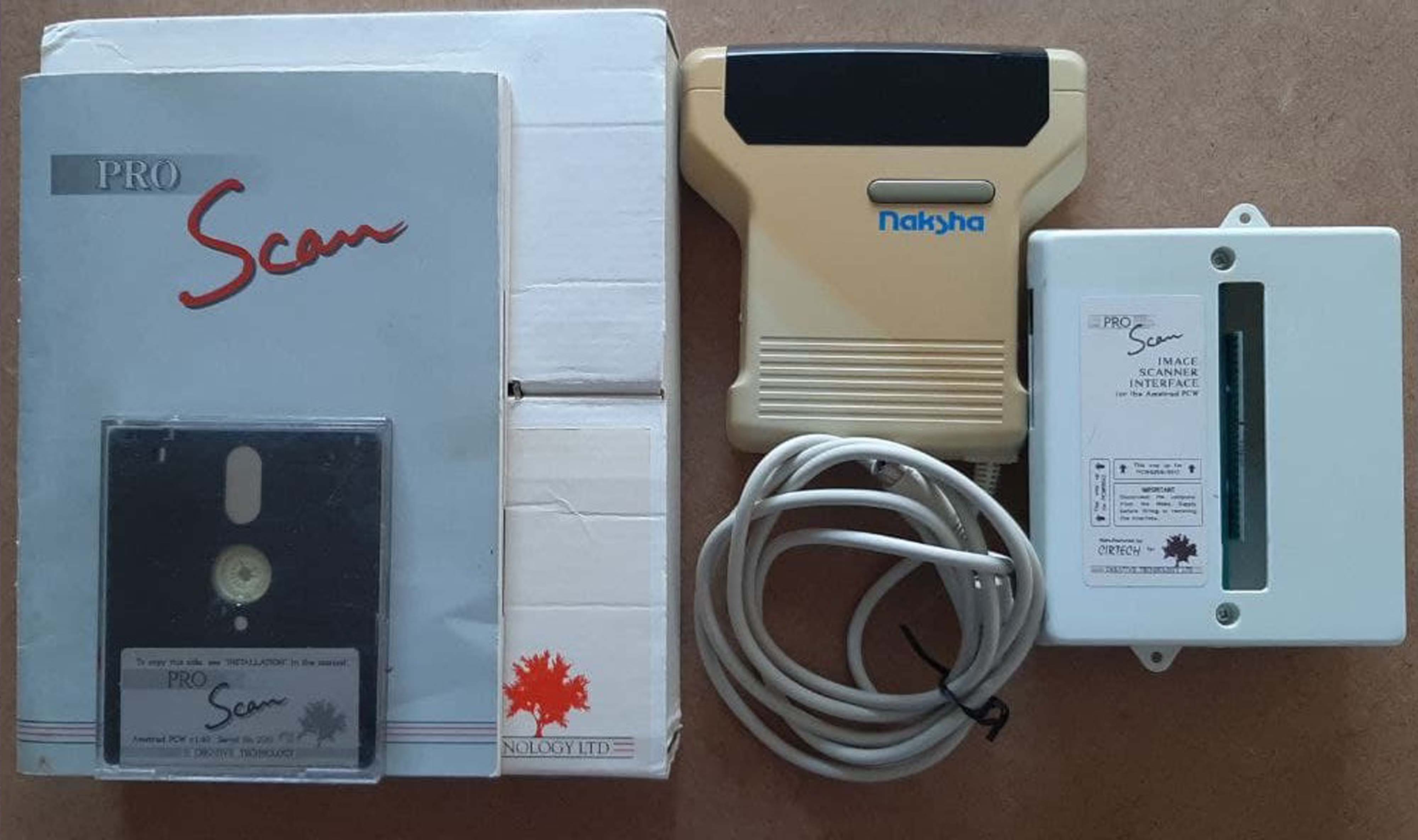
The CT Scanner from Cirtech is an image capture device that connects to an interface placed in the expansion port of the PCW.
Interface Functions
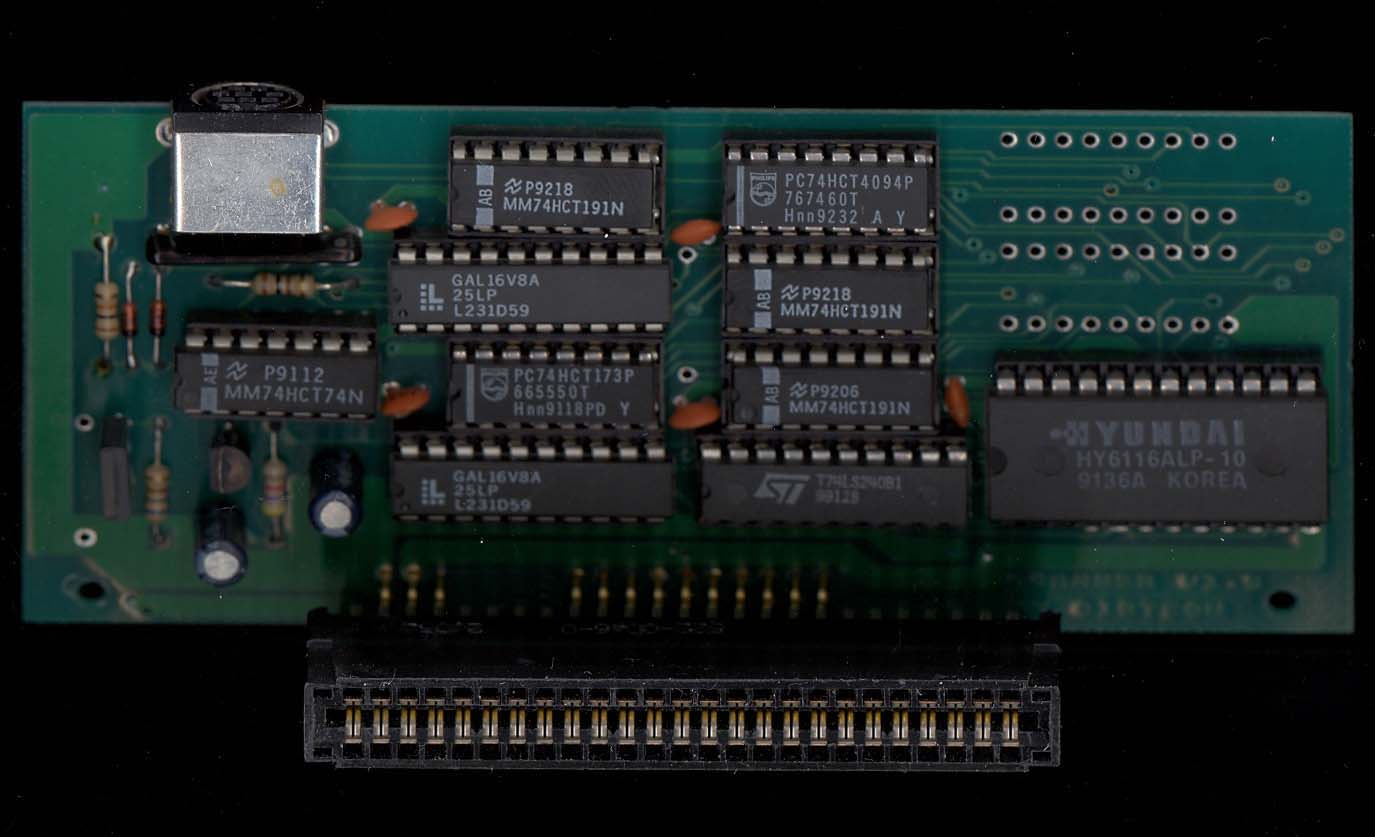
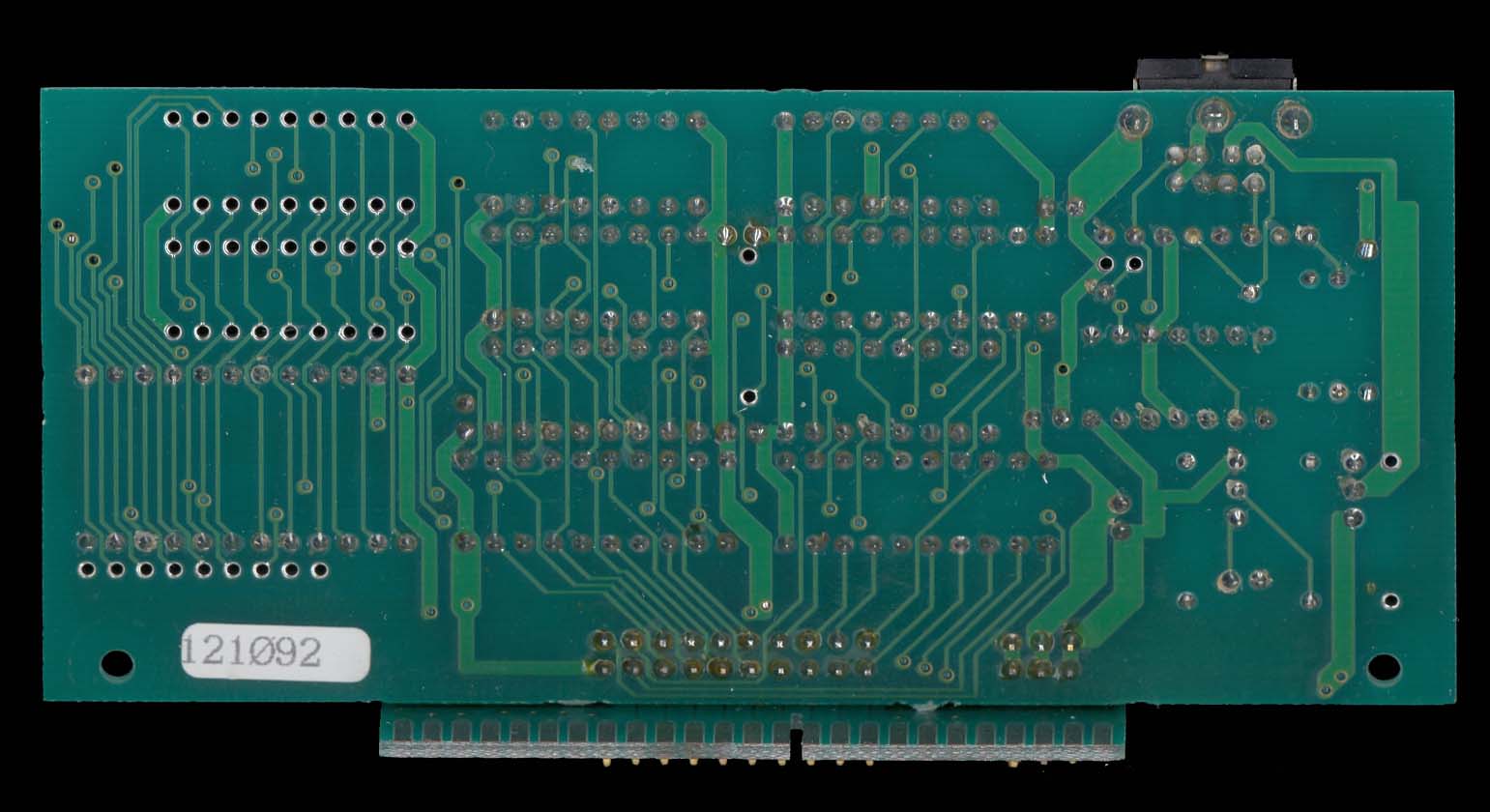
The interface that comes with ProScan has been developed by Cirtech. Its function is to read the information from the scan head into the PCW and its software. The most technical feature it has is a RAM (random access memory) buffer that allows the data from the head to be fed into the PCW at a speed that both can handle.
However, you will need Flipper 2 Plus to be able to switch between ProScan and any other software. Switching between ProScan and Micro Design II means you can scan an image, save it as an .MDA (Micro Design Area) file, and with the press of [SHIFT] + [EXTRA] + [EXIT], you can load it directly into a Micro Design page without needing to reboot (restarting the PCW again).
Without wanting to bias the reading of this review too much, and without it sounding too much like an exaggerated rave, Creative Technology has triumphed with ProScan. First, they surprised all the critics with Micro Design, a desktop publishing system that went faster than anyone thought possible. Now they have confounded the detractors with a handheld scanning device that turns the PCW into a serious desktop publishing tool.
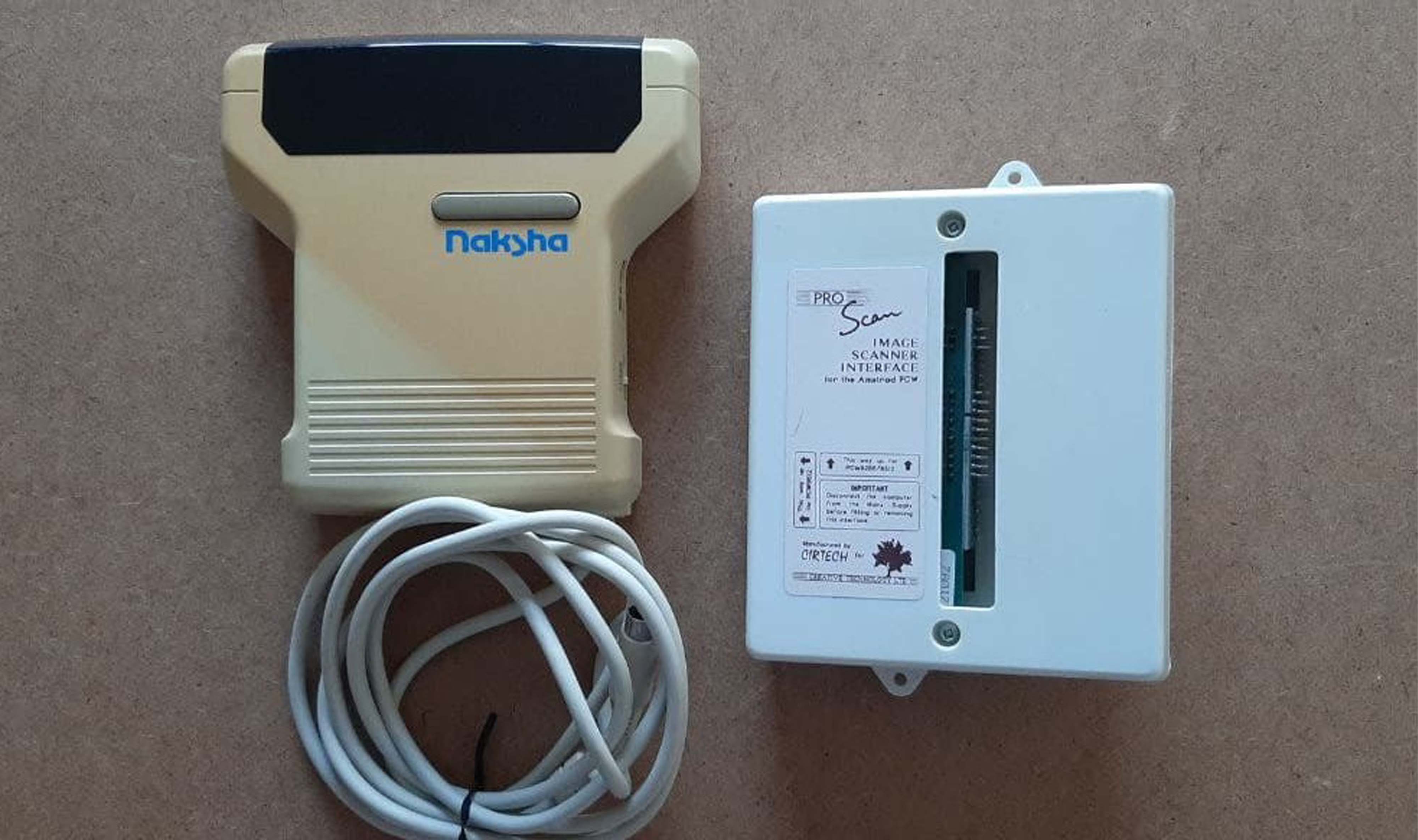
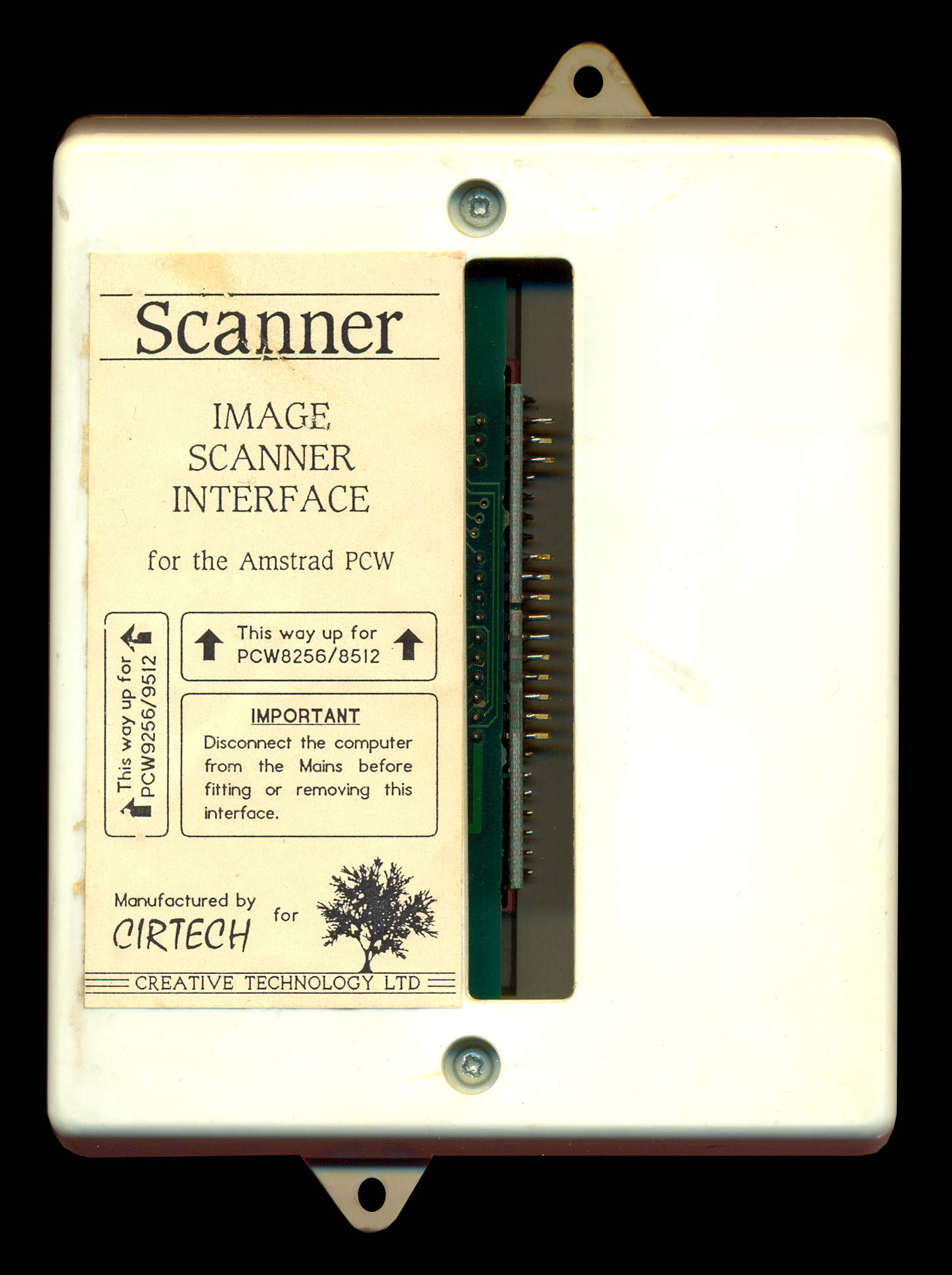
ProScan is a handheld scanning device. The package consists of an interface, a small white box that connects to the expansion card protruding from the back of the PCW, the actual scan head itself—this is the equipment you hold that converts images into graphical images for use in Micro Design—and the software that directs the whole operation.
These are the basics. Before getting into the bulk of this review, which will be shamelessly positive, we will mention the few negative points of ProScan. The reason for this is to get them out of the way quickly so we can move on to what is good. This review is based on a pre-release version of the ProScan launch.
First of all, the buttons on the side of the scan head may be a bit small for many of us. Secondly, you will need to have Flipper 2 Plus or upgrade it if you want to use them together.
Okay, the negative points have already been covered. Now let's move on to the full review.
Getting to Know the Device
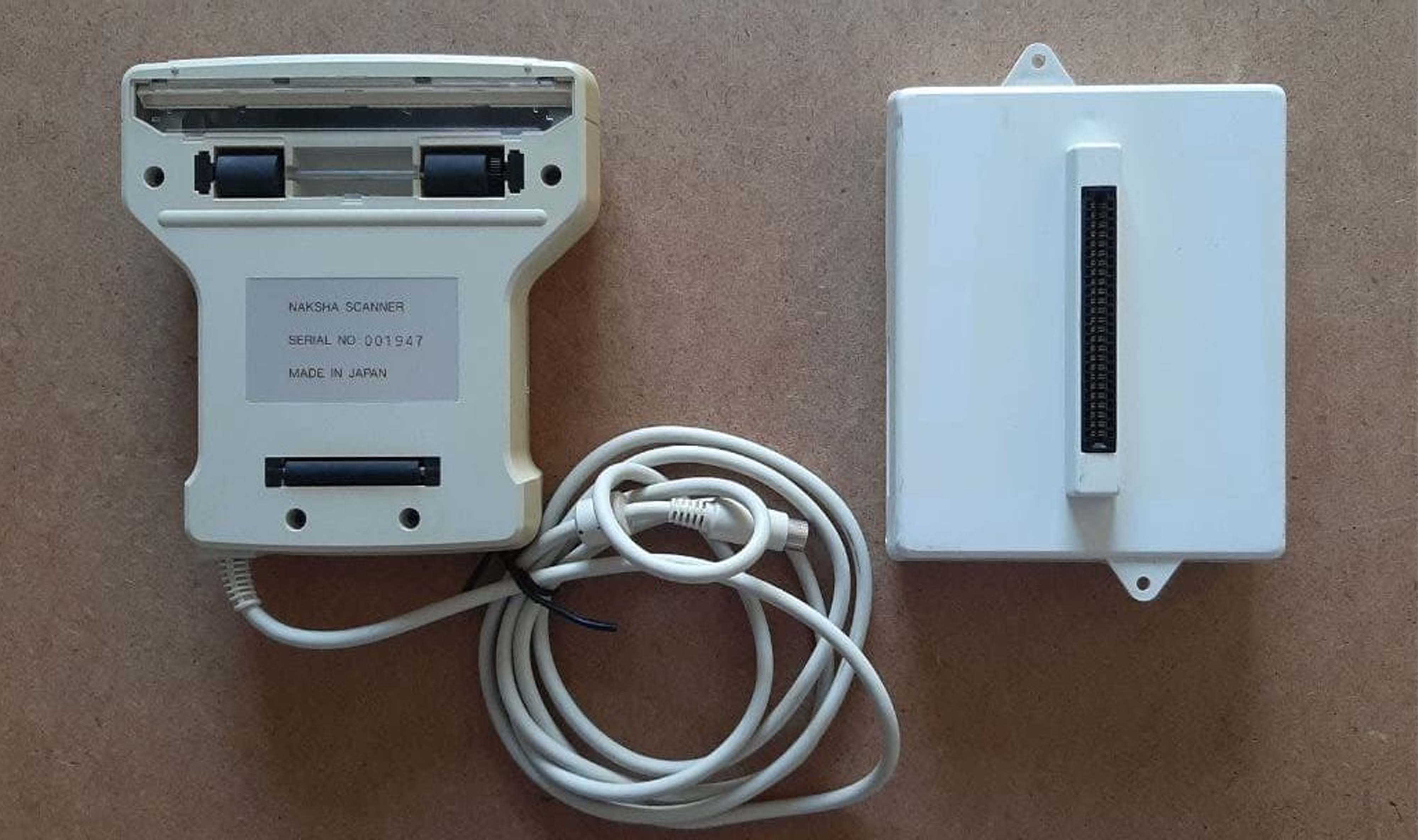
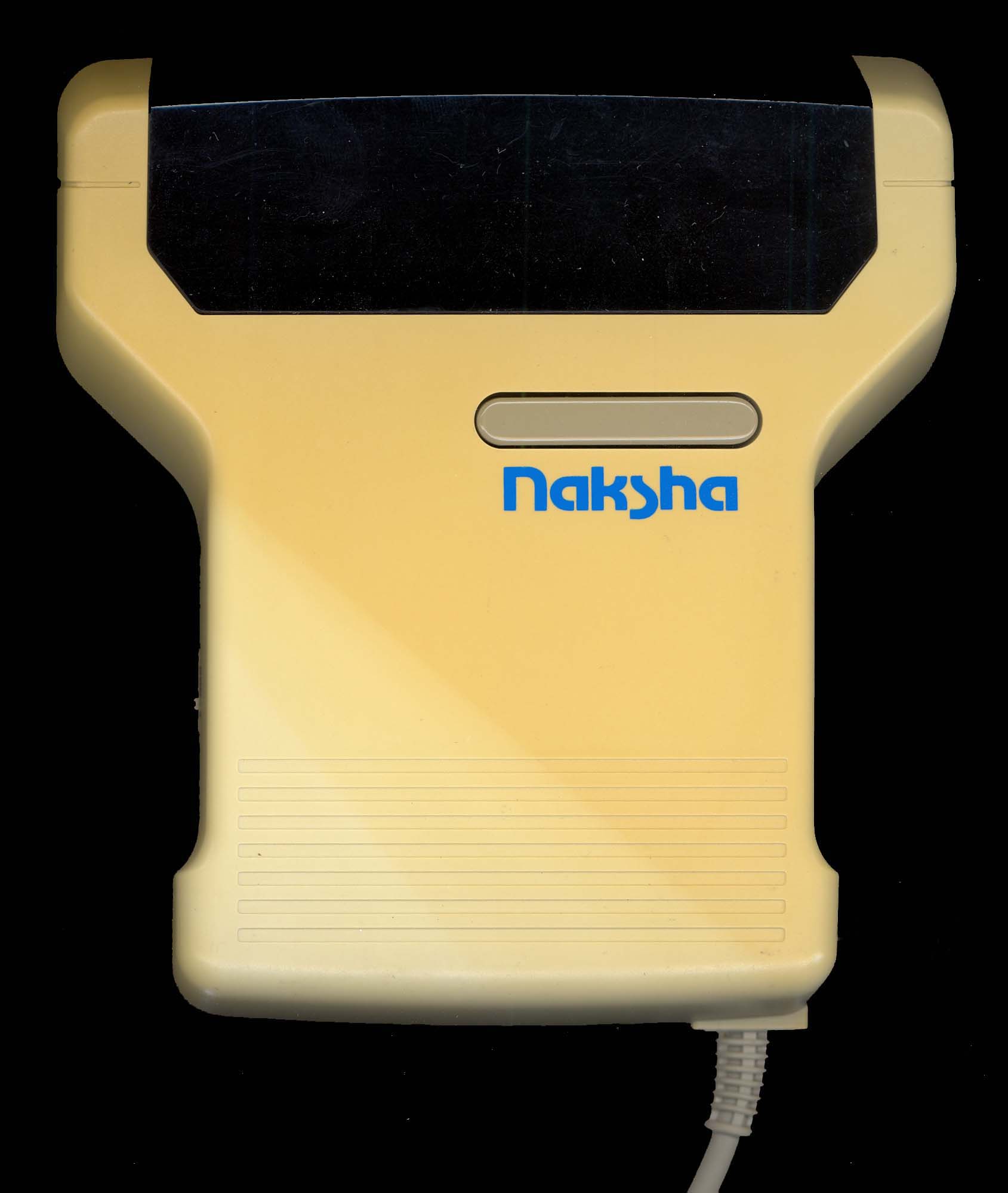
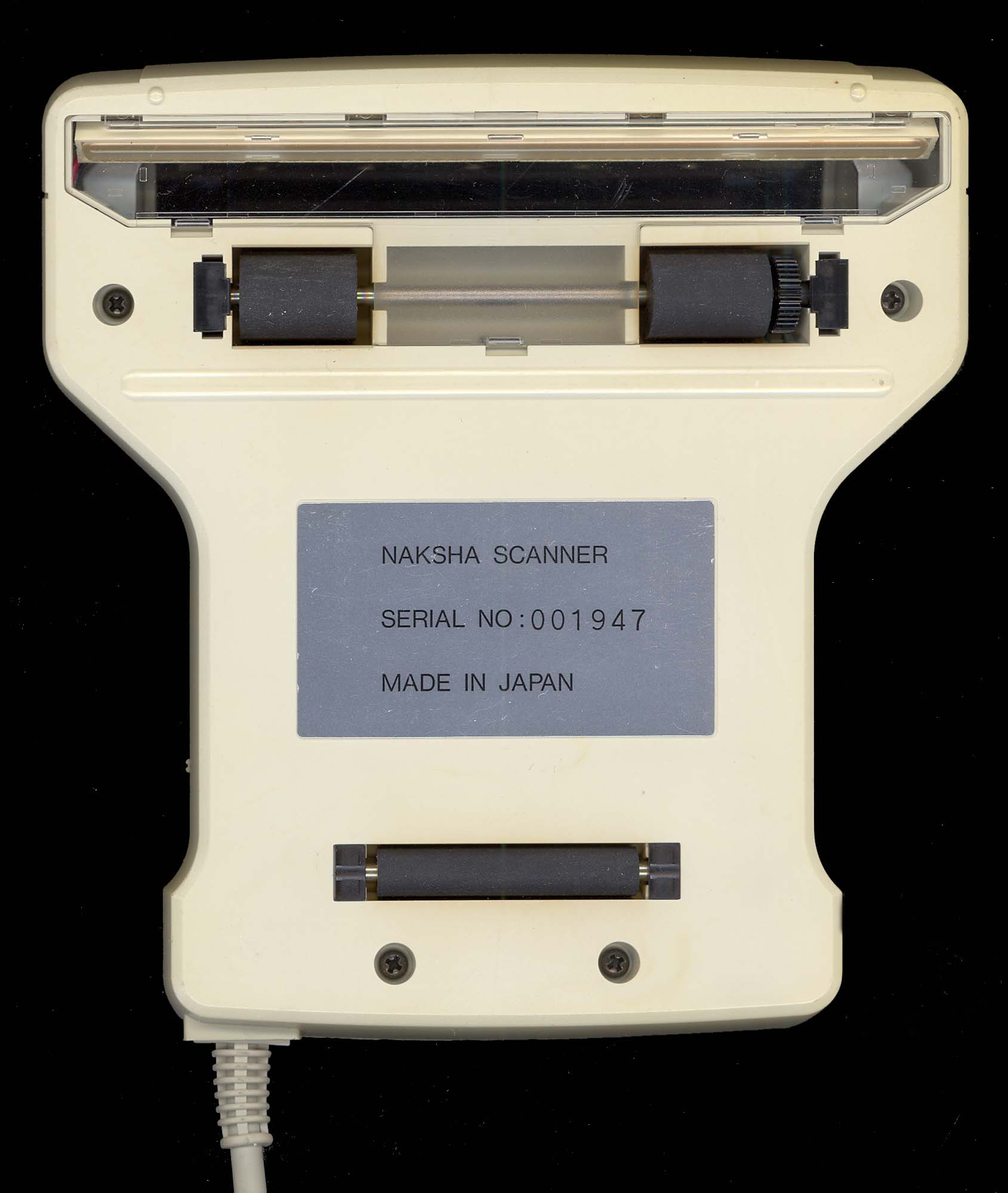
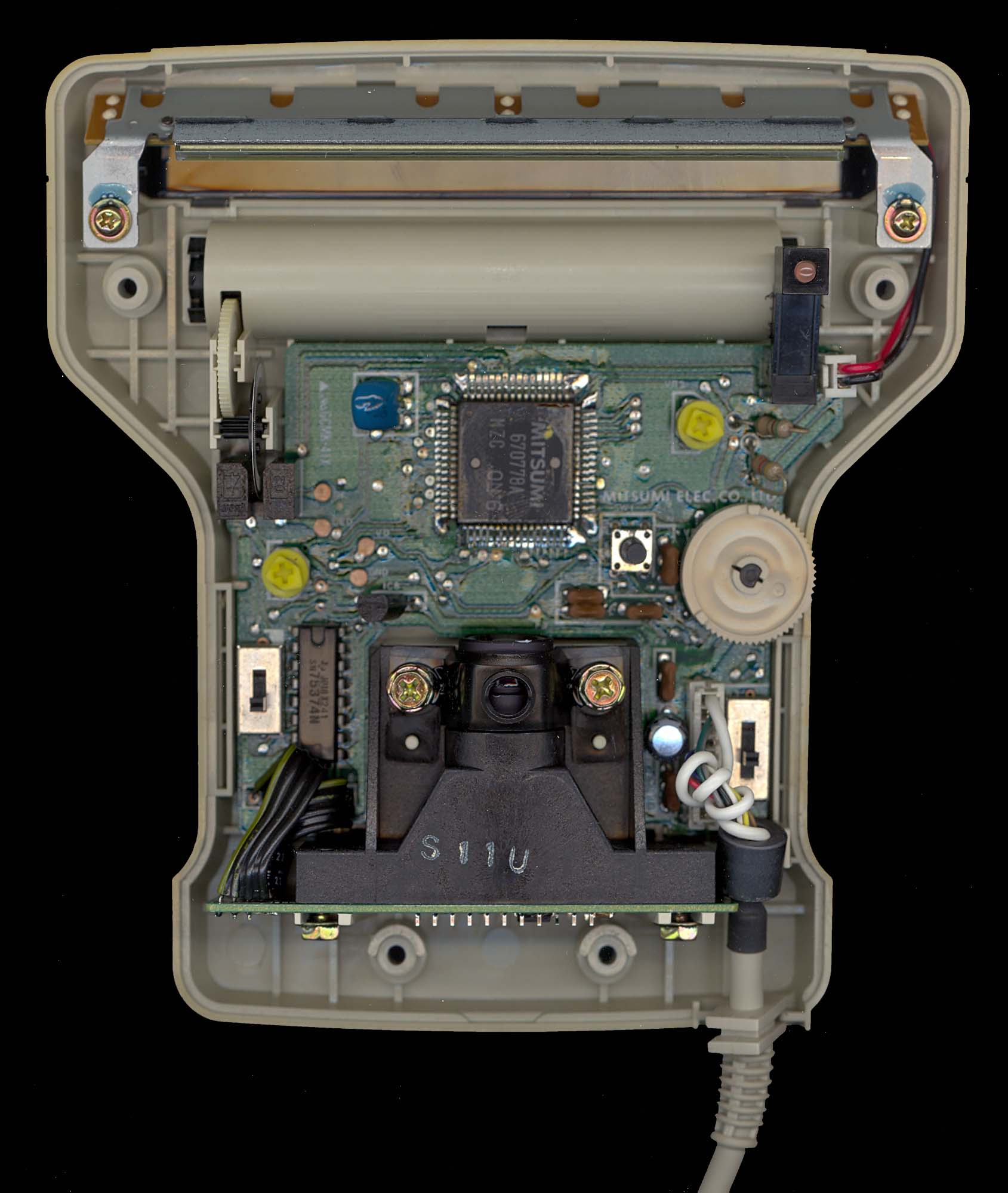
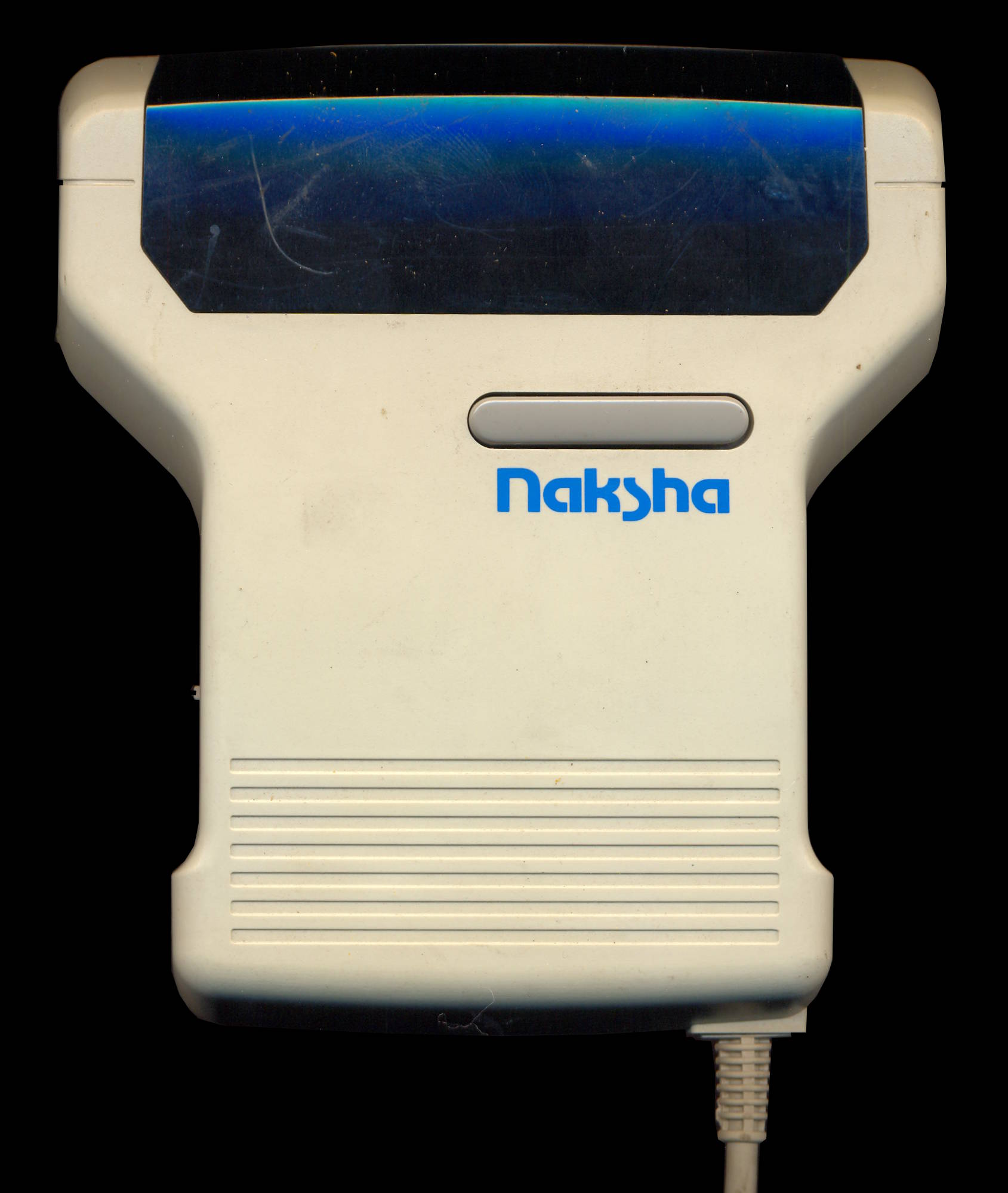
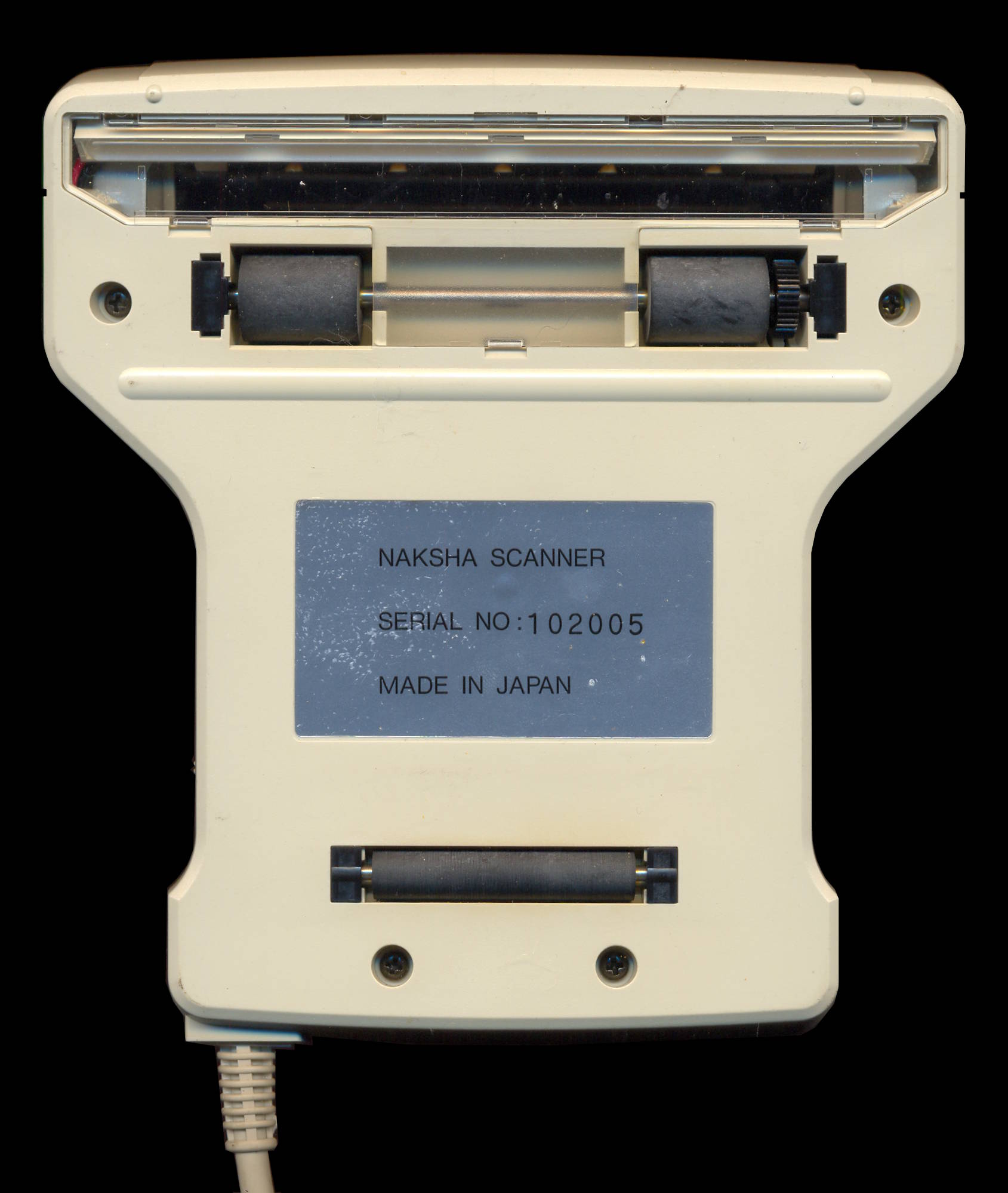
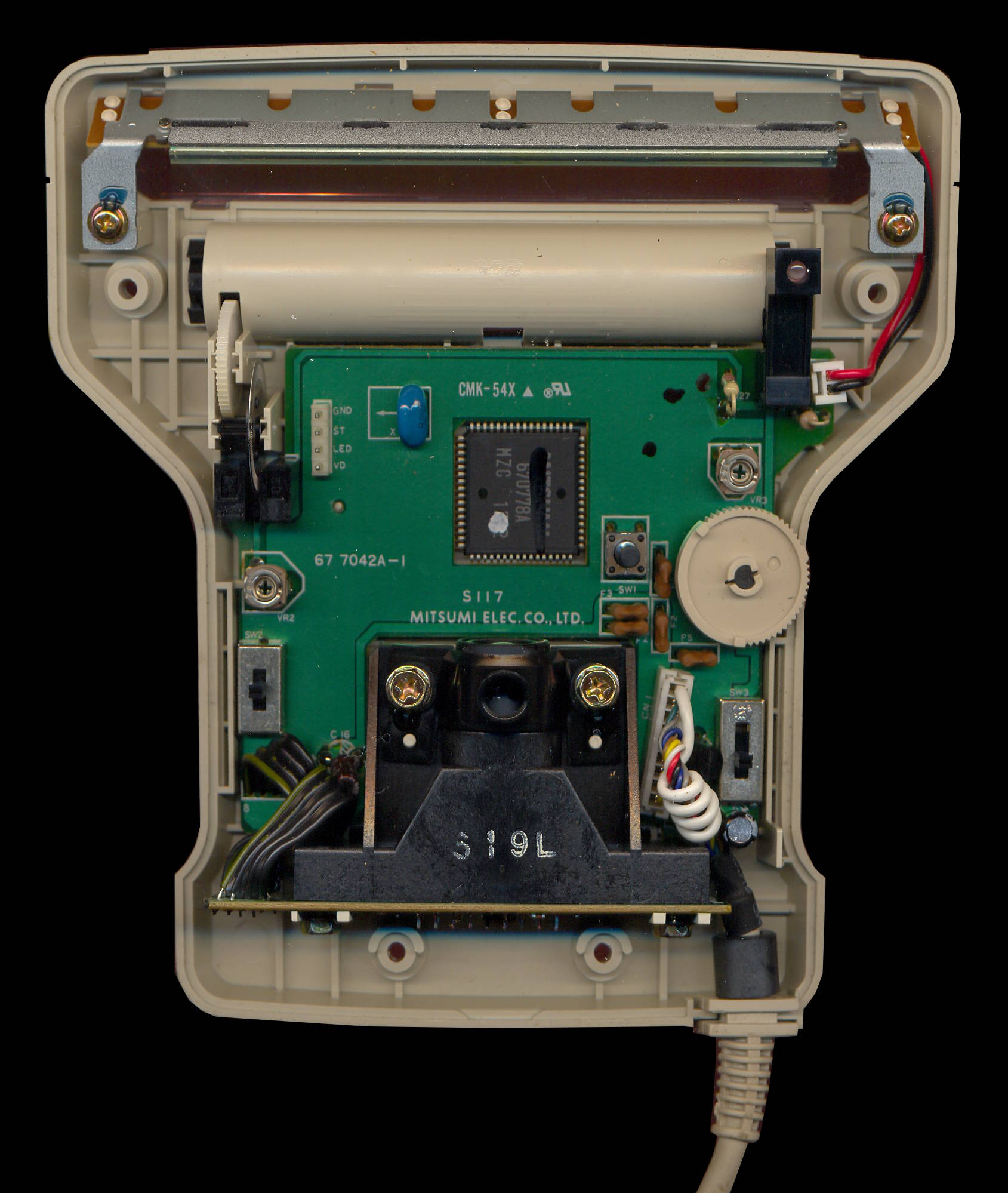
The scan head itself is a simple device in terms of appearance and operation. It looks a lot like a T with smooth curves. On its underside, there are three rollers that allow the device to move smoothly and securely over flat surfaces. There is also a clear plastic cover under which the scanning mechanism is located. This emits a green light when scanning.
On the right side, at the top of the scanner, there is a wheel used to control the brightness of the image as it appears on the screen. This is not a purely aesthetic feature, as it also controls the brightness and contrast of the saved file. On this side of the scanner, there is also a four-way slider switch (too small). You have to experiment with it to use it correctly. Its function is to control the quality and the way the image is scanned. The four settings of this control basically allow us to get the gray tones and the texture of the image (the dithering and stippling) to our liking. The documentation is quite vague on this point.
On the left side of the scanner, there is a three-way slider switch that controls the dots per inch (dpi) rate at which the image is scanned. Logically, being a three-way switch, there are three levels: 200, 300, and 400 dpi, although the switch is labeled H, M, and L. In practical terms, the dots per inch level basically corresponds to the size of the scanned image. As a very rough example, 400 dpi would make a quarter of an A4 page fill the workspace on the ProScan screen. You will have to experiment with different images (line drawings require one setting, color images another, and so on), and you will be able to create a working ProScan log (a list of image types and switch settings) that will be useful in the future.
In general, the scan head itself is a simple "kit" that features a large number of options to offer a wide variety of image reproduction. We would not have been surprised to hear about a configuration "sub-industry" (in the same way that additional fonts and clipart are available) to provide combinations of settings for best results. Finally, on top of the scanner is a flat gray switch that starts the scanning process. Click it once and a red light will appear on the top right of the scanner to indicate it is ready to scan. Click it again and the scanner will go into standby mode. If you leave the scanner turned on without moving it for more than a minute, it will turn off automatically.
Three-in-One
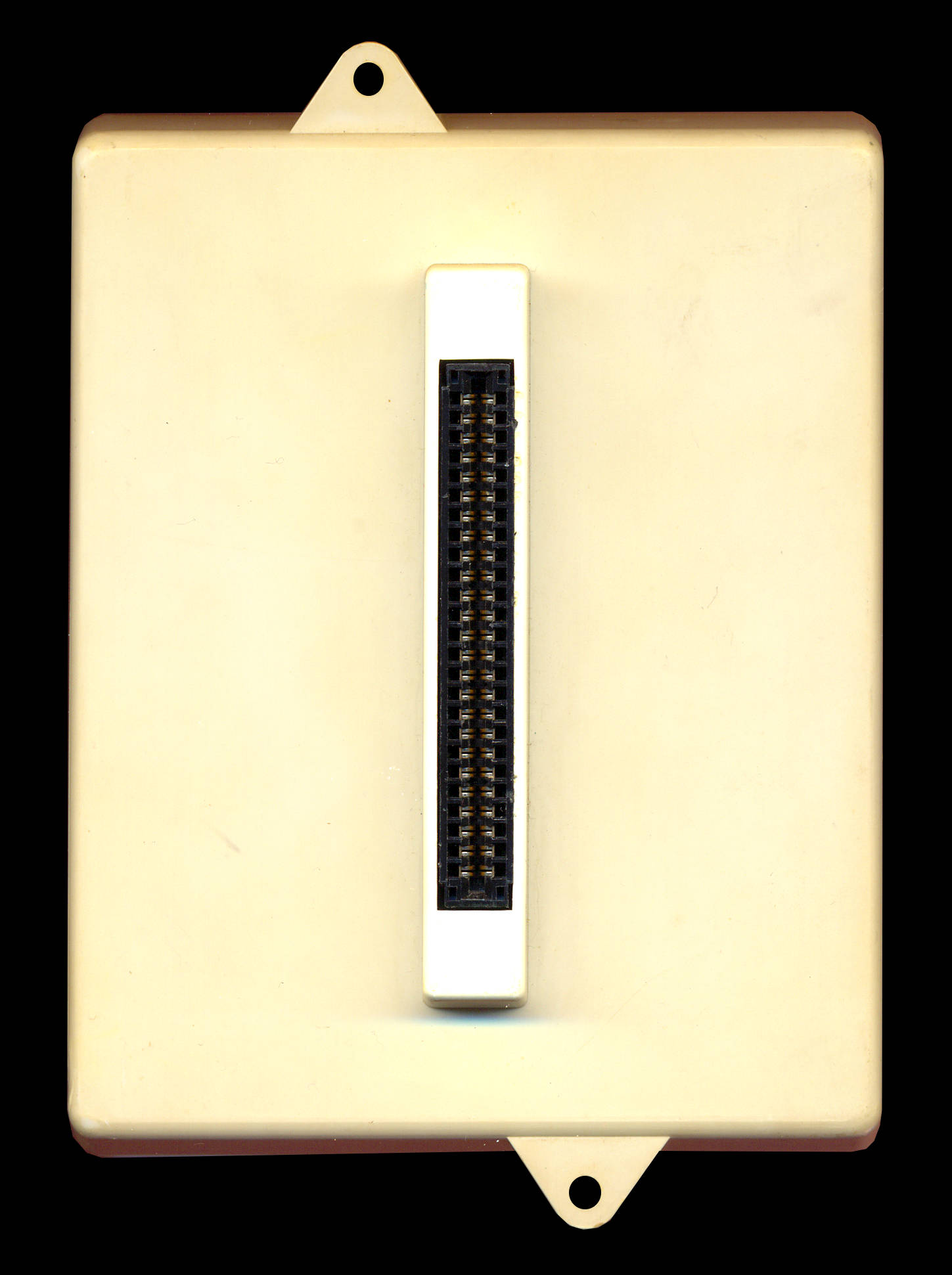
As we have already mentioned, ProScan is a three-part project: interface, scan head, and software. The interface, from Cirtech, comes with a pass-through connector that will allow you to mount any of the other interfaces you own, such as the SCA RamPac or the RS232 serial/Centronics parallel interface, without losing any of its capabilities. This is useful if you want to use Kempston or AMX mice, which require their own interfaces. Both mice are also compatible with ProScan and Micro Design.
Once you have connected the interface to the back of your PCW (the manual, fortunately, takes you through this process in detail, warning us to turn off and unplug the PCW before starting; otherwise, there is a danger of burning the Z80 chip) we are ready to connect the handheld scanner. This is a simple operation. The scanner head has a cable coming out of it with a DIN plug at the end. This plug fits snugly into the interface socket. Once this connection has been made, and having made a copy of the ProScan software (see the box for the installation procedure), we are ready to start using it.
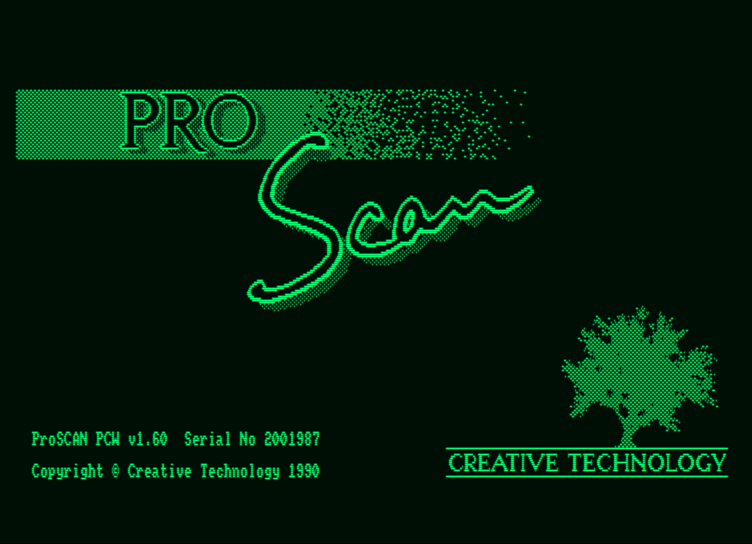
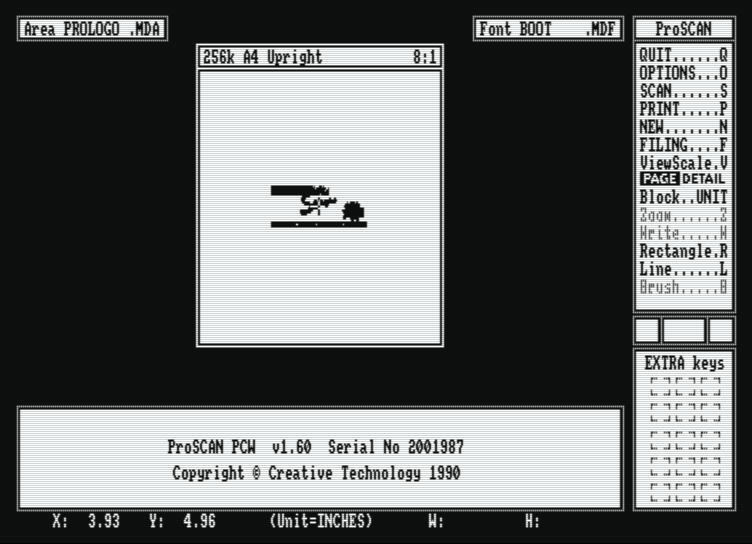
If a bootable ProScan disk has been created, this means placing it in drive A: and seeing the startup "page", which looks a lot like Micro Design II, as the screen boots up. When this finishes installing, the next one will take us to the main working screen.
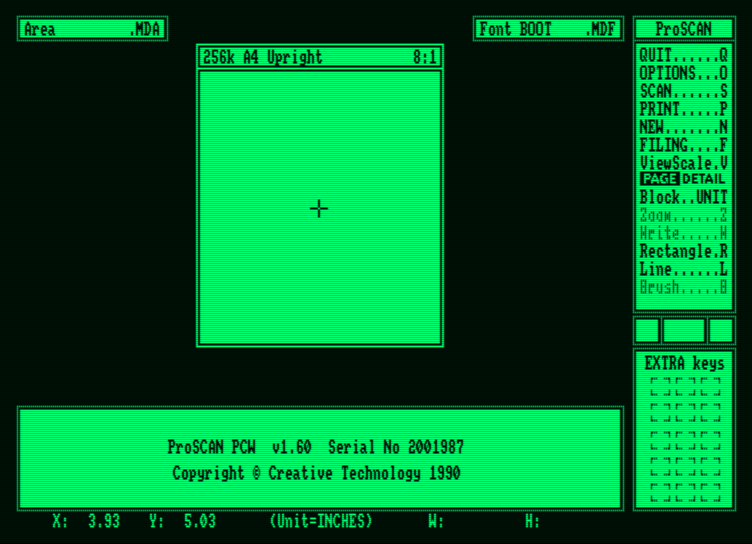
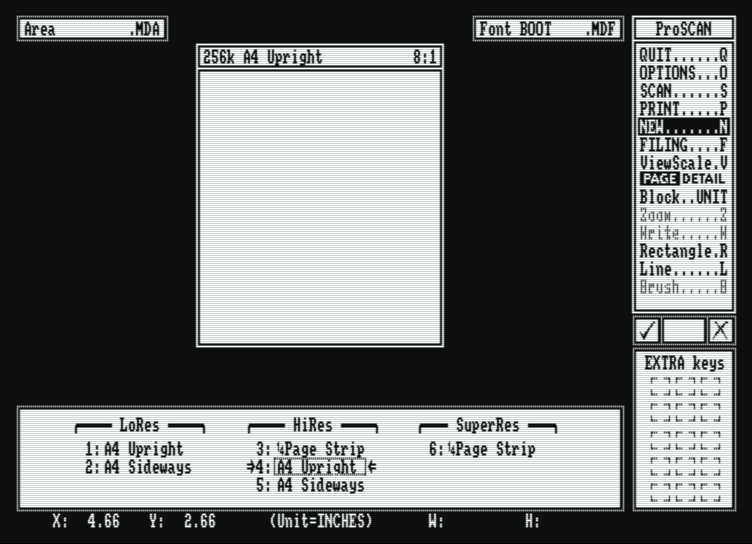
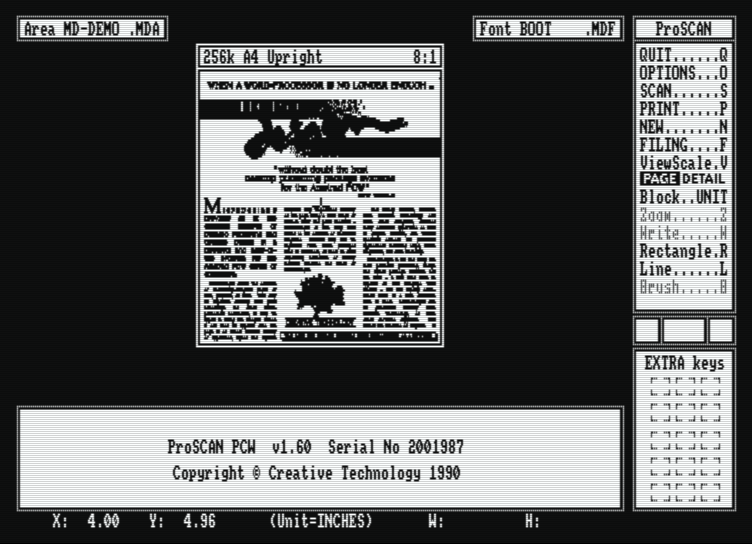
Again, this looks a lot like Micro Design: a nice touch of consistency. On the left side of the screen, there are a series of menus. These can be accessed by clicking with the mouse or using the keyboard. The options are as follows:
- QUIT: Quite simple; this takes you out of ProScan and returns you to the CP/M prompt.
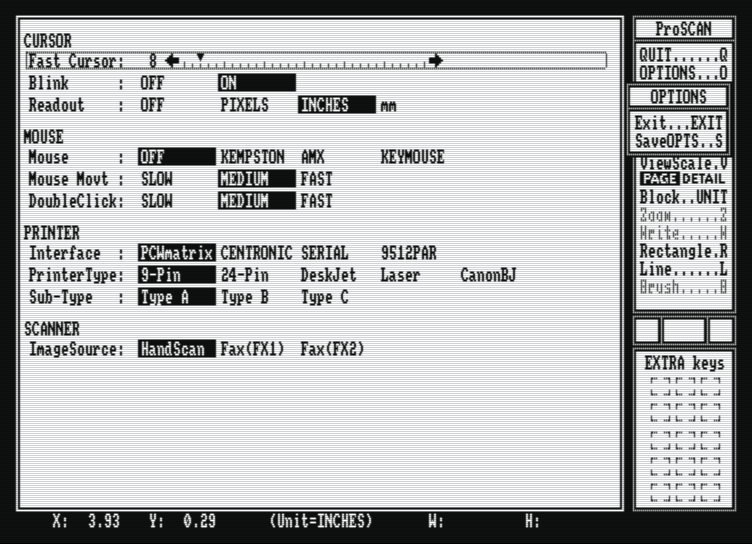
- OPTIONS: This option takes you to the configuration menu where you can define the printer and mouse types.
-
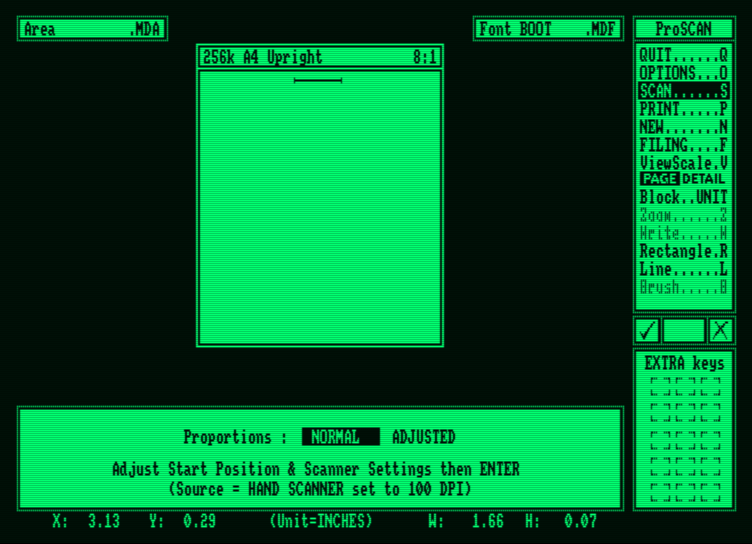
SCAN:
This option takes us to the scanning screen. This occupies your PCW screen and leaves a thin bar at the top with a message telling you to press [CAN] to restart the scan or any other key to cancel. All you have to do is hold the handheld scanner over the required image and move it downwards. As you do this, the image appears on the scanning screen.
You can alter the contrast and dithering (or stippling and blurring) effects as you go. Once the scan has reached the end of the PCW page (which can exceed the length of the screen itself), it will automatically return to the main screen. By the way, when scanning, if we go too fast or at the wrong angle, the PCW clicks at you (just before it happens) to warn us that the image will be adversely affected. - PRINT: Again, it is quite simple. Once you have configured your printer in the options menu, the PRINT option allows us to configure the paper type (single or continuous), margin size, number of copies, etc. Press [ENTER] and it will start printing.
- NEW: This clears the working screen and deletes any image from memory.
- FILING: Allows loading and saving MDA and font files. Saved files can be loaded into Micro Design for more detailed work.
- VIEWSCALE: Combines with PAGE, for the full edit screen in the same way as Micro Design, or DETAIL. The DETAIL page opens up other ZOOM options for pixel editing of images. WRITE allows us to add text (using any Micro Design font) to images, and BRUSH offers spray and brush effects to enhance images.
- BLOCK ... UNIT: Allows defining areas to copy, invert, or delete.
- RECTANGLE: Create rectangles for image borders or text boxes.
- LINE: Allows us to draw lines.
Pro Scan Installation
Creative Technology has prepared an installation program for ProScan. This is a program called PSMAKE.COM. PSMAKE runs from the CP/M Plus A> prompt and allows us to adapt the main program to our needs.
After typing PSMAKE at the prompt, we are asked a series of questions where we will answer Yes/No. The general principles are as follows: The ProScan software is copied onto a disk—formatted or unformatted—just make sure you have a blank disk handy. You are asked if you want a bootable ProScan disk (for the more technical, this means "it starts by itself"). If you answer yes, you will be prompted to insert your CP/M Plus disk into the drive. On that disk, you will have a file named J14CPM3.EMS (the numbers may vary depending on the version, but .EMS will always be the same). This is the file that actually boots your PCW. This file is copied onto your new ProScan disk.
Then it asks if we have a mouse and which one (the Kempston or the AMX? Come on, SCA and Creative!). It asks at what speed you want the mouse cursor to move, and then what printer we have. The PCW's own 9-pin printer, a 24-pin printer, a laser printer, or even a Deskjet printer? Several more questions are asked, and what you get is a working copy of ProScan and a fully functional options file. In effect, then, we will have everything we could wish for to start working with ProScan.
Conclusion
Scanning an image with ProScan could not be easier. We just need to find the image, from a book for example (although we would really have to scan anything larger than A4 in two pieces and then join them together).
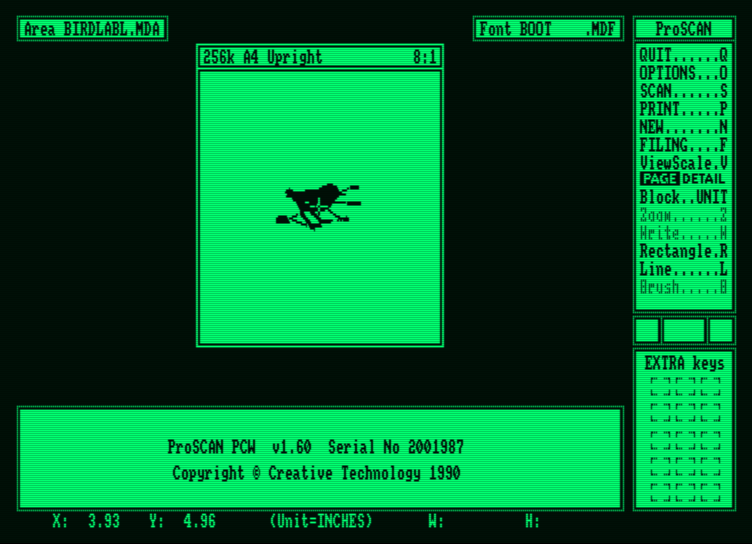
An interesting point about this is that there is no need to rush to photocopy glossy or colored images to capture them properly. To cite a cliché, in tests we managed to scan through a transparent sheet of plexiglass and still get a sharp image. Once the image is captured, we can touch it up with the built-in brush, zoom, and text functions in the software or export it to Micro Design.
In conclusion, Creative Technology has produced a cheap but not vulgar scanning package, with excellent value and an excellent product. Images captured with ProScan can be added to any newsletter, poster, or desktop publishing project.
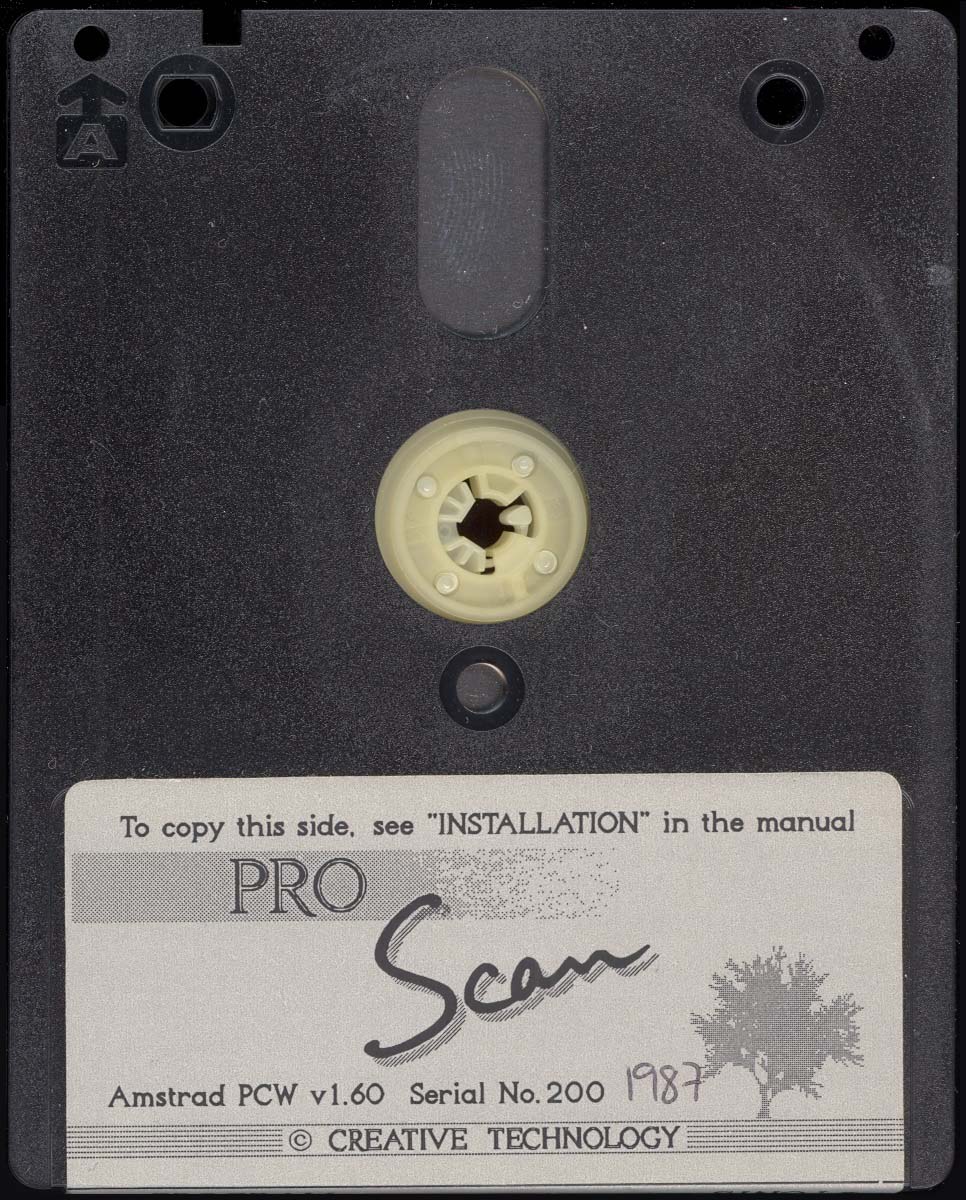
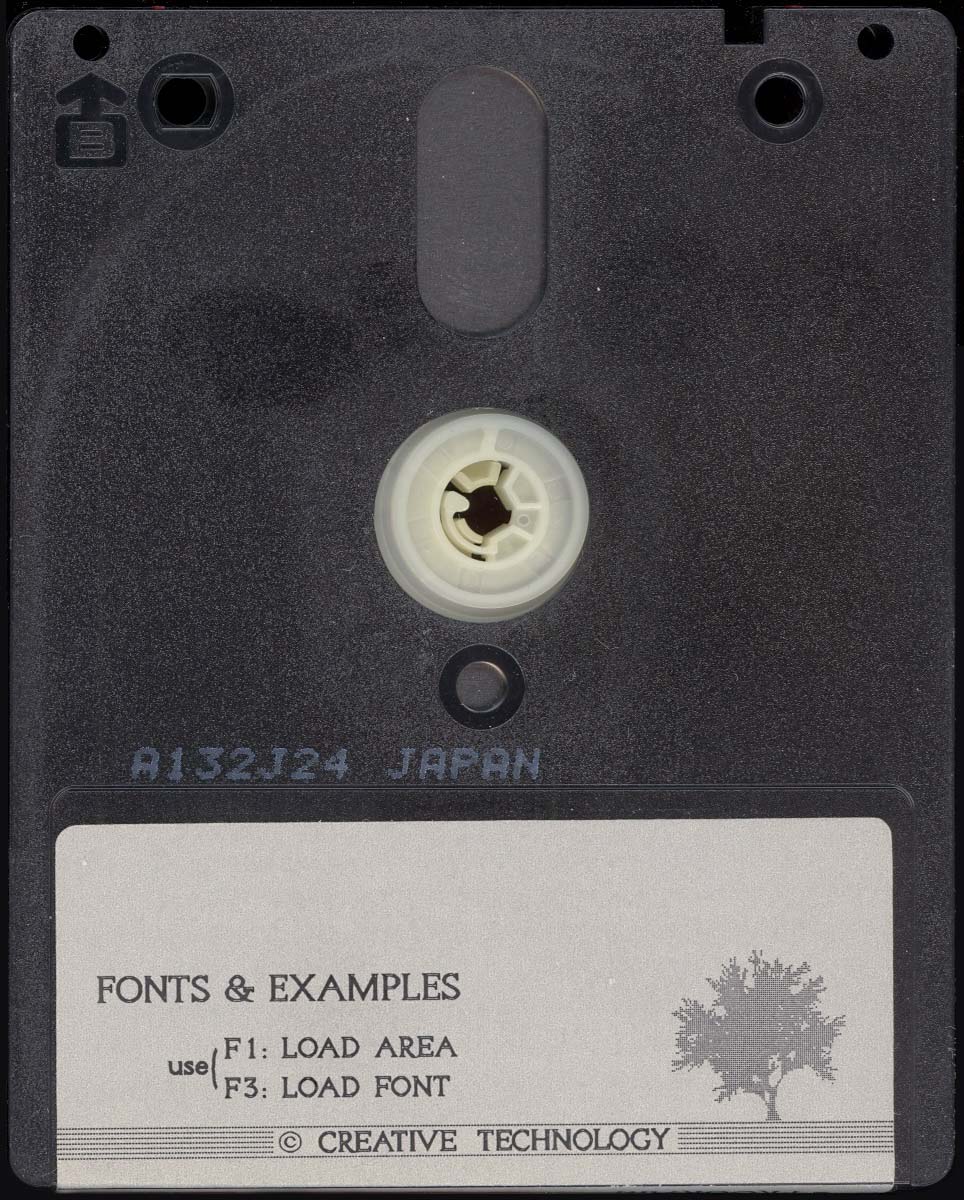
Disk
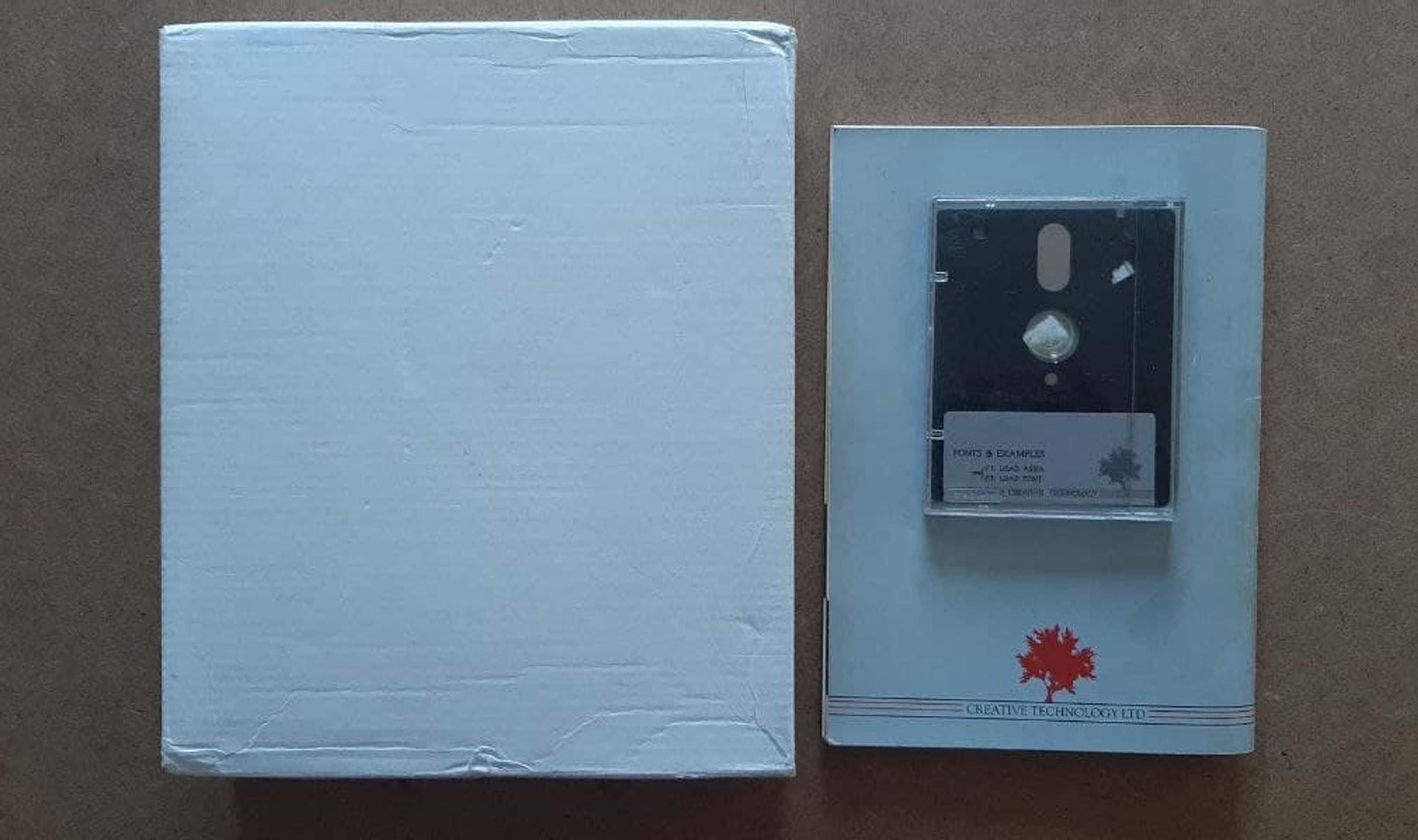
Original disk supplied with Pro Scan.
Disk FrontDisk BackDisk BottomExtras
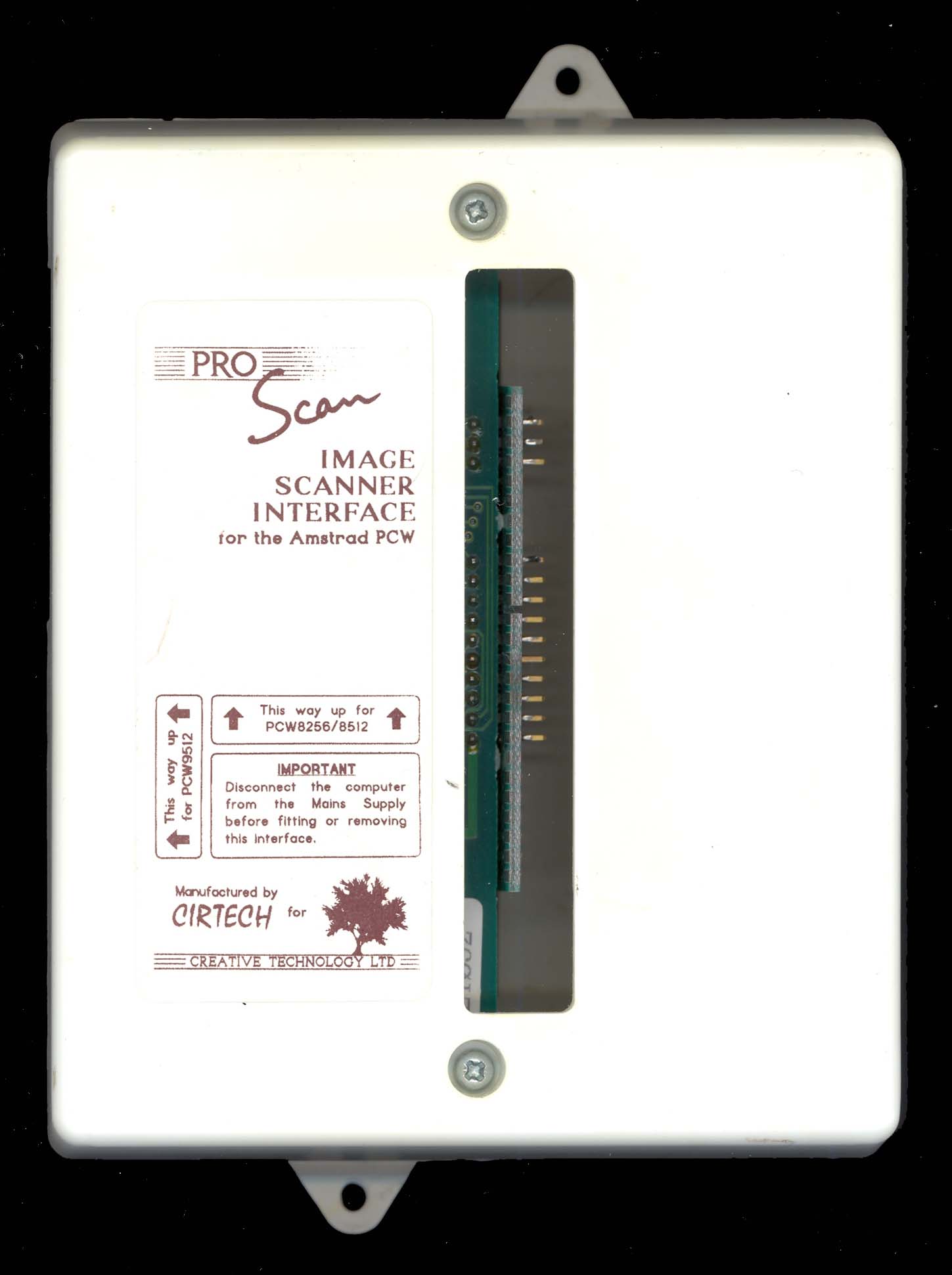
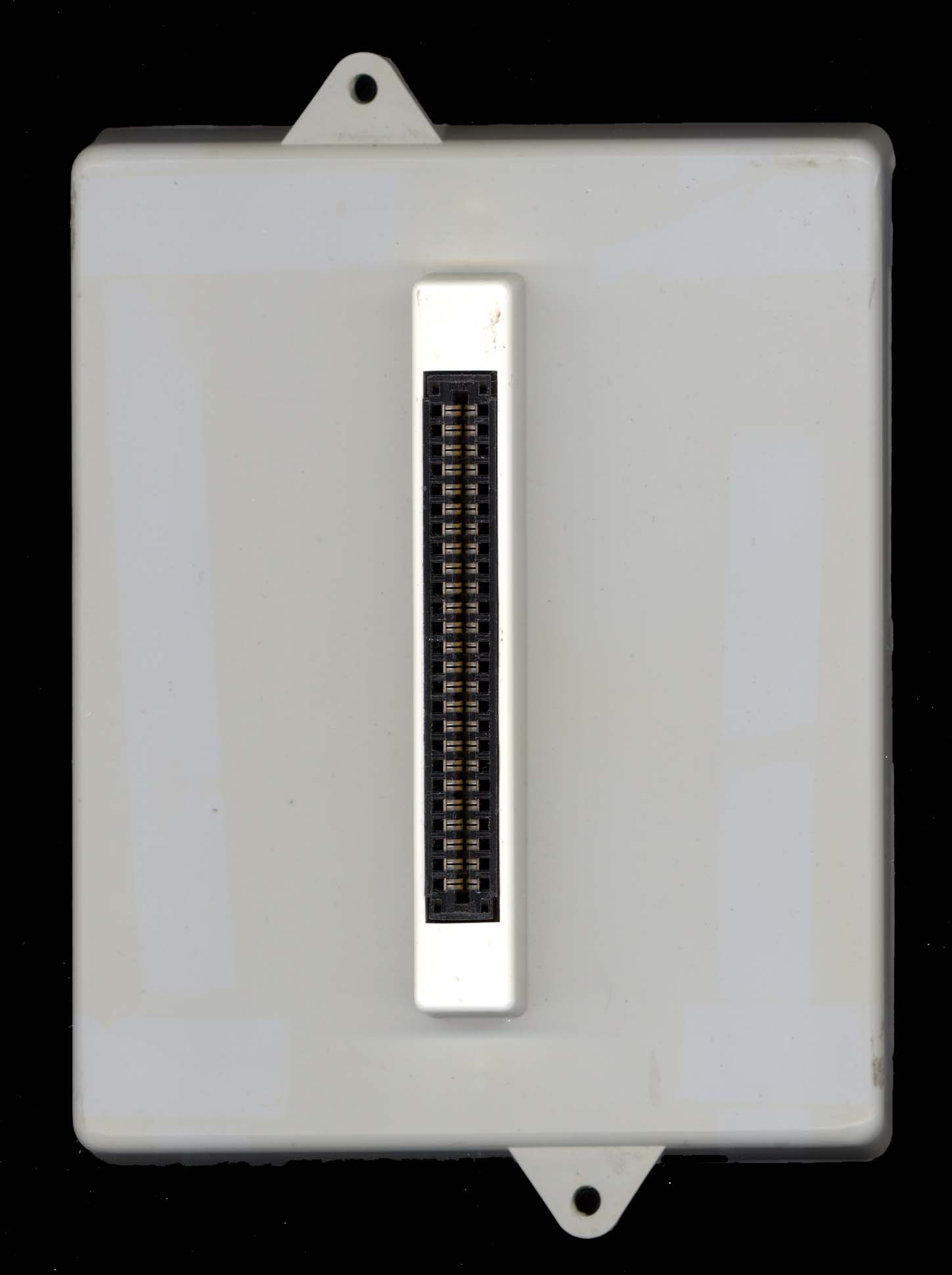
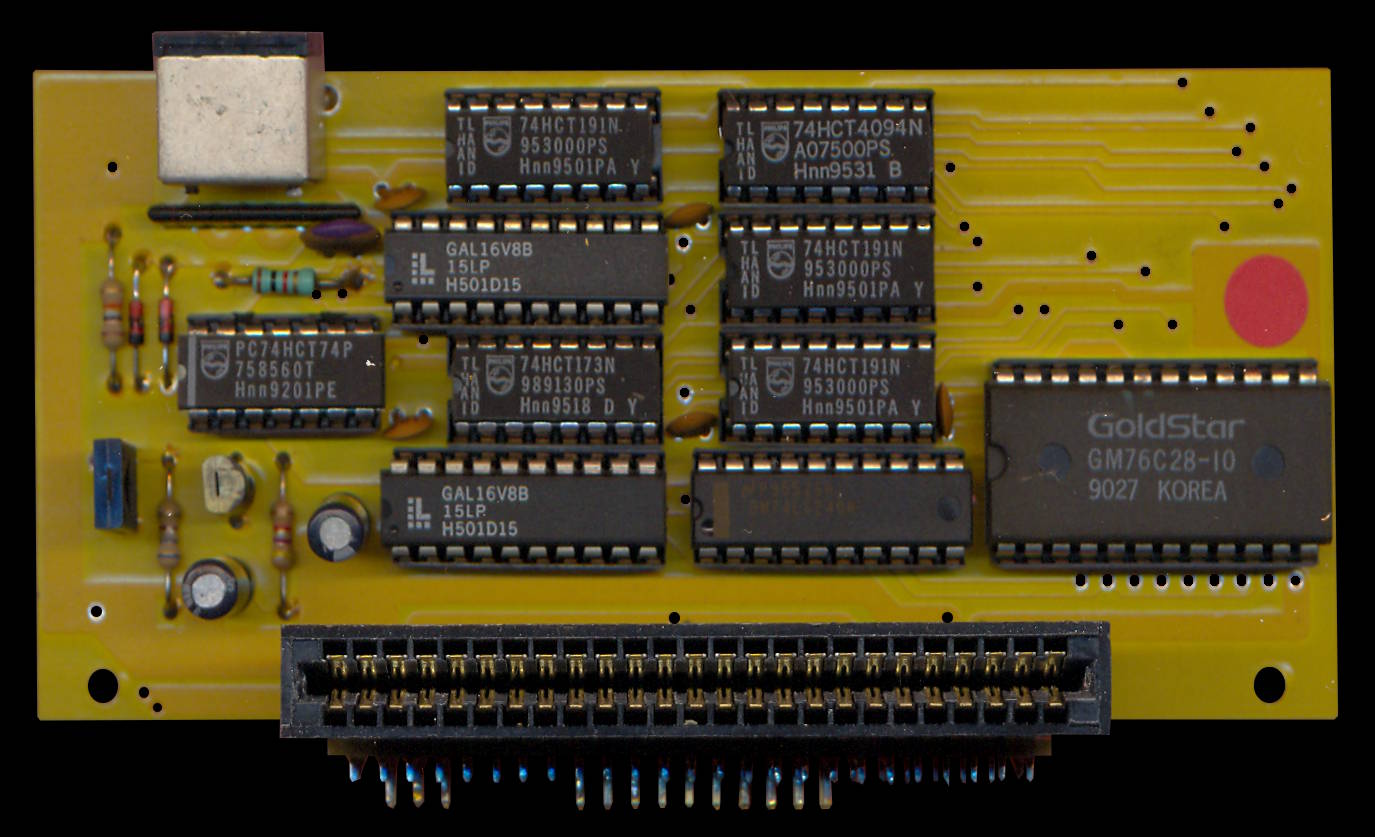
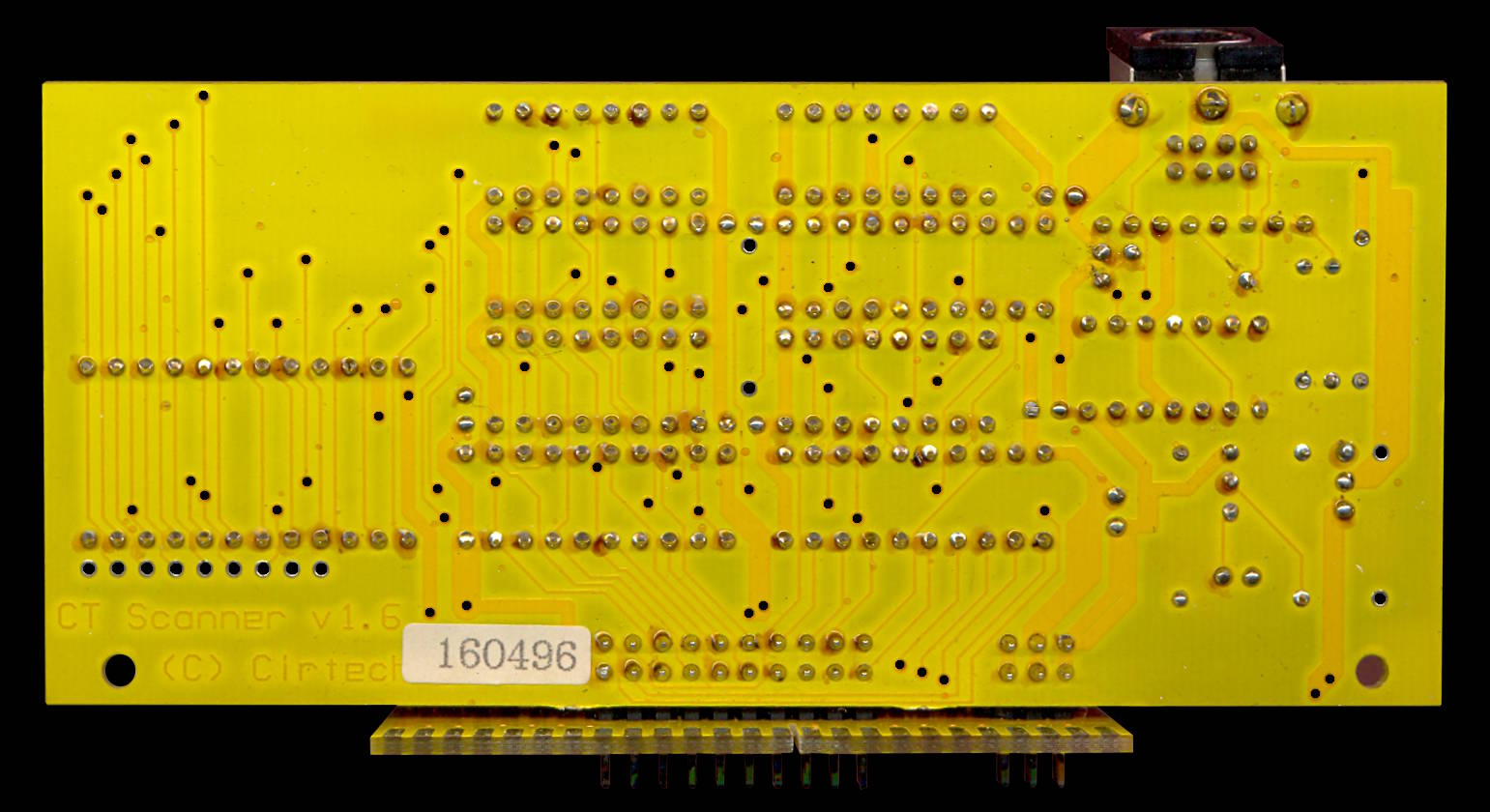
Interface
Scanner interface v1.5 manufactured by Cirtech for PCW8256/8512 and PCW9512.
Interface v1.5 TopInterface v1.5 Bot.PCB v1.5 TopPCB v1.5 Bot.Scanner interface v1.6 manufactured by Cirtech for PCW8256/8512 and PCW9256/9512.
Interface v1.6 TopInterface v1.6 Bot.PCB v1.6 TopPCB v1.6 Bot.Scanner
Handheld scanner 1.5, manufactured by the Japanese company Naksha.
Scanner v1.5 TopScanner v1.5 Bot.Scanner v1.5 PCBHandheld scanner 1.6, manufactured by the Japanese company Naksha.
Scanner v1.6 TopScanner v1.6 Bot.Scanner v1.6 PCBDownload
Program
Disk images have been obtained from the original version of ProScan, recorded, and verified.
• Pro Scan v1.60 (.DSK file compressed in ZIP format)
Manual
Below you can download the manual and instructions for the Pro Scan program or view it online. The manual sheet measures: Width 14.50 cm x Height 21.20 cm.
• Manual Pro Scan v1.1 (PDF file)