The Light Pen by The Electric Studio is a peripheral that provides the PCW with an optical pointer system via its rear expansion bus, allowing users to draw inside natively supported applications.
en:hardware:perifericos:light_pen
¡Esta es una revisión vieja del documento!
A> LIGHT PEN
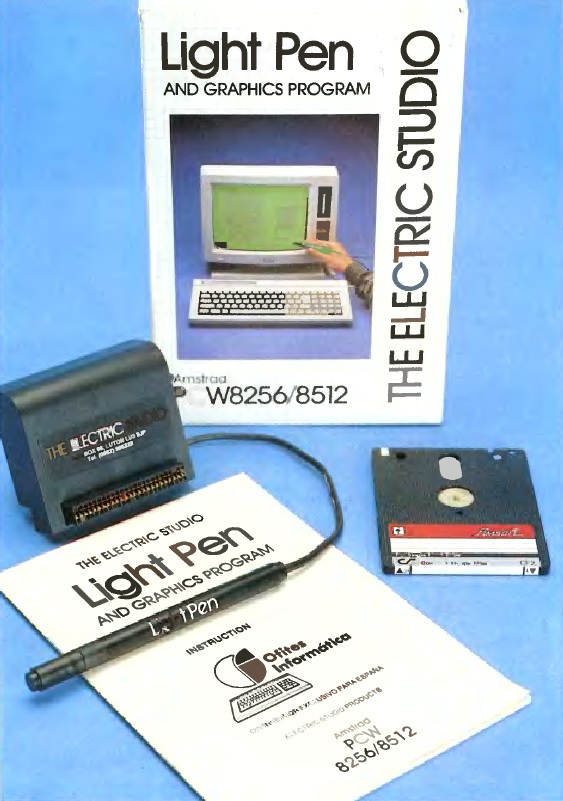
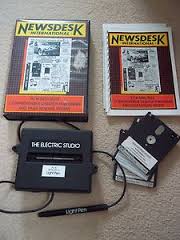
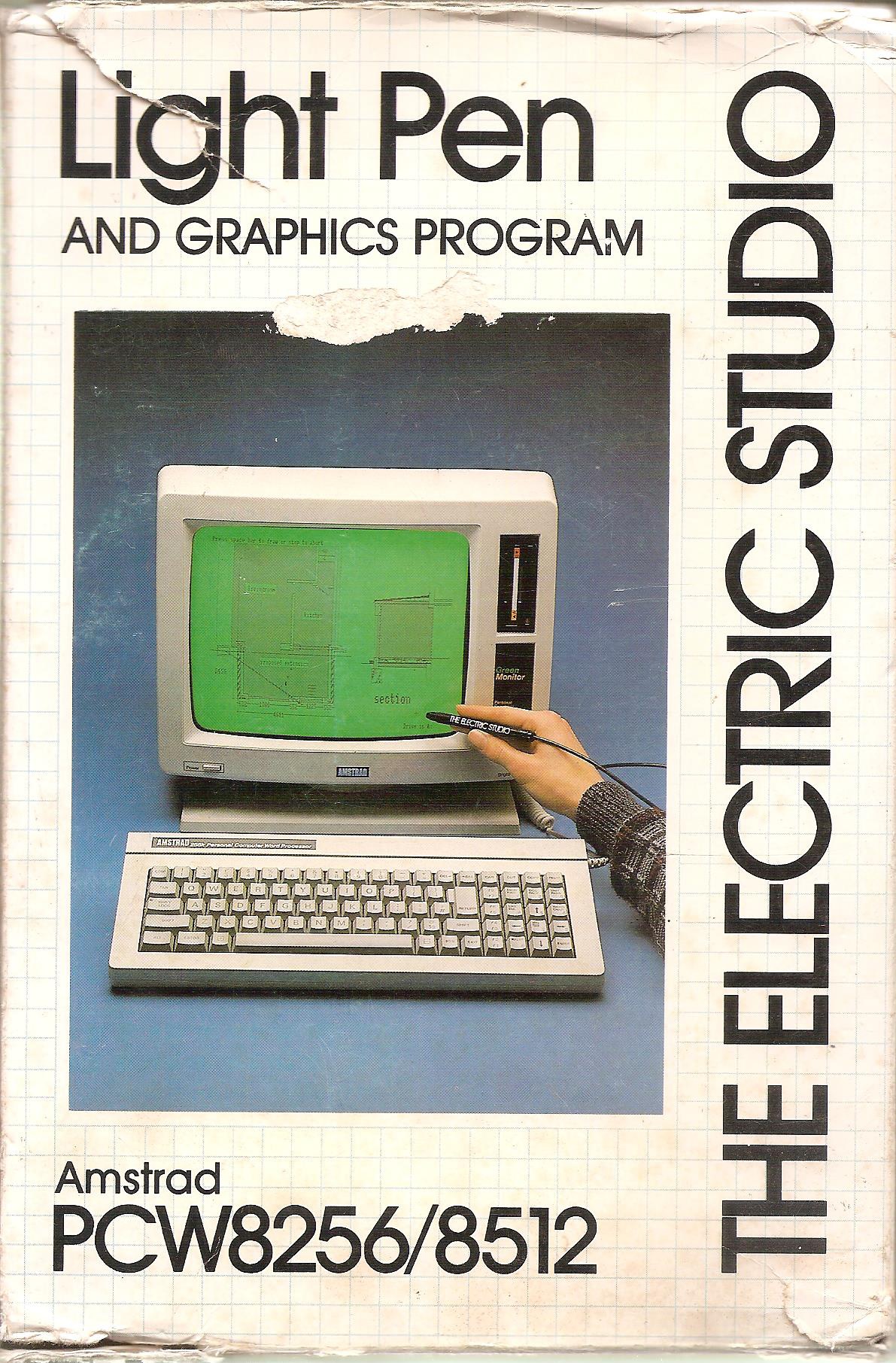
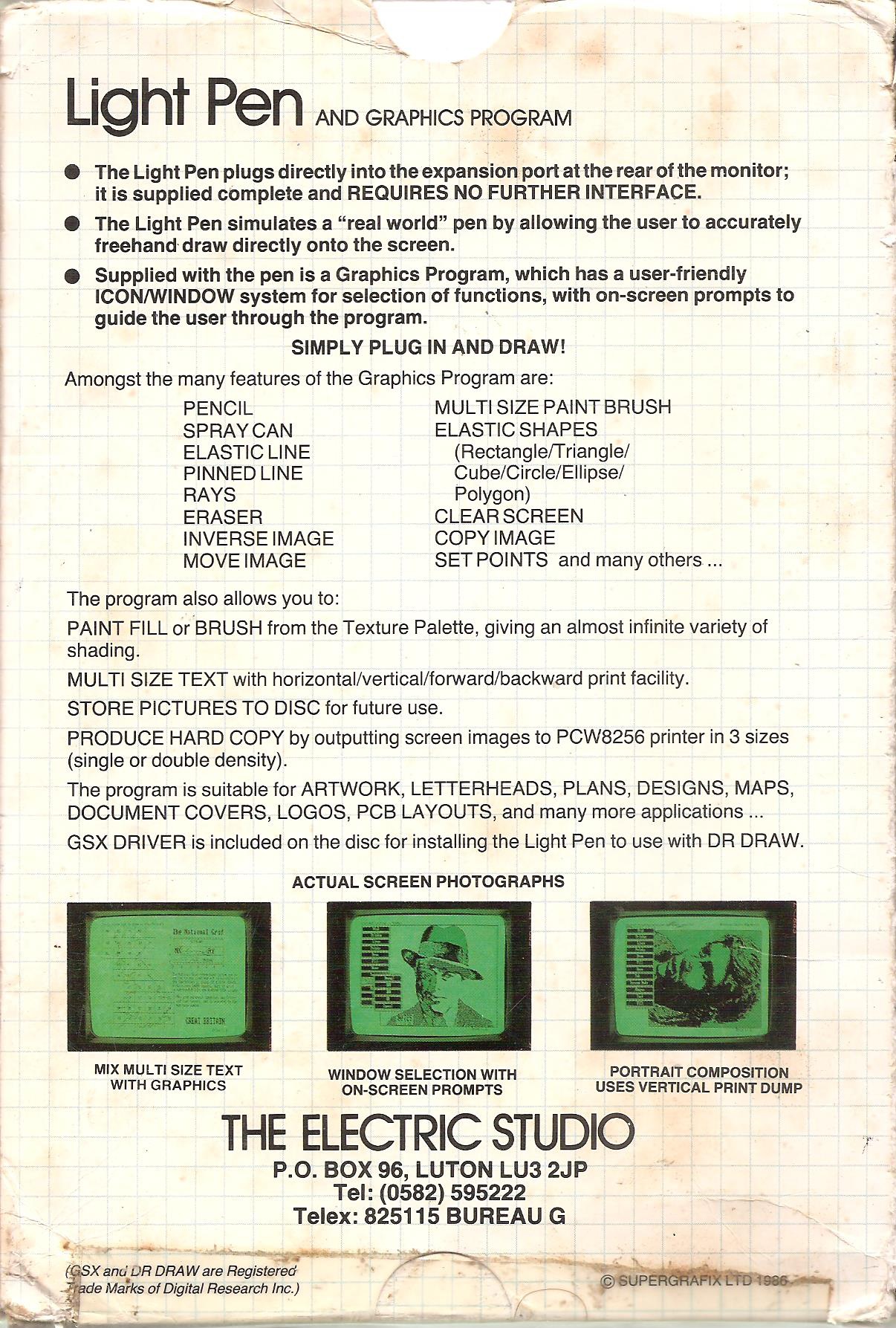
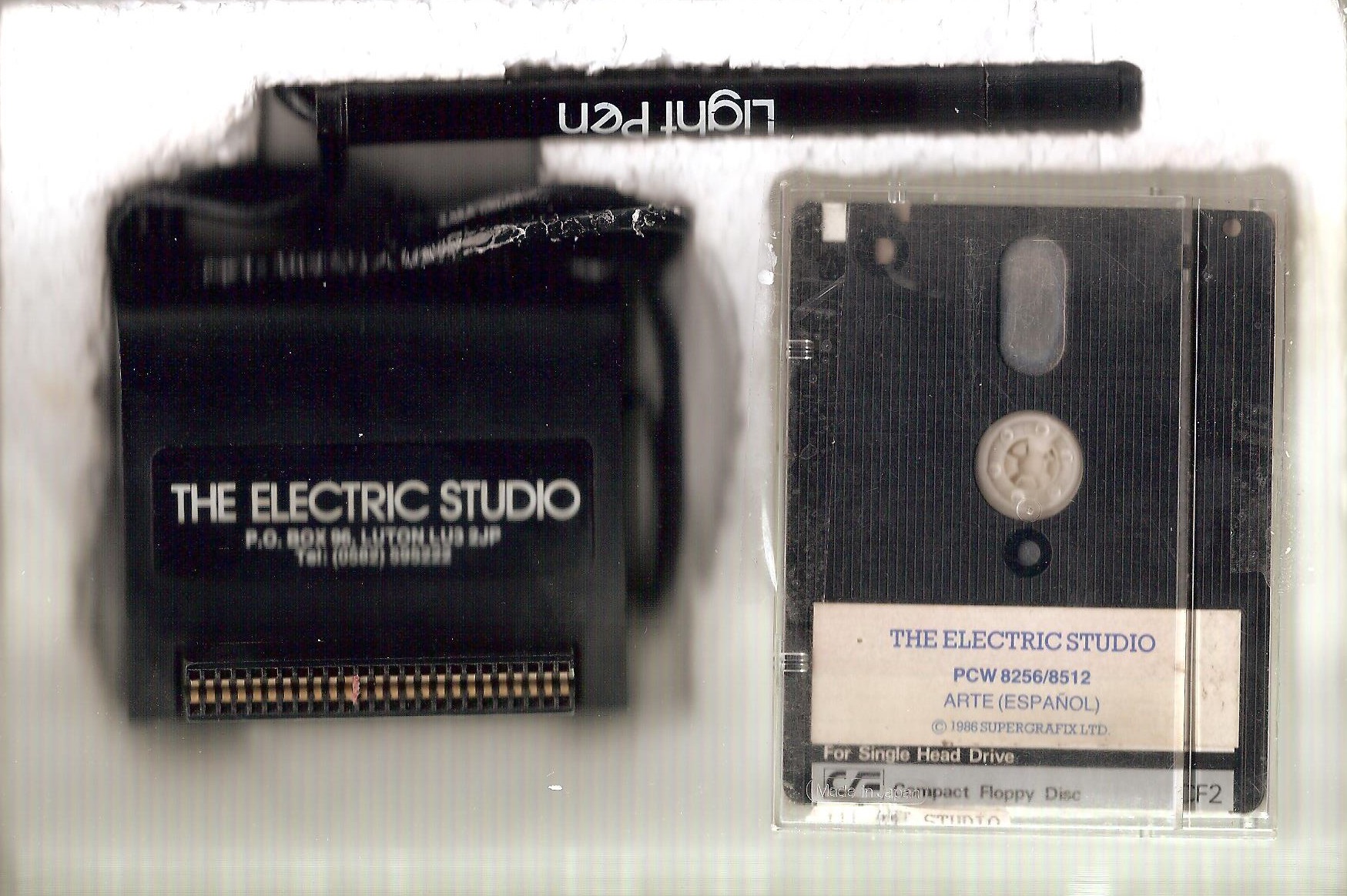
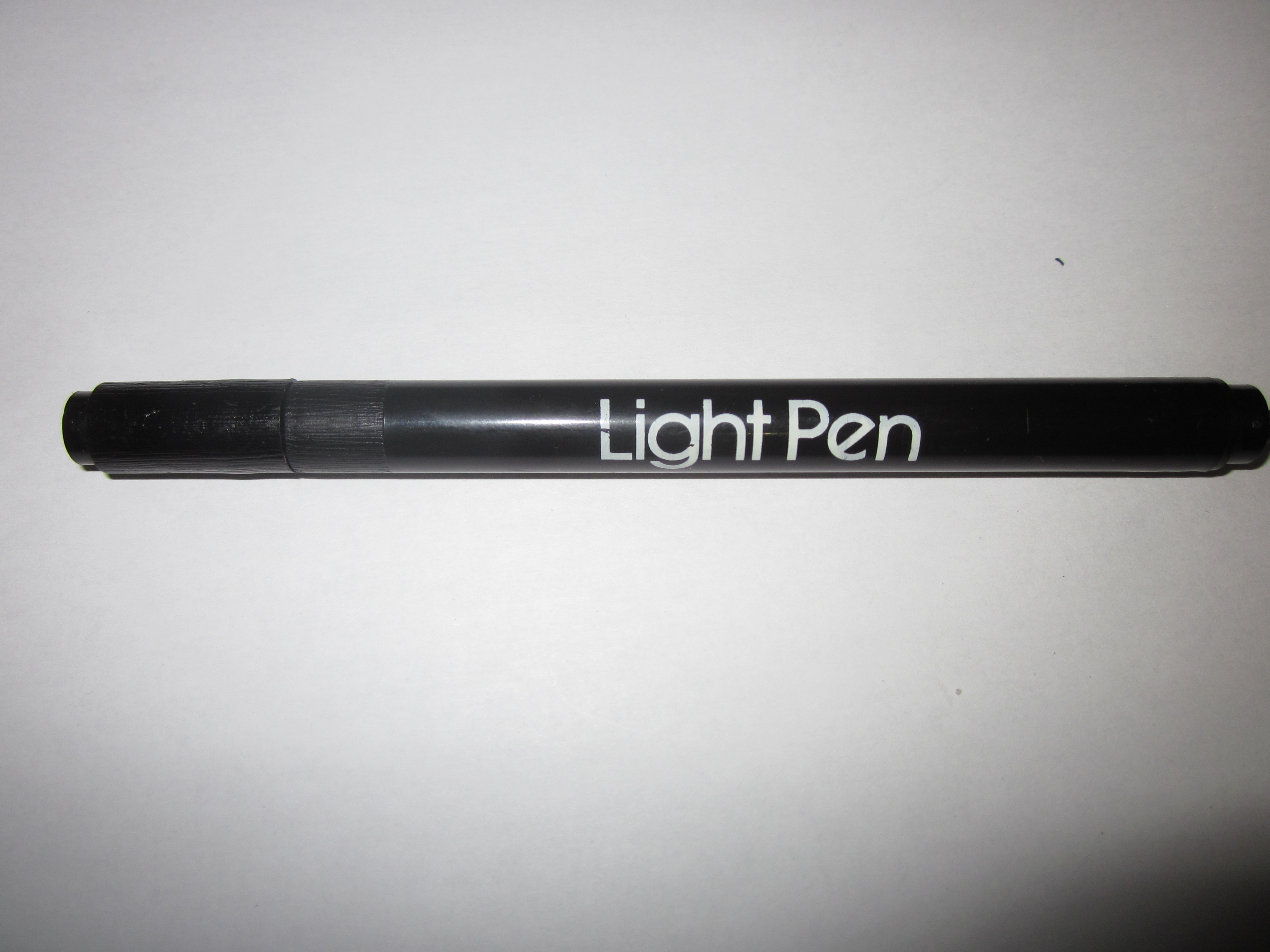
Light PenInterface UnitOriginal Packaging
Box FrontBox BackInner InsertAlthough Amstrad's original vision was to present the PCW strictly as a dedicated word processor, the truth remains that the PCW 8256, 8512, and 9512 systems were solid, capable computers. As such, they were perfectly competent at performing advanced workloads typical of alternative machines. To showcase this potential, the British outfit "The Electric Studio" developed this optical pen utility to enable full design plotting on the monochrome screen of the PCW.
The light pen kit bundled an expansion card interface that slotted directly onto the rear system bus of the computer, linked by an external tether cord to the actual drawing stylus. For its operation, a software disk was included, which not only allowed freehand vector rendering but also complemented projects with an array of geometric fills and canvas wireframes. Naturally, users could write their created graphics files directly onto standard disk storage or dump the active project to a printer.
Hardware Architecture
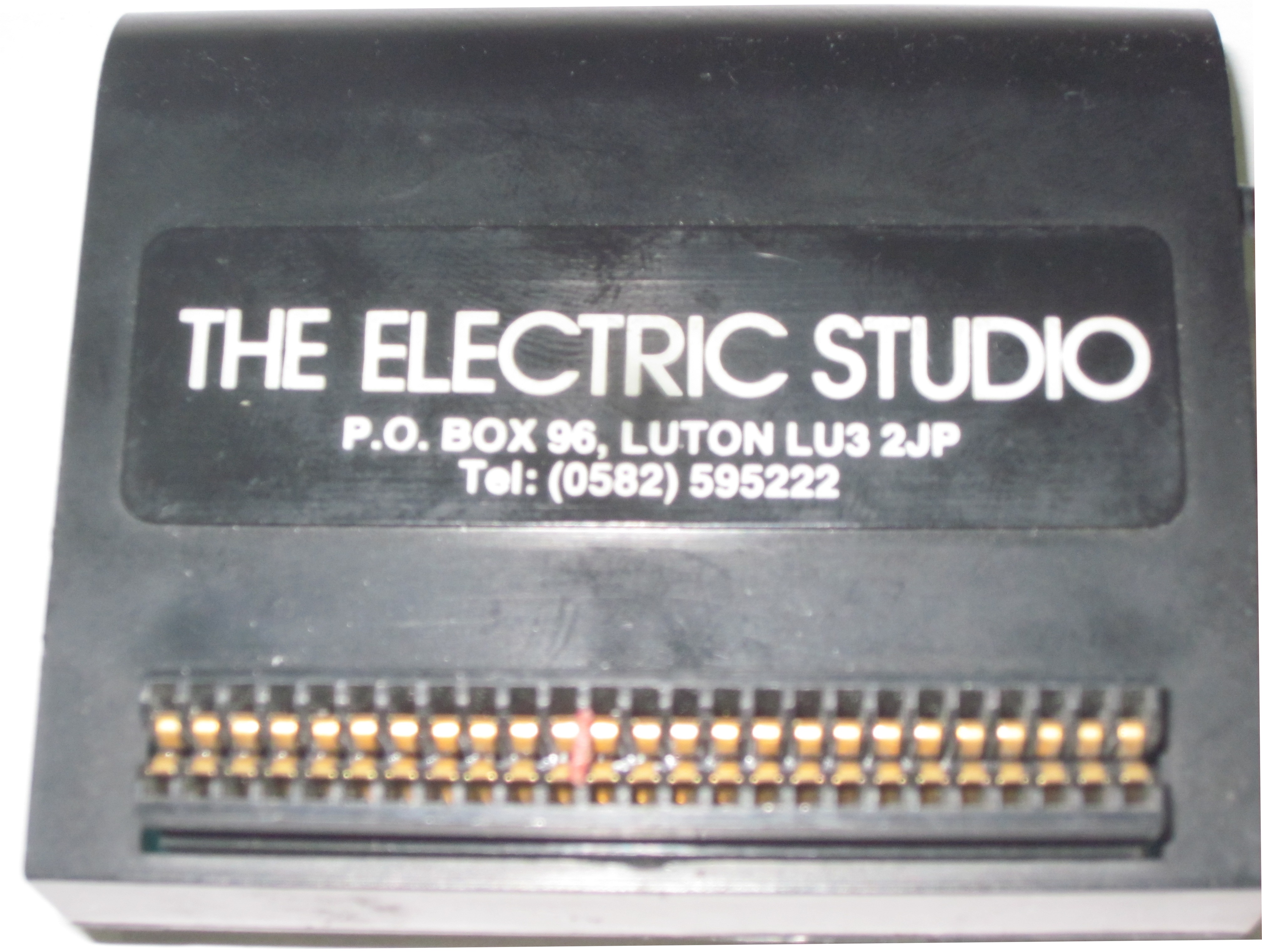
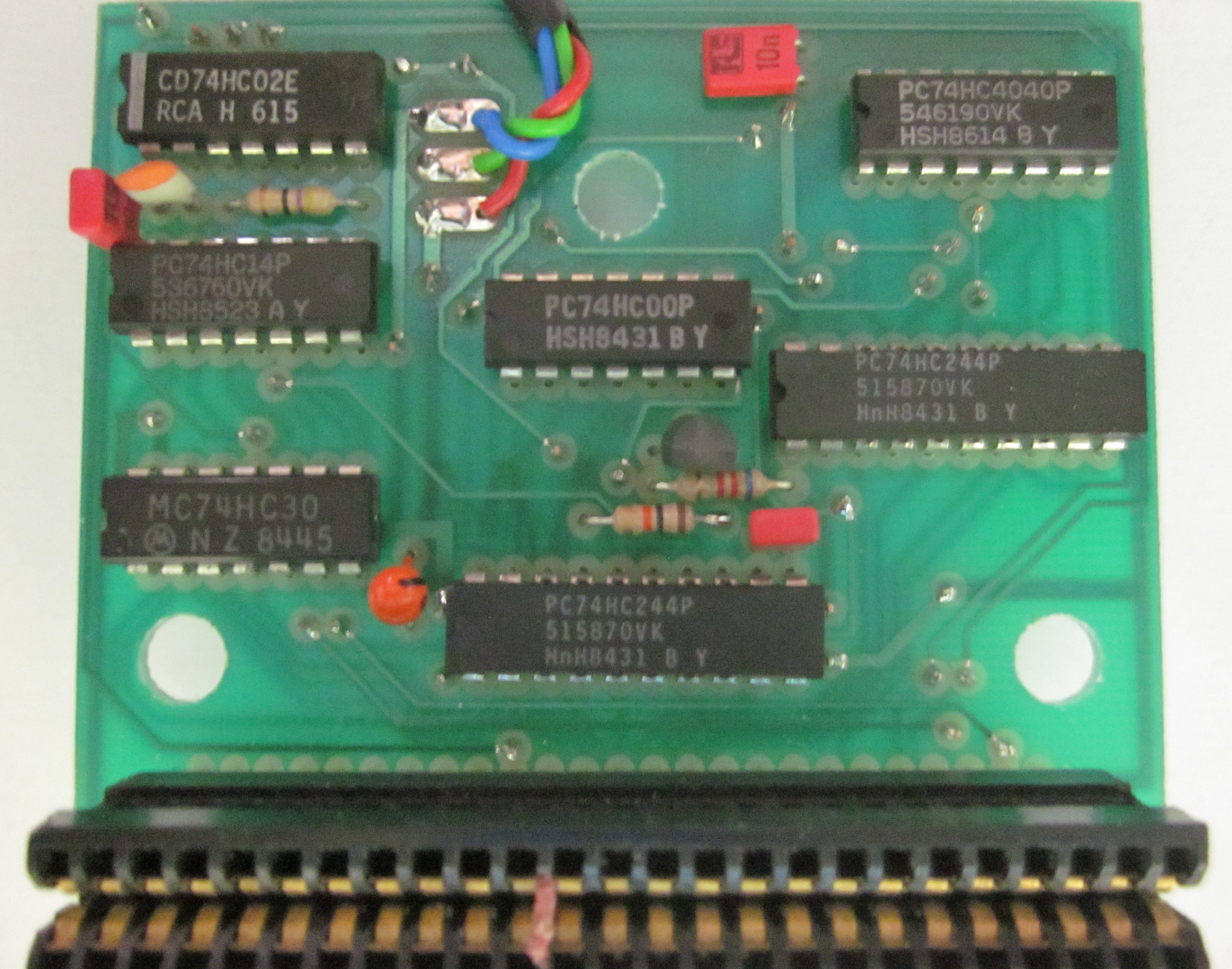
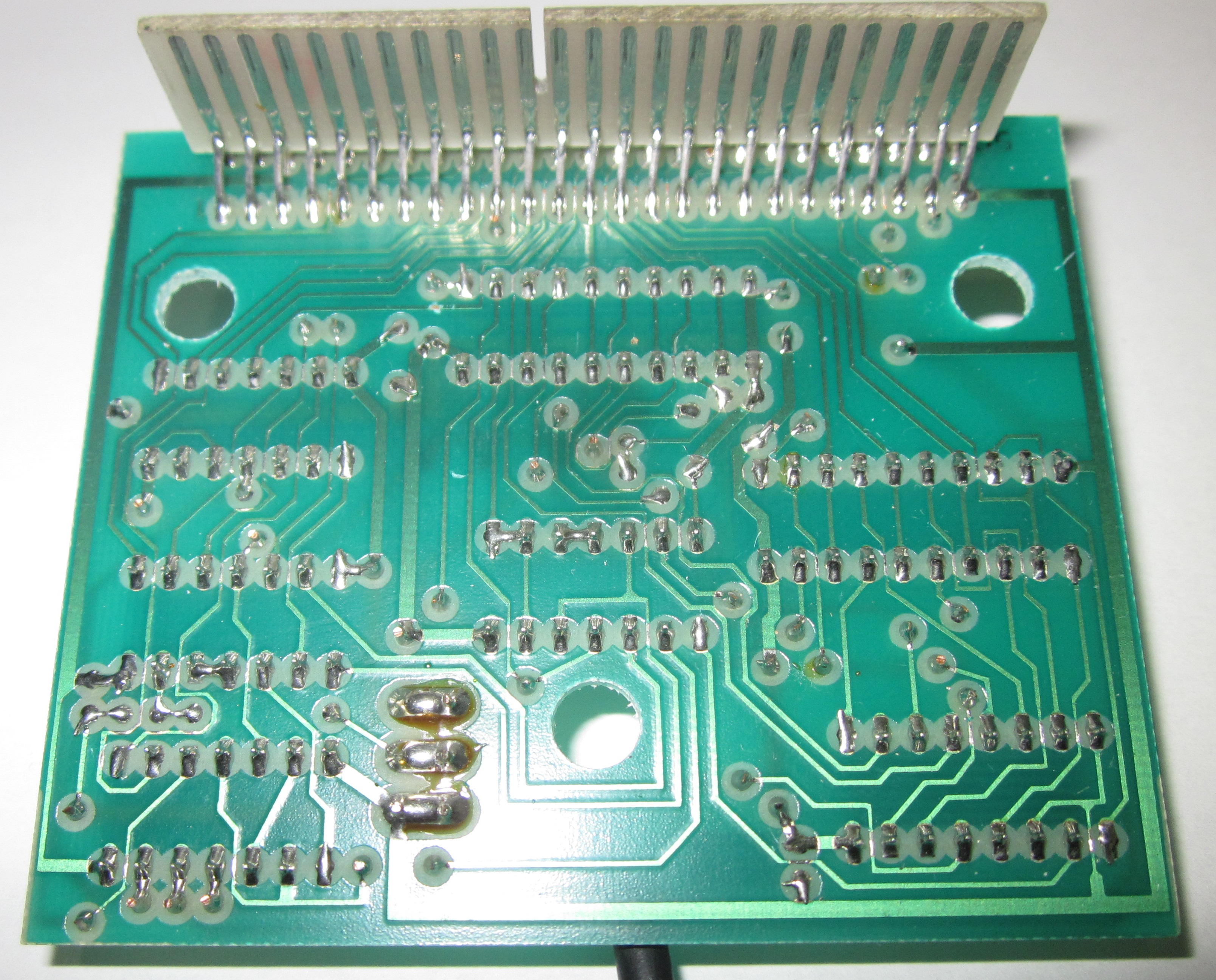
Complete BundleInterface PCBConnector Close-upDetailed Review
Ofites Informática introduced another entry into its line of graphical expansion units: the Electric Studio Light Pen, which was shipped alongside a custom drawing workspace developed by Supergrafix Ltd.
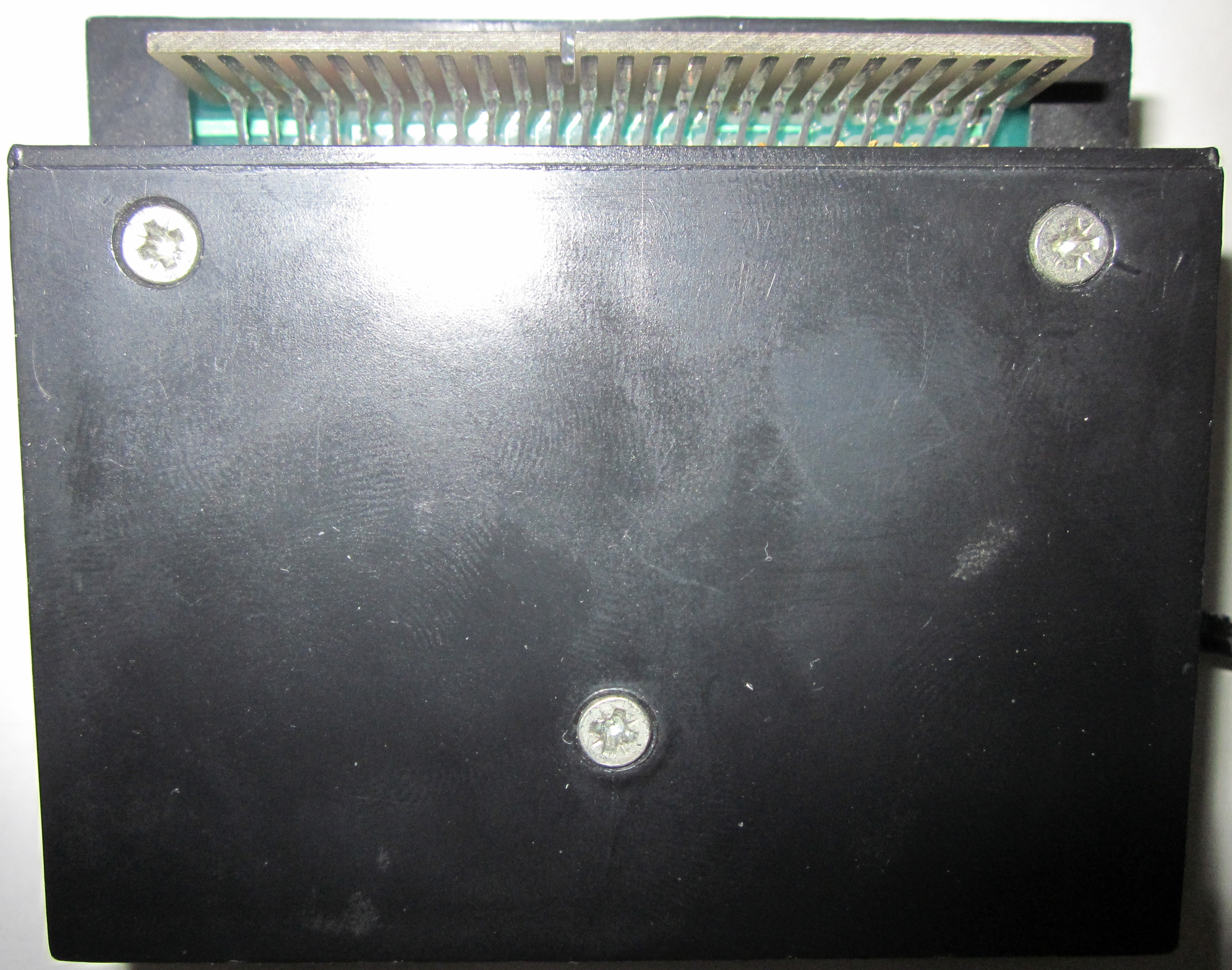
The system comprises the optical drawing pen and a small interface cartridge designed to mate with the expansion board slot. Regarding the pen, it features an external cap to keep out dust and debris that could potentially block the phototransistor light channel. Concerning the interface, structural connection is straightforward, although its housing geometry forces it to sit slightly skewed once mounted. It hosts a passthrough system bus array on its rear plate, though the documentation strictly warns against bridging any secondary peripherals to it. The bundled link cable is long enough to provide a highly comfortable workspace layout.
To begin with, given the highly intuitive environment of the bundled drawing utility, reading the printed instructions is practically unneeded. Regardless, it is always a sound practice to look them over before powering on the device.
Doing so brings us straight to one of the most amusing anomalies in the computing world: localized technical translations. This specific documentation booklet was translated into Spanish by ALPHA Translation. In addition to syntax errors typical of these projects, it introduces bizarre terminology such as "lapicera de luz" (light mechanical pencil) when referencing the pen, or "llave polarizadora" (polarizing key) to label the alignment shroud that prevents reversed insertion on the edge slot, or simply "llaves" (keys) to mean keyboard buttons. To top it off, the text flips across past and present tenses with total disregard for cohesion.
As a whole, this printed booklet feels rather poorly compiled, though it delivers just enough data to grasp how the optical cell tracks coordinates. Regardless, Ofites could have taken the time to proofread these pages; as they stand, they only need caption bubbles to turn into a comic strip. It is an immense pity that the actual software environment was translated using these exact same strange phrases, making it far better to simply operate the original English version.
This entry serves as a complete breakdown of those instructions, detailing the structural features of the graphics engine block by block.
Peripheral Directive Number One: Always connect expansion modules with the host machine completely powered down. Once directive number one is observed, simply boot into CP/M, insert the utility disk, and type art. The drawing suite loads entirely into system RAM, allowing you to immediately eject the utility disk and substitute a formatted volume to store your graphic layouts.
Optical Pen Drawback Number One: Canvas background illumination is intensely bright, which quickly causes eye strain unless glare-filtering lenses are used. Once this drawback is noted—which on the Amstrad PCW translates to a fully green phosphor glow—we can begin moving through the tool panel. The options layout sits on the left side of the display canvas, but it never disrupts drawing since it automatically auto-hides once you begin plotting a stroke.
The various utilities on the panel are selected by pointing at them with the pen tip and tapping the Spacebar. Upon successful registration, the PCW will trigger its classic internal beep. To mute this alert sound, simply tap the S key. Choosing a primary tool shifts to a secondary sub-panel layer, which can chain down into further layers. To back out one step to a previous menu node, hit CAN. To jump directly back to the top root panel menu, press STOP. This map offers a highly comfortable layout to travel through the application.
The very first node on the panel is the Help index. "Help" lists on-screen the hotkey mappings that carry out macros inside the workspace, specifying when they can be mapped (there are only fifteen variables in total, which are quickly memorized with brief usage).
The second sub-panel array manages disk allocation macros: writing and loading full screens, as well as listing a directory file table for any active drive mount (A, B, or M). The local translation uniquely titles this index "guía" (guide). Canvases are saved out into a fixed-length encoding block; in other words, no matter how sparse or complex a drawing is, its final byte print on disk remains identical. This approach heavily limits available volume space; a dynamic compression routine—similar to the architecture found inside DR DRAW—would have been a vastly superior choice.
The printer routing layout is remarkably extensive for an utility of this scope, supporting vertical dumps, small-scale prints, or full 1:1 output sheets (which are mutually exclusive). However, total optimization was not achieved: testing revealed that under full-size printing, the graphic output suffers from a noticeable vertical stretching bug. In the other two layout scaling profiles, this aspect ratio skewing is virtually imperceptible.
Next down are the design nodes dedicated to adding vectors, custom freehand paths, and standard geometric frameworks.
"Lines" triggers a submenu holding "single lines," "chained lines," and "radiant rays." Single vectors are placed by holding down the ALT key while tracking the pen to lock the initial anchor coordinate, and letting go of ALT to fix the terminal node. "Chained lines" (bizarrely translated as "líneas punteadas") does not mean dotted paths; it maps connected strokes where the endpoint of the previous vector instantly acts as the origin pivot for the next line segment. Finally, radiant rays are explosive lines extending outward from a singular common origin cell.
The "Draw" utility yields a secondary layout featuring "pencil," brush, "spray-can," plot dots, and a complete canvas clear function. The software translation maps "pencil" as "freehand sketching." To trace canvas details, you hold the Spacebar down while tracking the stylus. This offers a great scenario to check the input precision of this hardware module. Tracking is absolutely flawless until you approach the far right margin of the display monitor, at which point pixel mapping breaks down heavily: the tracing crosshair jitters constantly, making it nearly impossible to lock onto a single coordinate pixel. This unstable region covers a vertical band comprising roughly one-sixth of the total screen width.
The following feature on the main menu layout is the Fill utility. Selecting this tool reveals a choice of... 54 distinct texture patterns! This is in addition to a traditional solid flood option. Pressing the Spacebar floods the closed surface target pointed to by the pen. The routine can be canceled mid-load if needed.
Under the label "Shapes," users find a toolkit to plot standard or three-dimensional triangles, as well as flat, solid-filled, or 3D rectangles. It is reasonable to ask why solid-filled triangles were left out of this program layout, but it is equally reasonable that the software engine returns no answer.
The remaining structural shapes comprise basic polygons ranging from three to nine facets (which warp significantly if scaled up too large), along with circles and ellipses at any arbitrary rotation angle or aspect scaling. The manipulation layout is exceptionally clean: hold ALT and guide the pen to alter the master diameter; hold EXTRA to stretch the vector path into an ellipse or adjust its tilt, and hit the Spacebar to stamp the final geometry onto the project layout.
The text rendering capabilities of this software engine are particularly striking. Selecting "Text" opens up orientations for "normal," "upward," "backward," and "downward" text layout blocks (corresponding to an axis rotation of 0, 270, 180, and 90 degrees respectively). Furthermore, it provides nine separate typography scaling ranks! Size one matches the native PCW console character print, while size nine tracks an on-screen height of nearly five centimeters. Absolutely brilliant.
Under a generic system grouping, we find the following nodes: "Utilities," "Ink Color," and "Ink Mode."
The utilities subset allows shifting and duplicating rectangular canvas zones (preserving the source scale) and "focusing," better known in standard workspaces as a zoom tool. The zoom macro blows up the active coordinates (fixed scaling ratio) to allow pixel-perfect precision cleaning.
As one would expect given the Amstrad PCW's monochrome screen hardware, "Ink Color" lists few options: normal (green phosphor) and an entry titled "retrocedar" (go back), which we assume was meant to map to "black," translated in the distinct style of ALPHA Translation.
Lastly, "Ink Mode" accepts standard bitwise logical masking operations: Normal, XOR, AND, and OR. This setup enables, among other methods, quick corrections by drawing directly over previous design errors. Note that clearing lines is not possible using the EXTRA+DEL combination, which strictly rolls back only the single last stroke plotted (interestingly, the printed documentation wrongly lists ALT instead of EXTRA for this task).
And here ends the walkthrough of an software suite that is exceptionally well-engineered in certain areas and rather basic in others; we missed several advanced features such as arbitrary object rotation, user-defined brush stamps, variable zoom levels, or automated centration grids. Before purchasing the hardware bundle, it is wise to confirm that its functional scope will not restrict your design goals.
The utility volume includes a system device driver file designed to be initialized inside ASSIGN.SYS. The file is named DDESP.PRL and requires the companion video display driver DDSCREEN.PRL to reside on the exact same disk volume to operate. When mapped to any production environment that leverages GSX extensions, it allows guiding the graphic crosshair (graphic input) natively via the light pen stylus. This driver also adds a macro to flip the display monitor's color table by pressing the B key during active input mapping. We tested injecting DDESP.PRL inside the ASSIGN configuration file for Dr. DRAW alongside the standard printer module. The result makes navigation immensely more comfortable (Dr. DRAW is notoriously tedious to maneuver without a pen pointer). That is not all: the pen input can be utilized in environments like the CBASIC compiler, making it possible to write compiled standalone applications that accept rich graphical crosshair mapping through this hardware module.
This seamless GSX integration is undoubtedly the absolute best feature of this package. If your daily workflow involves frequently utilizing Dr. DRAW layouts, this peripheral becomes a highly valuable utility to own.
Media and Disk Support
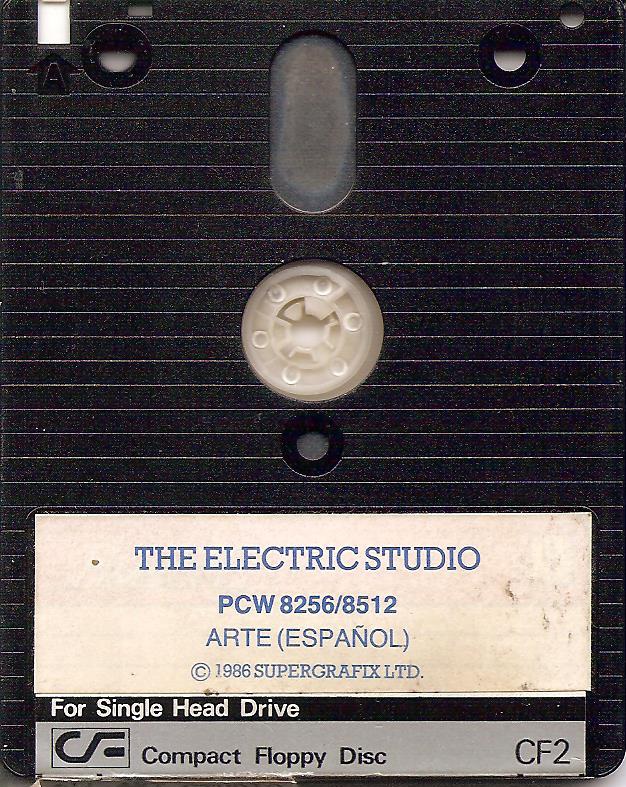
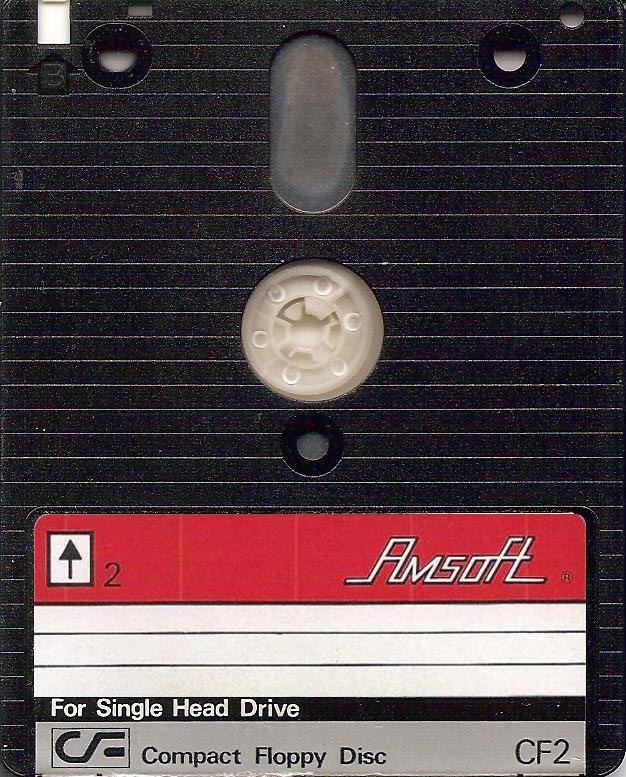
Disk Volume Side ADisk Volume Side BAdditional Gallery (Extras)
Interface Rear BoardInterface Trace ArrayDownloads Database
| Format | Documentation Archive / System DSK Images |
|---|---|
| The Electric Studio Light Pen Manual | |
| DSK | The Electric Studio Light Pen Disk A |
| DSK | The Electric Studio Light Pen Disk B |
en/hardware/perifericos/light_pen.1778746184.txt.gz · Última modificación: por jesus