The Light Pen by The Electric Studio is a peripheral that provides the PCW with a light pen input system via its rear expansion port, allowing users to draw with specifically adapted software titles.
hardware:perifericos:light_pen
¡Esta es una revisión vieja del documento!
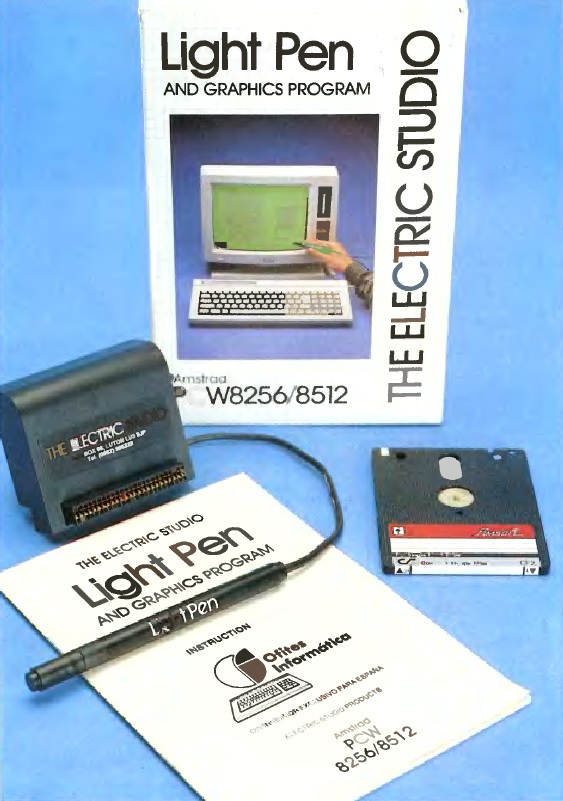
A> LIGHT PEN
Peripheral View
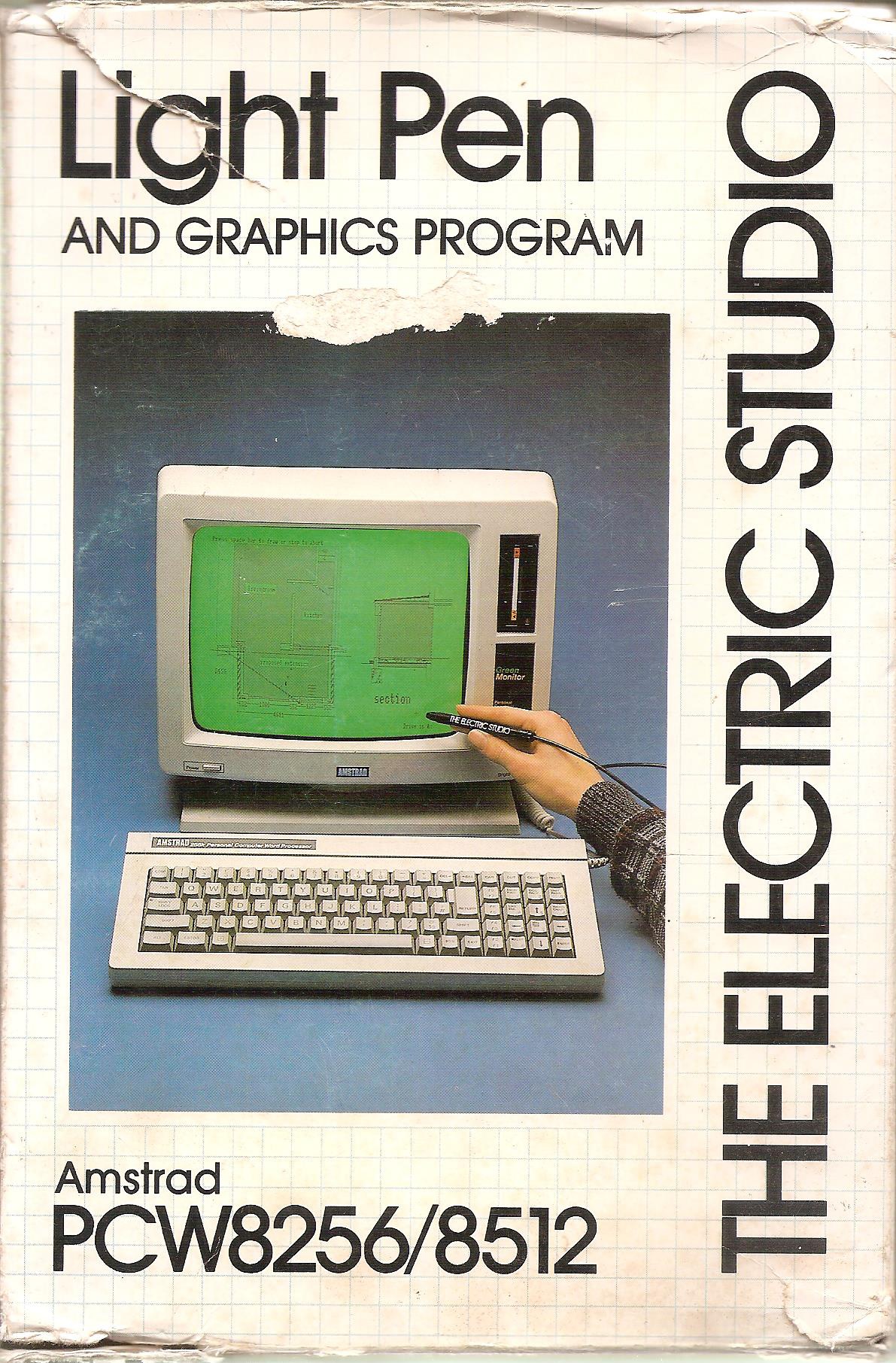
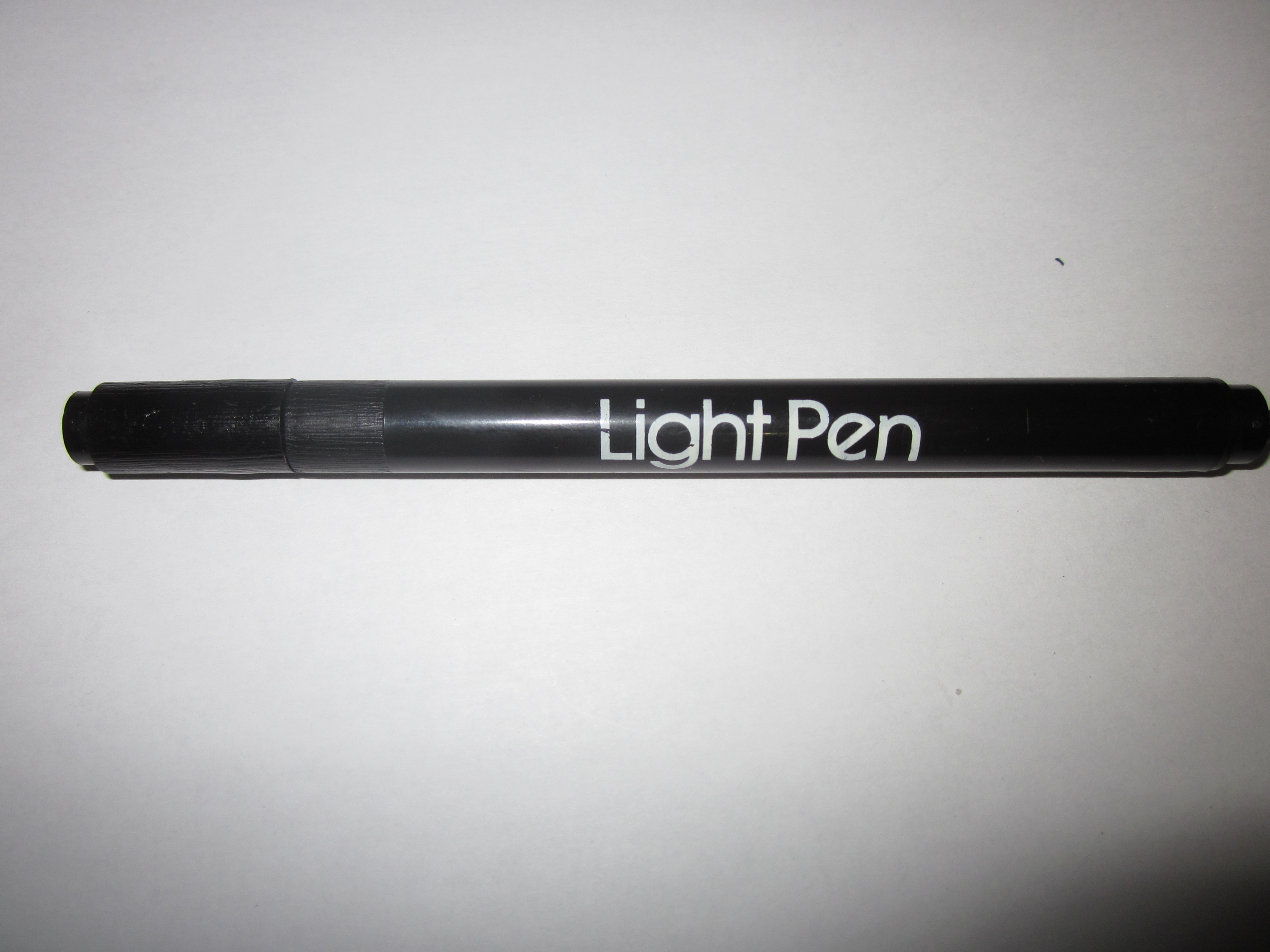
Light Pen PenInterface UnitOriginal Packaging
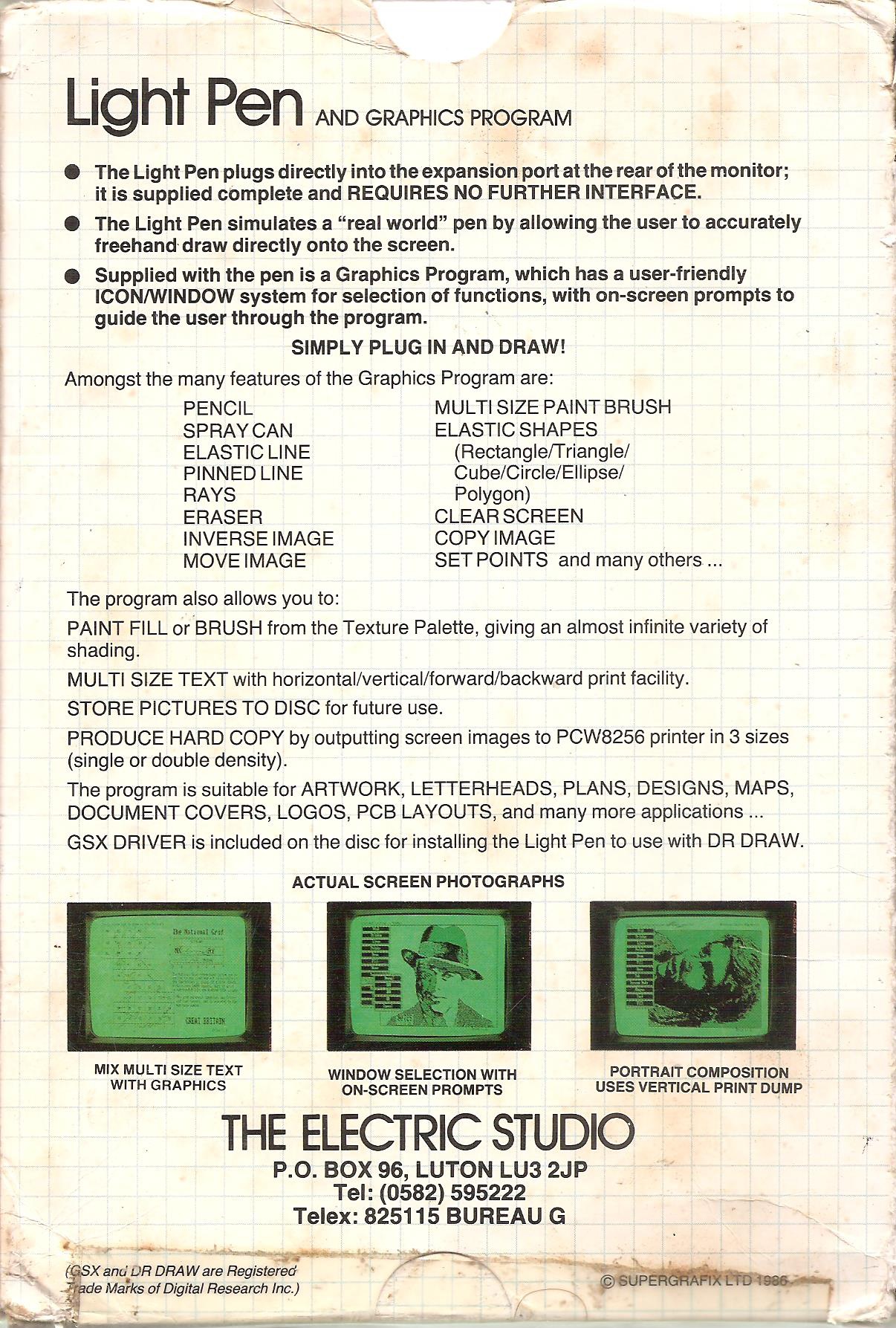
Box FrontBox BackBox Inner InsertAlthough Amstrad's original intention was to market the PCW with the clean image of a dedicated word processor, the truth remains that the PCW 8256, 8512, and 9512 models were highly capable computers. As such, they were perfectly capable of performing tasks typical of other machines of their era. To demonstrate this potential, the British firm "The Electric Studio" developed this light pen system to enable drawing on the PCW's monochrome screen.
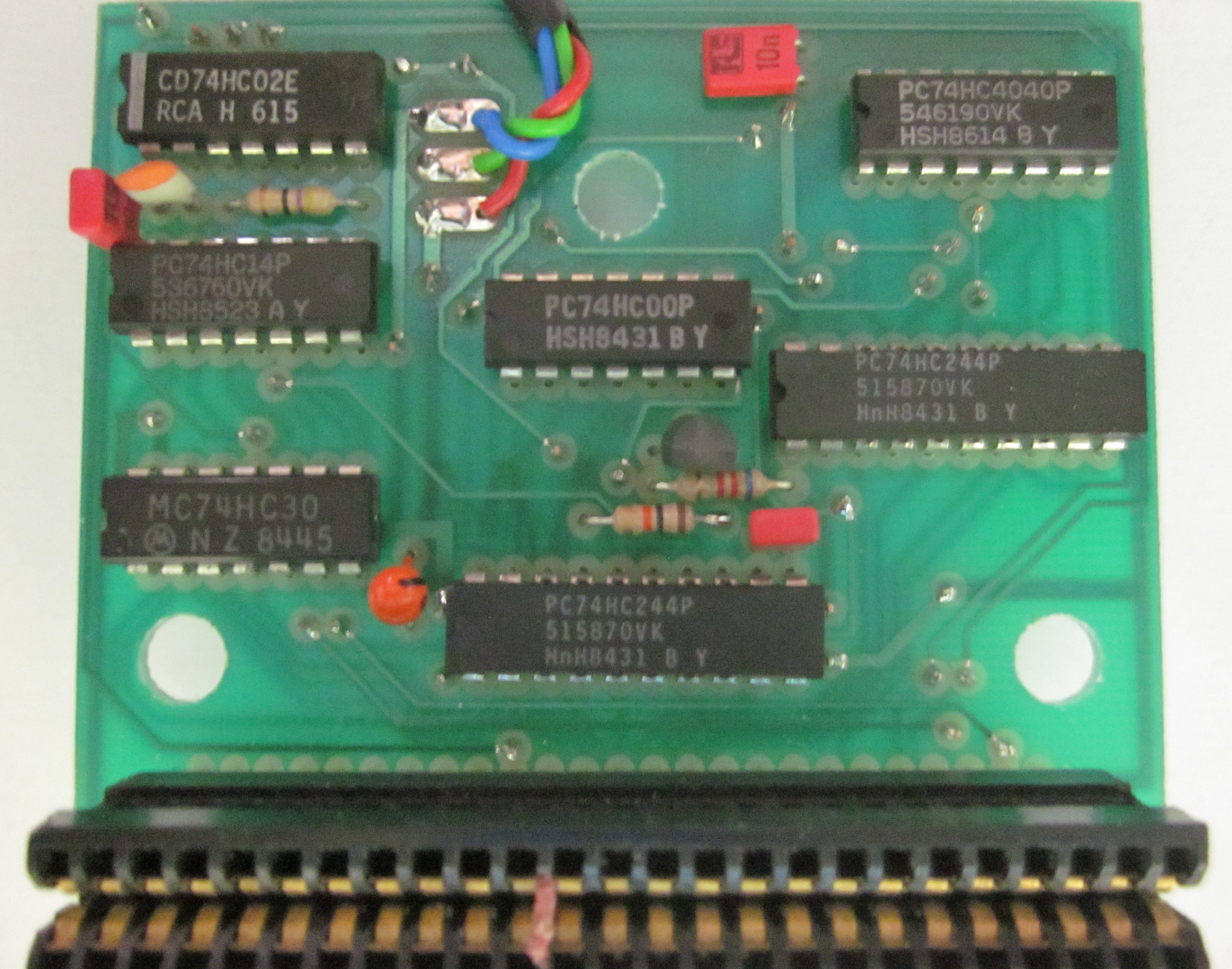
The device included an interface board that plugged directly into the rear expansion bus of the computer, with a wired link connecting it to the light pen itself. For its operation, a disk containing specialized software was included, which allowed not only freehand sketching but also complementing illustrations with various fill patterns and geometric shapes. Naturally, it supported saving the created drawings into standard disk files or dumping them straight to a printer.
Hardware Images
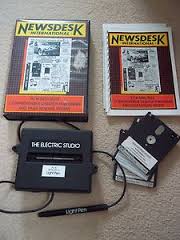
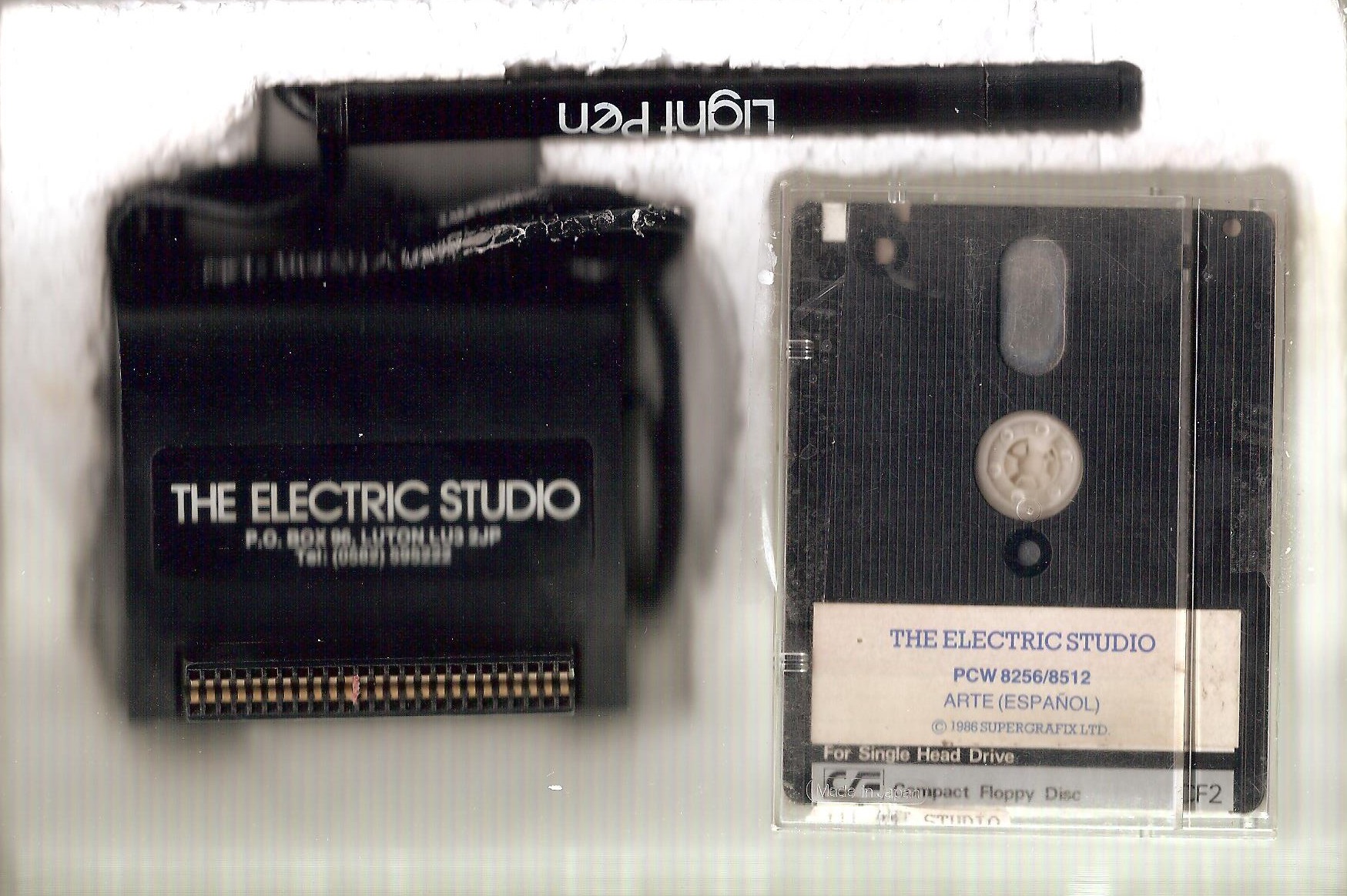
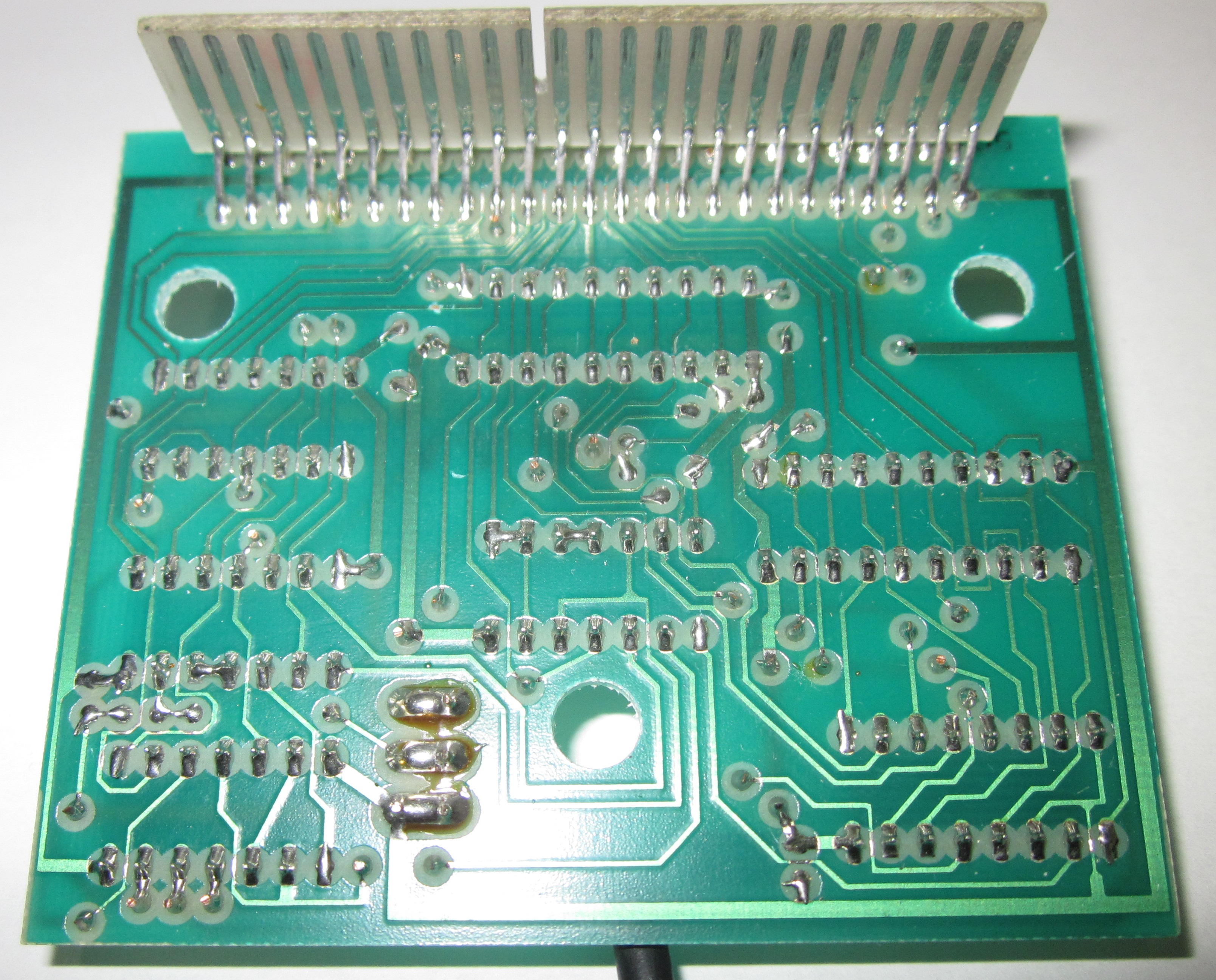
Complete SetInterface BoardInterface DetailDescription
Ofites Informática introduced another of its peripherals aimed at expanding graphical capabilities: the Electric Studio Light Pen, which was accompanied by a utility program developed by Supergrafix Ltd.
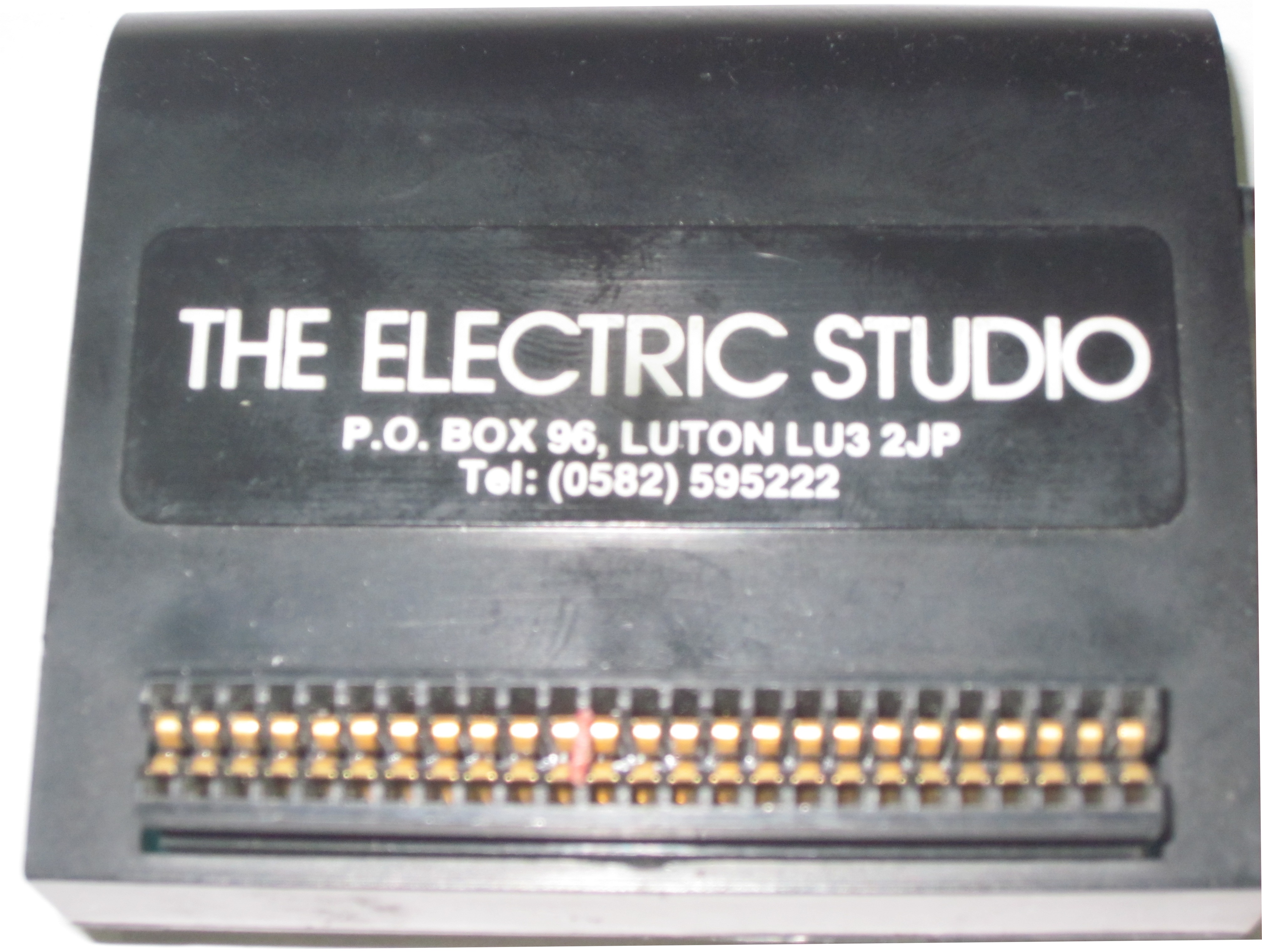
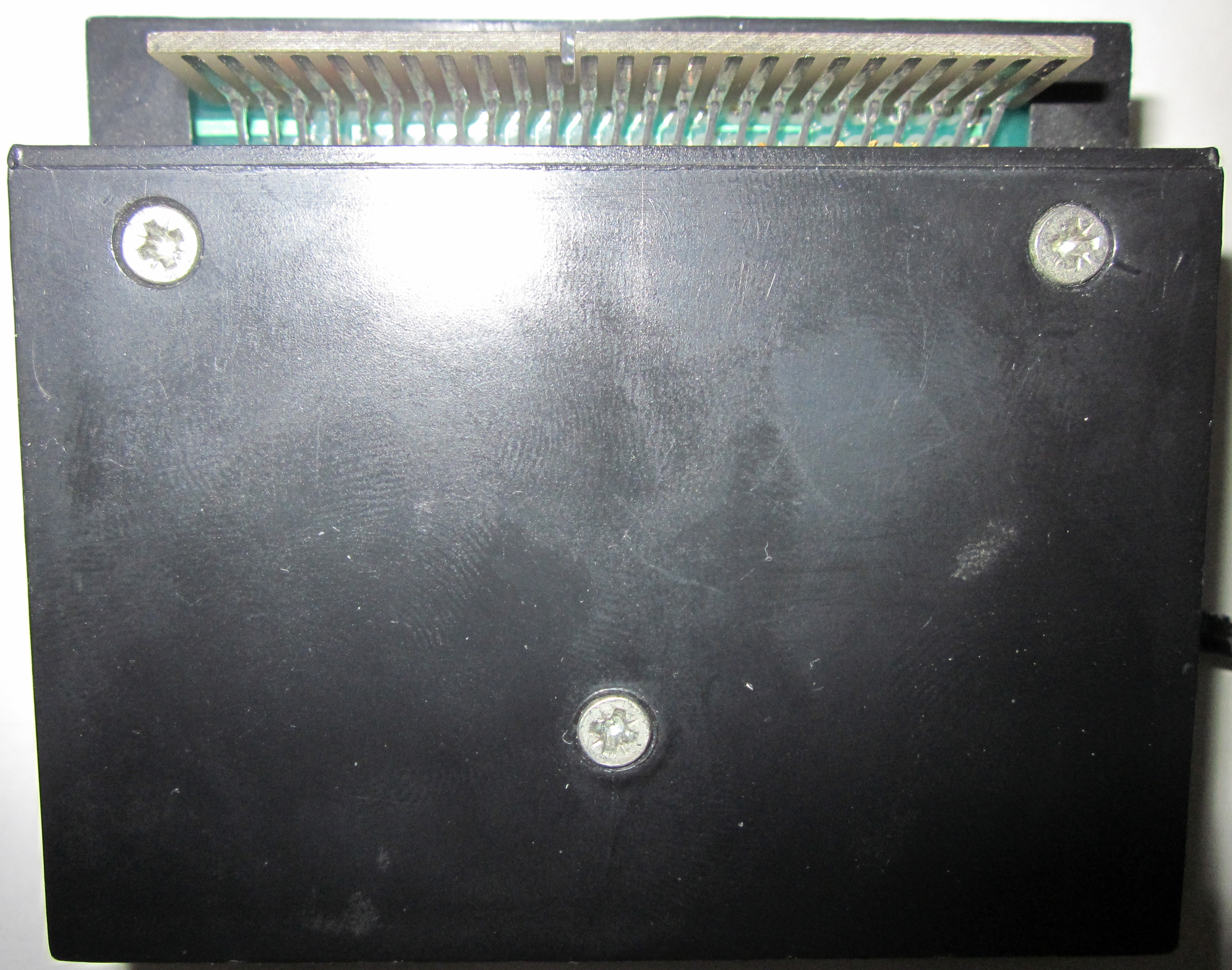
The hardware setup consists of a light-sensing pen and a small interface that connects to the expansion port. Regarding the pen itself, it features a protective cap to prevent tiny debris from entering and obstructing the optical light sensor. As for the interface board, connection is completely straightforward, though its specific physical design causes it to sit slightly askew when slotted in. It includes a passthrough expansion port on the back, but the user manual explicitly warns not to connect any additional hardware to it. The bundled cable is long enough to allow for a highly comfortable workspace operation.
To begin with, given the highly intuitive structure of the bundled graphics software, the printed instructions become practically unnecessary. Despite this, it is always advisable to read through them before hooking up the peripheral.
Doing so brings us face-to-face with one of the most amusing aspects of the computing world: localized translations. The Spanish manual was translated by ALPHA Translation. In addition to errors that could be considered typical in these scenarios, it features strange terms such as "lapicera de luz" (light mechanical pen) to refer to the pen, or "llave polarizadora" (polarizing key) when talking about the physical notch on the edge connector that prevents incorrect orientation; or simply "llaves" (keys) to refer to keyboard buttons. To top it off, the text mixes verbal tenses with total disregard for proper syntax.
As a whole, this booklet is rather poorly put together, though it provides just enough information to understand how the pen operates. Nevertheless, Ofites could have taken the effort to proofread and correct these instruction pages; in their current state, they only need speech bubbles to turn into a comic strip. It is a pity that the software itself was translated using these exact same bizarre terms, making it almost preferable to run the original English version.
This review serves as a perfect substitute for those instructions; we will explain the features of the graphics program step by step.
Peripheral Rule Number One: Always connect hardware with the computer turned off. Once rule number one is applied, simply boot CP/M, insert the supplied disk, and type art. The program loads entirely into the machine's memory, meaning you can immediately swap the disk for a formatted one to store your finished artwork.
Light Pen Pain Point Number One: Screen illumination is highly bright, making it straining to use without filter-glasses. Once this drawback is discovered—which on the Amstrad PCW manifests as a fully lit, intense green canvas—we can begin navigating the user menu. The menu panel appears on the left side of the screen, but it never interferes with the drawing process as it automatically hides when you start tracing a line.
The various menu items are accessed by pointing at them with the pen tip and hitting the Spacebar. Upon accepting a choice, the PCW will trigger its typical and rather annoying internal beep. To mute this alert tone, simply press the S key. Choosing an item opens a submenu, which in turn can lead to another nested submenu, and so forth. To retreat to a previous layer, use the CAN key. To jump straight back to the main navigation menu, press STOP. This layout provides a highly efficient way to move through the environment.
The very first item on the menu panel is the Help utility. "Help" displays the list of key mappings that perform actions within the program and specifies when they can be triggered (there are only fifteen combinations in total, which are easily memorized with a little practice).
The second menu section is dedicated to disk operations: saving and loading canvases, as well as pulling up a directory index for any storage drive (A, B, or M). The translated documentation refers to this directory index as "guía" (guide). Illustrations are saved using a fixed-length encoding format; in other words, regardless of how simple or intricate a drawing is, its final file size on disk will always remain identical. This constraint significantly limits disk storage efficiency; a variable-length compression format—such as the one used in DR DRAW—would have been a far better choice.
The printer management layout is surprisingly comprehensive for a utility of this type: it supports vertical printing, small scaling, or full-size scaling (which are mutually exclusive). However, complete perfection was not to be; testing revealed that when printing at full size, the final illustration suffers from a noticeable vertical stretching effect. In the other two printing profiles, this aspect ratio distortion is almost unnoticeable.
Following this are the design utilities dedicated to adding lines, freehand strokes, and an array of geometric shapes.
"Lines" opens up a submenu where we find "single lines," "dotted lines," and "rays." Single lines are drawn by holding down the ALT key while moving the pen to lock in the starting coordinate, and releasing ALT to fix the endpoint. "Dotted lines" does not actually mean stippled paths (yet another quirk of the translation); it refers to chained lines where the endpoint of the previous segment automatically becomes the origin of the next. Finally, rays are concentric lines originating from a single central pivot point.
The "Draw" option triggers a subset with "pencil," brush, "spray-can," points, and a screen clear utility. The local translation interprets "pencil" as "freehand sketch." To use it, you hold down the Spacebar while tracing across the screen. This allows for a perfect test of the input precision of this light pen. The tracking is flawless until you approach the far-right margin of the display monitor, at which point accuracy degrades considerably: the tracking cursor begins to jitter heavily, making it nearly impossible to pinpoint a single pixel. This unstable region covers roughly a vertical strip of one-sixth of the screen width.
The next option on the main layout is the Fill utility. Choosing this brings up a selection of... 54 distinct textures! This is in addition to a solid flood fill. Tapping the Spacebar floods the bounded area targeted by the pen tip. The operation can be aborted mid-process if needed.
Under the category of "Shapes," users can find a submenu to plot standard or three-dimensional triangles, as well as regular, solid-filled, or 3D rectangles. One might naturally wonder why solid-filled triangles were left out of this toolkit, but it is equally natural that the software provides no answer.
The remaining structural shapes include polygons ranging from three to nine sides (which distort heavily if scaled too large), and circles or ellipses at any angle or scale. The deformation layout is remarkably simple: hold ALT and move the pen to change the primary radius; hold EXTRA to stretch the path into an ellipse and alter its tilt, and press the Spacebar to commit the final shape to the canvas.
The software's typography subsystem is particularly impressive. Selecting "Text" opens options for "normal," "upward," "backward," and "downward" orientation (corresponding to a text rotation of 0, 270, 180, and 90 degrees respectively). Furthermore, it provides nine distinct font scale levels! Size one matches the PCW's system text output, while size nine renders letters nearly five centimeters tall on the monitor. Absolutely brilliant.
Under a generic utility grouping, the following features are found: "Utilities," "Ink Color," and "Ink Mode."
The utilities submenu allows moving and copying rectangular blocks of the drawing (retaining the original scale) and "focusing," which is simply a zoom utility. The zoom tool blows up the canvas area (fixed magnification ratio) to allow pixel-by-pixel editing.
As one would expect given the Amstrad PCW's monochrome screen hardware, "Ink Color" lists very few color options: normal (green tint), and an entry labeled "retrocedar" (go back), which we assume was meant to stand for "black," translated in the distinct style of ALPHA Translation.
Lastly, "Ink Mode" accepts standard logical bitwise operations: Normal, XOR, AND, and OR. This setup allows, among other techniques, making corrections by erasing over previous lines. Erasing is not possible using the EXTRA+DEL combination, which only undoes the very last drawn segment (interestingly, the printed manual wrongly points to ALT instead of EXTRA for this task).
And here concludes the breakdown of a piece of software that is exceptionally well-engineered in some areas and rather primitive in others. We missed a few quality-of-life options like arbitrary shape rotation, user-defined brush symbols, variable zoom factors, or automated alignment tools. Before acquiring it, it is wise to evaluate whether its feature set might feel a bit too restrictive for your projects.
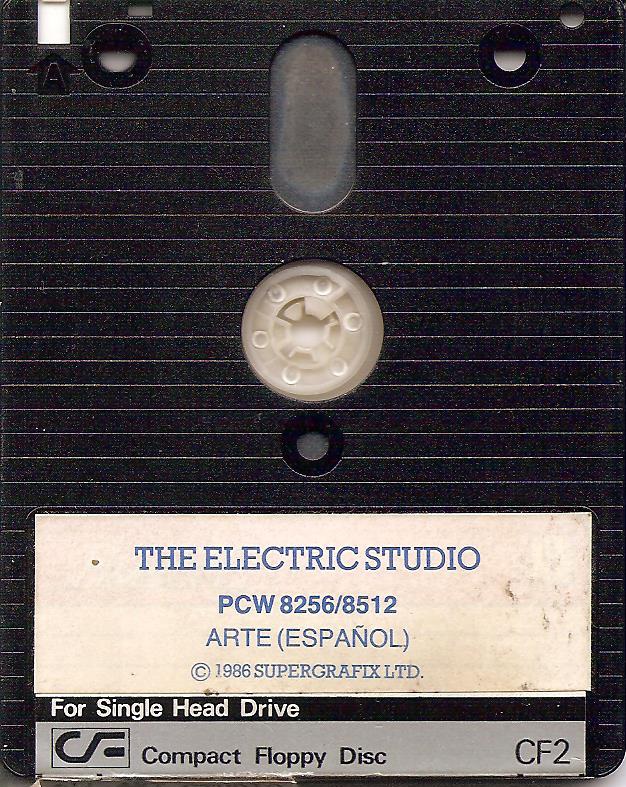
The utility disk includes a dedicated device driver file that can be referenced inside ASSIGN.SYS. The file is named DDESP.PRL and requires the companion driver DDSCREEN.PRL to be present on the exact same disk to work properly. When mapped to any software package that utilizes GSX extensions, it allows controlling the graphical canvas crosshair (graphic input) directly via the light pen. This driver also adds a feature to invert the display monitor colors by hitting the B key during active input mapping. We tested mapping DDESP.PRL inside the ASSIGN configuration file for Dr. DRAW alongside the standard printer driver. The result makes navigation vastly more comfortable (Dr. DRAW is notoriously tedious to operate without a pen pointer input). That is not all: the pen can be utilized in custom environments like the CBASIC compiler, making it possible to develop compiled applications that support rich graphical pointer input through this hardware.
This deep GSX integration is undoubtedly the absolute strongest selling point of this package. If your daily workflow involves frequently utilizing Dr. DRAW, this peripheral becomes a highly valuable asset to own.
Media and Disk
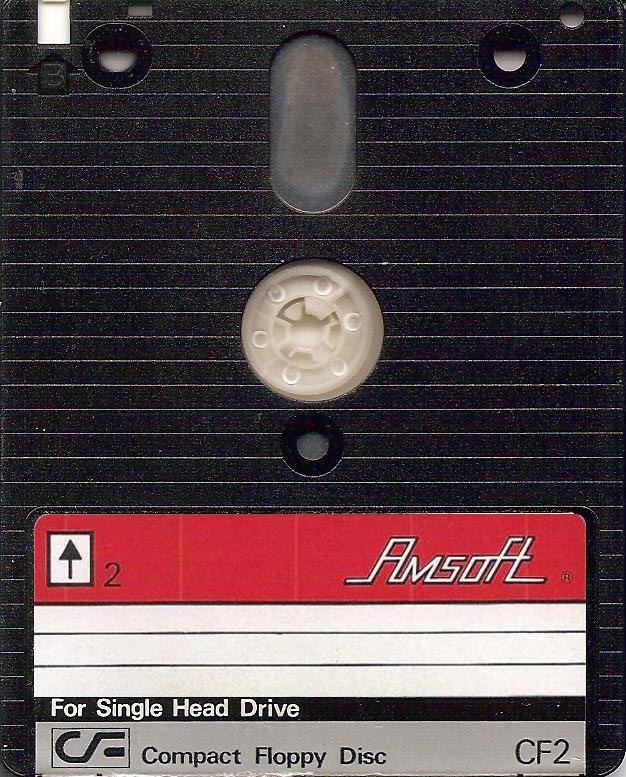
Disk Media Side ADisk Media Side BAdditional Gallery (Extras)
Interface Rear ViewInterface ConnectorSoftware Downloads
| Format | Available Archive / Documentation |
|---|---|
| The Electric Studio Light Pen Manual | |
| DJVU | The Electric Studio Light Pen Manual |
| DSK | The Electric Studio Light Pen Disk A |
| DSK | The Electric Studio Light Pen Disk B |
hardware/perifericos/light_pen.1778739287.txt.gz · Última modificación: por jesus